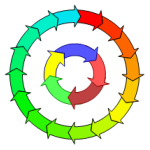
 Visio users have been requesting the ability to add more than five stinking arrows to the Circular Arrow shape. This shape, which comes with Visio, is found in Charts and Graphs > Marketing Diagrams stencil.
This article’s accompanying download offers an improved version of this shape. It allows you to add up to 20 arrows, automatically color them, and choose from 3 arrowhead styles!
Update 2016.12.29
For users of Visio 2013, 2016 (or newer), please read this article and download the updated shape: Visio Circle Arrows 2013
Microsoft’s Circular Arrow shape is not easily customizable by users, or even crazy people/experts like me. So in true Visio-addict-fashion, I’ve built a better, brand-spankin’ new mousetrap and posted it here for your enjoyment and consumption! Tell your friends: Free Custom Visio Marketing Shapes!!! Now that’s a mouthful!
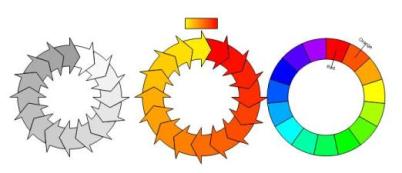
The shape comes in three flavors: Pointy Arrow, Streamlined Arrow and Bar. Each flavor comes in two “sizes”: up-to-10-arrows and up-to-20-arrows. That’s six bonus masters, just for reading this blog! Count ’em: SIX! That ought to satiate even the most arrow-hungry of you out there!
The three flavors differ mainly in arrowhead style:
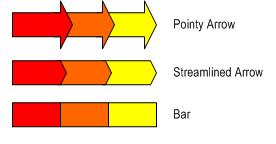
The diagram explains more about how to use the shapes, and the options available via the shape’s context menu. I hope this helps a few of you make even more dazzling marketing diagrams!
Looking for a PowerPoint version of the Circular Multi-arrows shape? Go here: Circular Multi-arrows in Powerpoint!
Edit 2007.11.26 Visio 2002 format now available:
Download for Visio 2007 Format and newer:
Download “Circular Multi-arrow (Visio 2007 format)”
s!Aj0wJuswNyXlhmtqaY-8Wua-b8ZS – Downloaded 18701 times – 103.00 B
Download for Visio 2002 Format and older:
Download “Circular Multi-arrow (Visio 2002 format)”
s!Aj0wJuswNyXlhmlD-d6XzpOfS4fj – Downloaded 7167 times – 103.00 B
Only you would go overboard like this. 😉 So was the five arrow one of your original shapes?
Nah, I don’t think I made the original shape. (Phew!)
By the way, I just uploaded a newer version where you can set the arrow-text to be level instead of rotated. Just right-click!
Just what I was looking for!!!
Thank you! This is just exactly what I was looking for. (* Are you married? *)
We actually laid-out and printed our wedding invitations using Visio (true story!)
This is really SUPER!! Finally the circular shape I have been looking for.
But, one little question: All the arrows are now evenly distributed along the circle, is it possible to make them adjustable? For example, when you have a 2 arrow shape you can make one arrow 2/3 of the circle and the other is automatically set to 1/3 of the circle??
Hi Pieter,
Good idea. It’s probably pretty difficult to do what you need with the shapes I built. I thought about doing that, but such a shape really needs a more sophisticated user-interface to control so many arrows. This would be beyond what the ShapeSheet could provide and would require separate programming, which I didn’t want to do for this revision.
Maybe sometime in the future!
– Chris
You rock! Made my day and saved my presentation w/ diagram from viewer disaster!
It’s a great improvement BUT…
Is it possible to have the arrows spiralling in towards the centre?
Also, with the text box, I like the rotating text but how do I make the text box inside the arrow longer, to span across more of the arrow?
Thanks,
Cristina T.
Hi Cristina,
There’s no feature in these shapes that would allow spiralling towards the center. We’d have to build a new shape.
As for the text, it seems to me that the text grows as you type to be as long as — or even longer than — the arrow. If you hit return, you can force a line wrap which will fit more text inside of the arrow.
Thank you very much for these templates. I had been struckling for hours trying to make these shapes before finding your website.
One suggestion for a future update: Dynamic text boxes on each arrow that curve with the arrow.
Thanks again!
Hi Jakob,
Thanks for the nice words, I’m glad the shapes helped!
Visio doesn’t support text-on-a-curve, but it sure would be a nice feature!
– Chris
Help Visio Guy
Do you have versions that I can use in my Visio 2000?
Perfect. Exactly what I was looking for. Thanks!
You freakin’ rule !!! I needed a 7 arrow shape and spent almost half an hour in visio trying to create a simple curved line arrow and then manipulating the rotation and finally gave up. I am so glad there are smart people out there that can expand on a default object. You really saved me with your modifications..
Paul
Thanks for this circle arrow. It took me a while to find them in the web but it was much faster than to understand how to crete them.
Nice feature for the future would be to give each segement a own define color.
Uwe
Thank you!
Thanks for the shape. How could I define my own colors??
Superb template. Boy do I wish I had happened upon this before I went to the trouble of programming a massively complex similar thing in PowerPoint. But now that I did that, if anyone’s interested in mine, let me know. As I say it’s in PPT, but it does some things some posters have asked for. It differs from VisioGuy’s one in that it can only have “streamlined” arrow type; it can do 1 to 10 arrows but not more; it allows (actually, forces) you to choose color of each arrow individually; it lets you set diameter of overall donut and thickness of the arrow band; it fakes placing the text on a curve by putting each character in its own text box (!); and lets you choose text font and size. All these things are configurable in a dialog box; it then saves your choices and text to a file so that next time you run it, it reloads what you had last time. Practically speaking, you can’t (or, wouldn’t want to) edit the text in PPT since each character is its own text box; the reloading of the dialog sort of gets around that by letting you easily delete an arrow-set and recreate it.
Hi Freddy,
I think I’ve got the colors locked down…because of the “smart coloration”. I should post another version of the shapes. ‘Til then, you’ll have to go into Window > Show ShapeSheet for each sub-shape (arrow) and remove the GUARD from the FillForegnd cells in the Fill Format section. Then you can freely color the arrows!
Hi Dahveed,
Do you have a link for your smart PowerPoint arrows? They sound really cool. If not, you can send to me at this e-mail, after you decrypt it: “Visio Guy [at] Hot Mail [dot] com”, and maybe I can post it on Visio Guy for you.
thank you so much for this – you saved me hours of frustration!!!
Hi Dahveed, I just read about your ppt arrows that you created. Is it possible to get a copy of it? I’d like to use it for a presentation. Thanks. Leslie
Leslie3 and Folks,
Dahveed’s PowerPoint arrow generator has just been posted. Have a look at Circular Multi-arrows in PowerPoint!
– Chris
Thank you! I’d spent ages trying to modify it myself – doh! 🙂
Hello Guy!
I can’t use the multi arrow you designed, maybe because i’m using visio 2002?
Could you also save it as a 2002 file pls?
Thanks in advance and regards.
Philippe
Hi Phillipe,
Check the end of the post again, I’ve added a Visio 2002 version of the Circular Multi-arrows shapes!
– Chris
Thanks a million, Chris :))
Philippe
Hi.
Good design, who make it?
After a frustrating hour exercising many mouse clicks and trying to arrive at 6 arrows, I turned to the net and found your solution. Thank you.
Hi
What a brilliant site!
Just one question:
Can the arrows be seperated out at all? i.e not joined together.
Thanks
thank you very much! good shape!
Extremely useful!
Thanks for this. I’m wondering if there is a way to make the shape oval? I turned off ASPECT protection but I still couldn’t get it to adjust. Please advise.
Hi Stacy,
I don’t think it will work. I put a lot of work into creating the smart geometry for circular arrows. If we were to squish them, the arrows would probably look terrible.
A crummy work-around might be to make a metafile out of your arrows. Get them configured the way you want, then copy the circle, select Edit > Paste Special and choose: Paste as Metafile.
This will create a dumb, clip-art object that you can squish. I don’t think it will look too good, but it’s better than nothing!
Hi Chris,
I think this is a great tool you have created…and have used it often! 🙂 Quick question…is it possible to change the color of just one shape?
Thank you for your help!
Joe
Chris,
Saved me hours. You’re the hero of the day. THANK YOU!
Steve
Great Stuff — Thanks!
Is there anyway to associated separate hyperlinks with individual arrow segments that would work in Full-Screen View (F5)?
I seem to be able to create the hyperlink but it doesn’t seem to work in F5 view?
Thanks again!
Hi Michael,
I was surprised that the hyperlinks on sub-shapes (individual arrows) doesn’t work in full screen mode, but it appears we are out of luck.
There is a hack that you can use to get the hyperlinks to work, though: make overlay shapes to hold the links. You could do it like this:
1. Draw a circle or oval that is about as big as the individual arrow where you need your link.
2. Add the hyperlink to the overlay via Ctrl + K
3. Give the overlay no-line pattern, and a 100% transparent fill (via Format > Fill dialog)
This way it will still be selectable and stay “hot”. If you do no-fill pattern, there won’t be a hot area for linking, ie: you’ll never get the link cursor on mouse-over.
I know this kind of defeats the convenience of having all the arrows in a single shape, but at least there *is* a work-around.
Another work-around would be to give the whole multi-arrow shape several hyperlinks. Visio shapes support multiple hyperlinks, which can be kind of cool. When you click on a “multi-linked” shape in full screen mode, Visio will pop up a little menu that allows you to choose from the available links.
Is there any way to make the arrow direction counter clockwise?
Hi Mike,
Two ways:
Ctrl + H (flip horizontal)
Ctrl + V (flip vertical)
🙂
I attempted to use the ‘Text Box Multi-Line’ in Visio 2007. I wanted to simply view rtf files, no editing required.
The problem is that the text viewing area expands to accommodate all the text. So for a file with even just a couple of pages of rtf text, the shape quickly becomes larger than the drawing. The shape comes with horizontal and vertical scroll bars but they essentially have no purpose since all text is visible all the time.
Thanks for any help.
Hi Dave,
I think you are talking about the UI/Windows-interface shapes. These are intended for designing Windows forms, web pages and other user-interfaces.
The scroll bars are there so that the shapes look like a real window with scroll bars, not so that the shape functions as an actual scrolling control!
You’re not using the shapes wrong, but you are expecting something that they aren’t capable, nor were they intended, to do.
Cheers,
– Chris
Hi,
Brillant. I was looking for this.
Can the width of the individual arrows be increased ? The arrows appear thin when the size of the circle is big.
Great work though. I love it.
Cheers.
Ninad.
Hi Ninad,
When you select the shape, notice a small, yellow diamond just below the top-center.
You can pull and push on this “control handle” to change the width of the arrows.
Too easy!
– Chris
I’m unable to download the updated 2007 version 2007.11.06. I have to be logged into what? Dumb question, but all I need to do is to rotate the test so it’s right side up on the bottom arrows.
Thanks
@poze9
Look in the right-hand column for “Meta”. There is “Register” and “Log in”
To get some of the downloads, you have to register with the site and be a member. Pretty standard stuff.
HI!.
I would like to download this file but I don’t know how I can log in 🙁
Regards,
CiroM