
Getting text on a circle in Visio was always a pain until the Circular Text Generator (version 1) appeared on Visio Guy. V1 was evidently a big hit, but you wanted more! Version 2 adds some more control over text spacing and placement on the circle. So if you need to place Visio text on a circle, read on!
.
.
.
Edit 2014.05.12
Be sure to check out the latest incarnation of text on a circle in: Text on a Circle Visio Shape. It offers a self-contained shape that works without VBA macro code, and can be freely edited without the “regeneration” step offered by this article’s tool.
Edit 2008.01.14: The original post was created as an offering to help the Seattle Seahawks defeat the Washington Redskins in the 2008 playoffs. It did…and they did. But it would have required Visio text on a five-dimensional object to overcome Green Bay in the snow. Seahawks: RIP 2008.01.12, Lambeau Field, Wisconsin.
Here’s the original ha-ha-intro text for history buffs, or you can just skip to “What’s New”
Original introduction: I hinted that Santa might deliver, but Art reminded me that Christmas is long gone and V2 still wasn’t here!
So I’m placing version 2 on the “alter” today, with the hopes that this offering might please the NFL gods and help our beloved Seahawks triumph over the Redskins. Perhaps we’re in luck. As I type, Njord and Thor have turned the skies gray, and are busy brewing up a most unpleasant wind- and rain-storm — Northwest-style — for our guests today.
And for folks like Art, who’s Bears finished 7-and-9, there’ll be some new features to play with while the TV is off. 😉
What’s New?
Version 2 ads three new features. You can now do this:
- Flow the text clockwise or counter-clockwise
- Place text on the inside or outside of the circle
- Adjust the character spacing for tighter or looser text
The new features are accessible via the Shape Data Window (or Custom Properties Window for Visio 2003 and older versions). You can show this window via: View > Shape Data Window or View > Custom Properties Window.
Simply select the “guide circle” to see the fields, then edit to your heart’s content!
Text direction
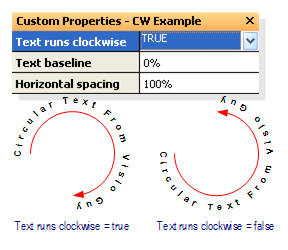
If you put your text on the bottom of the circle, you might not want it to be upside down. In this case, you can switch the text direction to be counter-clockwise using the “Text runs clockwise” data field:
Text Baseline
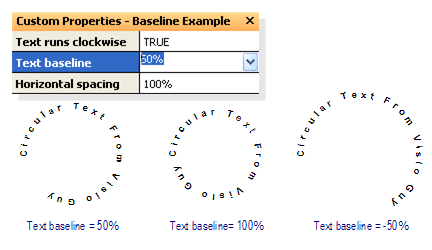
For text that sits right on the outside of the circle, use a baseline of 0%. For text that is centered on the circle, use a baseline of 50%. As you increase the value, the text moves toward the center of the circle. Decreasing the baseline value — even into negative values — move the text outward.
The “Text baseline” data field has several built-in choices that you can quickly try using the roller on your mouse. All three examples in the image below have the same-size circle, so you can see how the baseline settings affect the look of the text:
Text Spacing
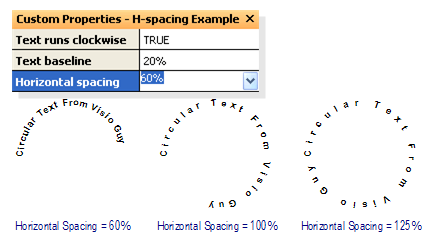
Yes, Visio has already has settings for stretching fonts and adding spacing between characters (see: Format > Text > Character tab…), but we’ve made this a more directly accessible feature by adding the “Horizontal spacing” data field. Smaller values cram the characters together, larger values give each letter some breathing room:
As with version 1, you’ll need to allow the VBA macros inside of the document permission to run. If you’re not familiar with VBA macros, and the related security issues, please have a look at VBA Macro Security first. Once you’ve downloaded the file, opened the document, checked the code, and enabled the macro code to run, you’ll be ready to rock-n-roll!
Download “Circular Text Generator, v2 (Visio 2007)”
s!Aj0wJuswNyXlhnLQo7DHEkv5kgCO – Downloaded 52362 times – 103.00 BDownload “Circular Text Generator, v2 (Visio 2002)”
s!Aj0wJuswNyXlhnHoXN7WdudXMzGt – Downloaded 8192 times – 103.00 B
Hi Andy,
No idea what is wrong. I just opened the file, clicked the button, and it worked. Can you try it on someone else’s machine? Which version of Visio are you using?
Hi Chris,
I have tried and tried, and I’m not getting the Circular Text Tool. I enabled trust and Macros and can get it to work on document you provide, but not in the document I’m editing. Then if I cut and paste from your document, I can’t move it in mine. I’ve turned off layer protections, and snap and glue, but cannot get it to let me place it where I want it.
Help,
Bill
Hi Bill,
It is really helpful to read the first article Circular Text Generator (version 1) in order to understand how to use the shape.
When you copy generated text, you need to copy the guide along with it. The guide is the dashed circle with the radial line. Without this, the individual letters essentially have no one to tell them what to do!
First off… Great Tool! Is there any way to control the spacing between the characters? I see in the shapesheet data the Character Spacing is 0 pt, but the shape looks like there is more than 0 pt spacing. I did try changing the data to something like -2… -5, ect, but some of characters didn’t space property.
Example: If you used font style Calibri 12pt, and your string is IDW_CORE, the space between the I and the W is tighter than the rest of the characters. I thought it had to do with the font design of the I, but other fonts acted in the same manner and others equalized the spacing properly.
Thanks!
How about using the “Horizontal Spacing” setting described in the last paragraph: “Text Spacing”? Note, you have to select the Guide, not the characters to edit this property in the Shape Data window.
I believe that the individual character spacing settings are locked so that the respect the “global” setting value from the guide.
This a great tool. Thank you so much. The more I use it, the more uses I find for it. But I do have a question. Is there any way to configure the tool so that the alignment pointer can be centered with the text? By default, it’s “left justified” (for lack of a better description). This is okay for single circles, but it’s very difficult to align multiple. Thanks!!
my id is lost due to purge. Trying to re-register but never getting the email with the password. stuck, can you help please
Hi Roy,
Did you check your junk mail/spam filters?
Thank very much!
Which version, if any, is compatible with Visio 2003 Professional running on Windows 7?
Thanks,
Stan
Hi Stanley,
Version 1 and 2 should probably work on Visio 2003, although I haven’t tested. I believe they were developed with Visio 2007.
I just tested my vastly-improved, for-sale version, Text on a Circle Visio Shape (which includes a free version with limited features for testing) and it works just fine on Visio 2003.
Hope this helps,
Chris
Chris,
I went ahead and took a chance and purchased version 2 and it works just fine in Visio 2003 Professional running in Windows 7. I guess you can add this to your list of compatible versions. Thanks!
Stan