 OK, we’ve just about had enough! Between all the newsgroup posts, and John Marshall’s nagging, it’s time to do something about adding text to a circle in Visio. ‘Til now, the standard response has been; “insert a Word Art object”. But with Visio’s SmartShape- and automation capabilities that just won’t do! We ought to be able to build something cool–and more native to Visio. This article presents the first in a series of the Circular Text Generator!
Edit 2014.05.12
Be sure to check out the latest incarnation of text on a circle in: Text on a Circle Visio Shape. It offers a self-contained shape that works without VBA macro code, and can be freely edited without the “regeneration” step offered by this article’s tool.
Getting Started
The companion download at the end of this article contains a zipped Visio file that will help you create text that wraps nicely around a circle! You can resize the circle, format the text, and reposition the text’s starting point to get just the look that you want! But in order to get the “generator” to work, you’ll need to allow the VBA macros inside of the document permission to run. If you’re not familiar with VBA macros, and the related security issues, please have a look at VBA Macro Security first. Once you’ve downloaded the file, opened the document, checked the code, and enabled the macro code to run, you’ll be ready to rock-n-roll!
Running the Generator
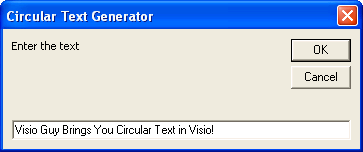
To generate circular text, you simply need to click the button on the page. You’ll be presented with an input dialog, into which you can enter any message you want:
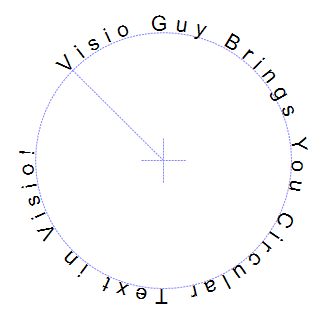
After you click OK, you’ll see something like this:
Tweaking the Output
The result is a system of shapes, not a single smart shape. Note the light-blue, dotted circle, diagonal line and cross hairs. This is the Guide Shape. The characters are bound to the guide via smart formulas in their ShapeSheets. Thus, the guide serves as a sort of User Interface for changing the look of your curved text. You only need to select the guide shape to do any of the following operations:
- Resize the circle
- Reposition the entire system
- Change the starting position of the text
Note: the guide does not print, so you don’t have to worry about funny looking circles in your finished, printed documents! Below, you can see the yellow control handle that appears when the guide is selected. Just drag this to change the starting location of your message:
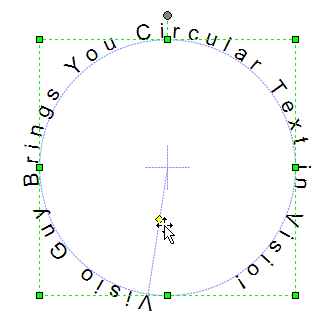
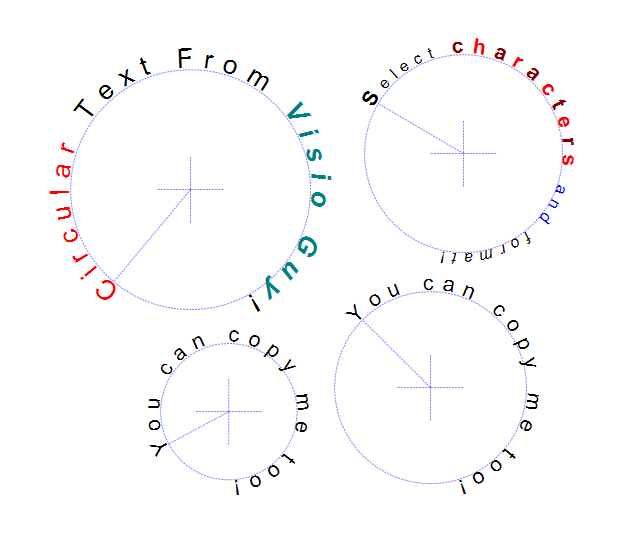
Since the characters are separate shapes, you can simply select any number of them by either dragging a selection net around the characters, or by Shift + Clicking individual letters. The formatting of the characters is not locked in any way, so you can change the color, style and size of each character. You can even change the character itself, although there is no way to edit the whole message. If you need to change the text, simply create a new system by clicking the button.
We hope you find version 1 of the Circular Text Generator useful and easy-to-use. We will be periodically enhancing the capabilities of the tool, so check back often!
Update: There’s a new version available. This article still applies so be sure and read it, but go to Circular Text Generator (version 2) to get the latest features!

Very impressive! Nice work, Chris.
Thank you soo much for this great tool! This feature was really missing in visio 🙂
Could something similar be created to put the text inside the circle?
This is something I have been looking for in Visio for some time – thanks!
Hi Art,
I’m planning to add features to this over the coming months. One of those features will be to be able to shift the “baseline” so you can move the text in and out with respect to the circle.
So check back now and then! I suppose I should figure out how to e-mail new-post notifications to you readers 🙂
– Chris
Chris,
No worries on an email alert system – I am checking in often enough. 8^)
Another thought on the circular text generator – have a radio button that selects “clockwise” or “counter-clockwise” for the text direction.
Thanks!
Art
Great site and great stuff mate… I was really trying hard for the circular arrows and text and you’ve just delivered me right out of my mess.
Chris,
Is there any way to “hard set” or enter the starting angle in a control box on the text start handle?
After adding text it becomes more difficult to get precise control – 45 degrees, 90 degrees, etc.
Thanks!
Art
Hi Art,
There’s no numerical setting for the starting angle. It works well on my machine. It might have to do with computer- or video speed. You might fiddle with the live dynamics setting:
Tools > Options > General Tab: Uncheck “Enable Live Dynamics”
This will make it easy to push the yellow handle around, but you won’t see what you’ve done until you let the mouse button up.
Have been after this for a long time now. Thanks again.
Great Tool. Seems unfair to ask for adjustments, but I will anyways. How can I make the set the letters to be closer together. I need to be able to squeeze more text into one slice (arc) of the circle.
Hi Trampas,
A few things you might try:
– Use a narrow font, like ‘Arial Narrow’
– Look under Format > Text > Character Tab. There you can shrink the width of the characters, or the spacing between the characters. This might help
– Check back for updated versions now and then. I’m not sure when version 2 will appear, but it’s in the works…
Cheers,
– Chris
Visio Guy,
Kudos on this script. It has helped my group at work significantly with some graphics we are making.
I too am interested in the additional functionality when you get to it – The ability to write inside the circle as well so that you can curve text down or up.
Cheers,
Kevin
…well, I suppose Christmas is just around the corner! 🙂
– Chris
Chris,
This “Gem” of an article has disappeared from the front page and the archive page – I had to access it from the “Index” page.
Thought you should know…
Any updates as Christmas has just past?
Thanks!
Art
Great work! Is there any hope for older versions (Visio 2002) or perhaps posting the script?
Regards,
James
Hi Art B,
You have helped me find a bug in my archive code. This article had indeed disappeared!
It was stuck between the post-excerpts-with-icons, and the shorter entries. I’ve added a “<=" in place of an "<", and now everything works! Thanks for catching this. Hmm...and yes, Christmas is past. Perhaps the I should upload the next version soon...perhaps an offering to ensure a Seahawks 1st-round playoff victory? Cheers, Chris
Please upload the new version – love to give it a spin.
As for football – this season’s high points were the Bears beating the Packers in both games this season…
Thanks!
Art
Ok Art,
Version 2 is finally here! Circular Text Generator (version 2)
Cheers,
– Chris
At last an ongoing problem is solved! Thanks so much for this text generator.
Will this work with Visio 2002 sp2? Our corporate is a bit behind and I can not open the downloads
Hi John,
See version 2 of this tool. There’s a Visio 2002 version posted there.
– Chris
looks great. will enjoy the tools. thanks for the problem solving soultion.
I am looking for a way to generate a graphic from text (from a file) in a diminishing circle. To visualize what I am talking about imagine looking at your backup CD and seeing alist of files on the disk, starting at the outer edge and circling around and gradually moving toward the center of the disk.
I would like to burn the resulting graphics onto labels (or the disks themselves) so that I can tell at a glance what files I have on there (or Directories)
Has anyone seen a utility like this?
Thanks.
Hi Vincent,
You could use the second version of this tool, Circular Text Generator (version 2), and create many concentric circles, but I think you wanted a spiral text effect.
There is a spiral generator on Visio Guy, here: Spiral Shape Maker, but it doesn’t do any text.
If you are handy with VBA code, you might be able to modify it.
Cheers,
Chris
I just like to say I think this tool is brilliant.
Is there any way to get the text inside the circle so that it arcs the other way.
BRGDS for the future
Hi Crowlcat2,
See the newer version: Circular Text Generator (version 2). It does what you need!
I still cannot get the button to appear or the macro to run – do you have a slow learning idiots guide to implementing this
Hi Tina,
I see that you commented on version 2. Does that mean you’ve figured this out?
1. I tried to register myself here, but the e-mail with password is not being sent correctly (tried twice with two different usernames and e-mail accounts). Nothing.
2. I tried to reset the password for the accounts created. I received the email (WordPress) but after clicking the link provided to reset the pass it says: “Sorry, that key does not appear to be valid.”
What’s wrong? How can I register?
Regards,
S.
Hi S.,
No idea what’s wrong. Did you check your junk/spam folders for the original registration confirmation? I just made a test user with my gmail account and it worked just fine.
looks great … but how do I use this in an existing document?
Hi James,
1. Use the download document to creates some text.
2. Copy and paste the text (with the guide!) to your new drawing.
Hi Visio Guy,
Though the version 2 is out, i still want to have the version 1. Can someone guide me to the download link ?
San
No, version 1 has been discontinued. Version 2 is pretty much the same, except it has a few additional parameters and features.
There is also version 3, which doesn’t use any VBA code to get the job done:
Text on a Circle Visio Shape