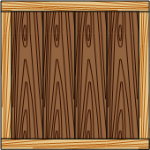
 One of my customers asked me about wood-grain fill patterns for Visio.
I had thought that Visio shipped with some wood-grain custom patterns, but when I went looking, I didn’t find much.
So…
I built my own.
Now, I didn’t spend a lot of time on it, but it turned out to be fairly decent. I wouldn’t say this is the ultimate wood grain pattern, but for twenty-two or so lines and v-shapes, it turned out nicely.
Let’s just call it a medium-quality wood-grain pattern. And you can download it for free and use it to add texture to your technical drawings.
Details About the Wood Grain Pattern
This is what the Visio wood grain fill pattern looks like in it’s rawest, simplest form.
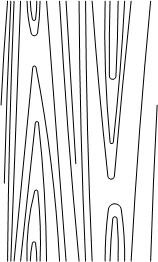
You can see that if you duplicate it in all directions, the lines…er…line up well:
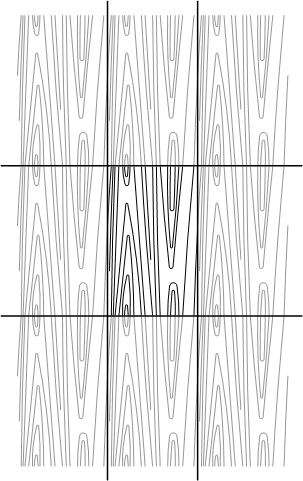
Luckily, Visio does that for you. By turning this pattern tile into a Visio Custom Fill Pattern, you can apply it to your shapes using the Fill dialog. See how the Wood-Dark Grain item shows in the Pattern field below?

Custom patterns show as text at the very bottom of the list. Custom patterns from all open Visio documents will show in your list. So you can just open the drawing from this article’s download and the patterns will be available to your other drawings. When you’re done, just close the wood grain pattern-containing drawing.
It is important to note that you can’t change the grain color of the pattern. For that reason, I’ve provided three patterns: Wood-Dark Grain, Wood-Light Grain and Wood-Black & White.
But you can change the fill color of the shape you are applying the pattern to. You have to set the Pattern color, as shown in the dialog above. Below, I demonstrate the three patterns, using different background colors. You can see that with only three patterns, we can get quite a few variations!
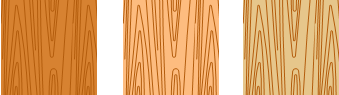
Wood-Dark Grain
This pattern has a very dark brown line color. I think it works best with darker fill colors, but let your imagination wander:
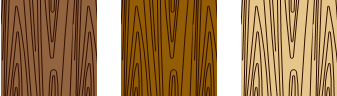
Wood-Light Grain
Here the wood’s grain color is a lighter brown, almost orange.
Wood-Black & White
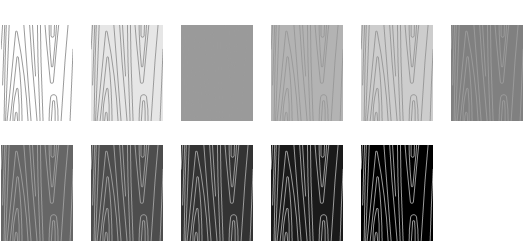
If you’re not into burning up too much color toner in your printer, there’s a black and white option. The line color is a medium shade of gray. Here we vary the fill color in shades of gray, 10% at a time, from white to black. Note that the grain disappears with 20% gray (the third block.) That is because the fill color and the wood grain line color are the same!
Applying the Pattern
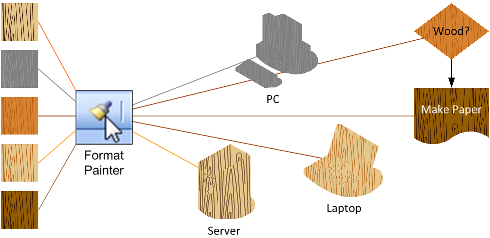
You can use the Fill dialog to apply the pattern, but you’ll have to experiment a lot to get good-looking background colors. If you like the colors that are in the demo drawing that comes with the download, it might be easier to just use the Format Painter tool.
With the Format Painter, you just select one of the wood shapes, click the tool, the click the shape you want to apply the formatting to. Here you can see that the Format Painter can be a bit Draconian. With power comes responsibility:
Using the Pattern
If you’ve read this far, you probably really need a wood grain pattern, and don’t need me to tell you what to do with it. Nevertheless, my table is always laden with food for thought.
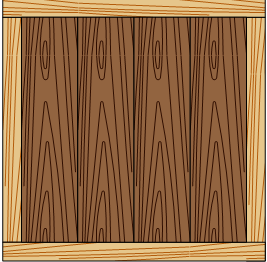
You can mix and match various color combinations and orientations to make, say, a wooden crate:
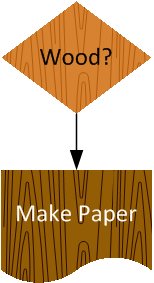
Or perhaps a bit on the frivolous side, this wacky flowchart. Wacky, that is, unless you work in Pulp & Paper, in which case, this makes for a compelling business process management diagram:
Download “Visio Wood Grain Fill Pattern”
s!Aj0wJuswNyXlhlj6JDpwqQnONSZs – Downloaded 8567 times – 103.00 B
OK, so I downloaded the woodgrain .zip file. Now I have a zip file on my desktop. Where do I put it so that I can use it as a fill?
Hi Doug,
You have to extract the file. Usually, you can just double-click to go inside the .zip file and get the Visio file. Or try right-clicking it and choosing “Extract All” or “decompress” or something. Not sure how old your system is, but Windows XP and Windows Vista/7 have built-in support for .zip files. Otherwise you’ll need a zip utility like 7-zip (free).
There are sites that have actual wood grains online. I usually just download whichever one I want to use and then just use that as a fill pattern. The problem with doing this is the heavy load it places on Visio. To help eliminate that overhead I use PhotoShop to reduce the quality of the wood grain or I use FastStone’s screen capture and re-capture the image so it is just at 72/96dpi (I forget which my screen is at). In any case, I wind up with a very acceptable wood grain finish. Not only this, but if you just download POV-Ray (free) and Moray (free) you can generate billions of combos of actual wood grains, apply them to a flat surface, and you (again) have a great looking wood grain you can then apply as a fill pattern and/or line pattern. 🙂 Neat stuff though Chris! 🙂
Great comments and tips, Mark, thanks!
I’m always wary of the performance issues of bitmaps/images, especially when used as patterns. I thought making a fairly simple vector-based woodgrain pattern might perform a bit better and provide good-enough woodgrain for many applications.
Chris
study and study
This is a god send, thanks so much. Any way to “scale” the grain to suite the scale of the drawings?
Hi Larry,
There is a way to configure custom patterns to be scaled.
Read this article, or search for the word “scale” if you’re in hurry, to learn more about it.
Developing Visio Solutions, Ch 10, Custom Patterns
Hats off to Visio Guy. I needed this wood grain pattern and here it is.
You should also have a donation option so that people could optionally donote to such nice works.
Thanks
Thanks Karamat,
I was thinking of setting up a GumRoad account to allow for easy purchase of some of my offerings.
I tried to download the wood grain, but when I went to log in, it demanded that I allow tracking on my computer. When I selection the option to NOT allow tracking, I was told I was not authorized to the page.
Hi KLP,
I don’t know anything about the tracking that you speak of. While I do administer this site, I don’t understand every detail of the system. I imagine that being able to log-in to a site requires that the browser have some sort of permission to “remember” who you are.
Hopefully somebody else who knows more about this can chime in.
I emailed you the download as an attachment. If you don’t see it, check your filtered folders in case it gets caught.
Cheers,
Chris
Thanks.
My grain is going the wrong way. How to I make it change directions? I am trying to simulate the grain in the proper direction and it keeps going opposite.
By opposite I mean 90 degrees off. Instead of running along with the length of the board (drawn), it goes accross the width.
Hi Nelson,
A few options:
1. Rotate your shapes. This works if your are illustrating individual boards.
2. #1 might not work if you drew a board horizontally instead of vertically. Try making tall shapes rather than wide shapes, then applying the fill pattern. *Then* you can rotate the shapes to have proper grain orientation.
3. Edit/copy the custom fill patterns. You can make a copy of one of the wood grain patterns, maybe append “Horizontal” to the name, then edit the pattern master by rotating the shape inside.
I don’t have time to explain #3 in full. But you can maybe figure it out by reading some of the other VisGuy custom pattern articles, or this one on MSDN.
OK I have it but i don’t know how to use it in Visio…I decompressed it to my Shapes folder but can’t use it. How do I get it into visio fill?
How do I add the woodgrain to my stencils so I can use them. When I try to create a new stencil it lets me bring them in, but when I try to use them they show up as white objects. I tried to copy and paste and they still won’t work.
Stan
Hi Stan,
It’s hard to know what you’re doing or what is going wrong.
If you copy the square shapes out of the drawing downloadable from this article, that brings a copy of the pattern definition into the document–whether it is a drawing or a stencil.
You should then be able to apply that fill pattern to any shape, using the format panel.
When you move the shape into a stencil, it should pull the pattern-definition with it, and subsequently, that master will pull the pattern-definition along with it into any other documents you drop the master shape onto.