 Recently we were introduced to the Cisco IP Telephone Shapes, and learned how they could be improved in the article: Making Shapes More Efficient: Using Fewer Shapes & Groups.
Today we’re going to focus on what happens when the Cisco shapes get resized, and discuss a technique for making the lineweight proportional to the size of the shape.
Resize Behavior
In Making Shapes More Efficient: Using Fewer Shapes & Groups, we hinted that there was work to be done when resizing the Cisco shapes.
When we resized the original shapes, we noticed a few oddities:
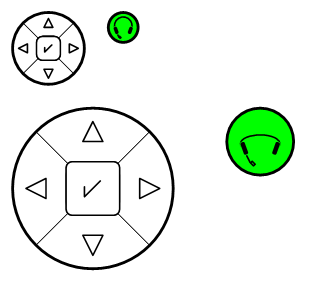
Nothing Earth-shaking, but if you look close, you’ll notice two things: the LineWeight for the shapes doesn’t get any thicker, and the headphones pull a weird squishy maneuver.
Smart LineWeight
It would be nice if we could get the LineWeight of the shape to change when the size of the shape changes. We can do this by using the ShapeSheet to link a sub-shape’s LineWeight to the size of the group.
Now, there is no “size” property for a shape, but there are Width and Height. And since these shapes should maintain aspect ratio, it doesn’t really matter if we choose the Height or the Width as the key for indicating size change–in most cases they should both be increasing by the same factor.
Using the ShapeSheet, we can construct a smart formula that compares the original height of the shape to the current height of the shape.
This ratio then serves as a multiplier for the LineWeight of each sub-shape. If you’ve read: Text Resizing with ShapeSheet Formulas then you might recognize this technique!
So let’s break it all down. The math looks like this:
LW_new = LW_old x GH_new/GH_old
(Edit: thanks to Ted for a correction here…)
where:
LW = LineWeight of a sub-shape
GH = Group’s Height
The ShapeSheet formula looks like this:
LineWeight = (Sheet.5!Height/0.75)*0.0167
where:
Sheet.5 = group’s ID
0.76 = group’s original height
0.0167 = original LineWeight
The end-result looks like this:
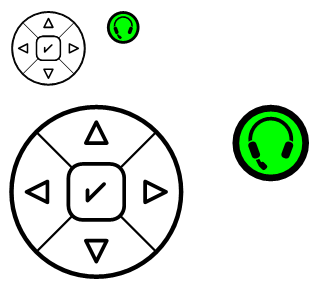
You can see that the LineWeight is now nicely tied to the size of the shape! (And the squishy headphone problem is also fixed. More on that later…)
Of course, I didn’t open the ShapeSheet for every single sub-shape on the page. I wrote some VBA automation code to get it done more quickly. Below, we have the code, which can also be used, with very little modification, in VB.NET.
The code operates on all shapes that are selected in the active window. So make a few duplicates, select them, and run the code on the guinea-pig shapes first!
Sub SetLineWeights()

    '// Links the LineWeights of sub-shapes to the
    '// size of the group.
    Dim shpGrp As Visio.Shape
    Dim shpSub As Visio.Shape
    Dim h As Double
    Dim lw As Double
    Dim fs As Double

    '// Operate on all shapes that are currently selected:
    For Each shpGrp In ActiveWindow.Selection

        '// Get the current size of the group:
        h = shpGrp.Cells("Height").ResultIU

        For Each shpSub In shpGrp.Shapes

            '// Get the current LineWeight of the sub-shape:
            lw = shpSub.Cells("LineWeight").ResultIU

            '// Set the LineWeight formula for the sub-shape
            '// by multiplying the current LineWeight by a ratio
            '// of original-group-height / current-group-height:
            shpSub.Cells("LineWeight").Formula = "(" & shpGrp.NameID & "!Height/" & h & ")*" & lw

        Next shpSub

    Next shpGrp

End Sub
A few things might not be clear to folks who are new to SmartShape creation. I’ll try to address them here:
- To see the ShapeSheet of a sub-shape, you need to sub-select the shape, then choose Window > Show ShapeSheet. To sub-select a shape, you first select the group, wait a split second, then click again on one of the sub-shapes. The sub-shape will be highlighted with light-green handles.
- Alternatively, you can open the group window via Edit > Open Group or Edit > Open ShapeName. Inside the group window, you can select shapes as you normally do, and view their ShapeSheets via Window > Show ShapeSheet.
- To get the ID for the group, just select the group and choose Format > Special. At the top of the dialog, you’ll see the ID field. When you want to refer to cells in the group from sub-shapes, you use the syntax: Sheet.ID!Property. Examples would look like this: Sheet.5!Width, Sheet.168!Angle, Sheet.99!Prop.Cost, and so on.
- Visio 2007 users might not see the Format menu. If this is the case, you need to turn on Developer Mode by visiting the Tools > Options > Advanced tab.
- If you’re wondering about the ShapeSheet, and how to run VBA code in Visio, have a look at the following articles: John Goldsmith: Just For Starters, Run VBA Code When Documents Open and VBA Macro Security
Squishy Headphone Problem
While we were focusing on the resize behavior of the Cisco shapes, we also fixed the problem with the squishy headphone arc. The source of the problem is that the arc from which the headphones were drawn was still a 1D shape.
1D shapes are defined by their endpoints, as opposed to a Width, Height, and Pin location, like normal 2D shapes (ie: boxes.) When 1D shapes are grouped, their endpoints resize proportional to the group, but the height of the sub-shape isn’t affected.
You can read more about the problems (and solutions) of 1D shapes in groups here: Understanding Arc-Resize Problems in Visio

A couple of things:
– I think the equation is wrong…..should be LW_new = LW_old *(GH_new/GH_old).
Current approach would give you the inverse of what you want (bigger shape==>thinner lines)
– Wouldnt it be far easier to do this in the shapesheet alone
– user.linescaler = Shapeheight / shapeheight defined at creation
(at creation is when first done…..aka user.linescaler = shapeheight/2.9831mm
– Lineweight = creation_wt*user.linescaler
(aka lineweight = 5pt * user.linescaler)
This is similar to how text can be autoscaled
Also, even with your approach, either aspect ratio must be held or some sorted combination of
shapeheight and shapewidth folded into user.linescaler. (aka make a user.linescalerx and user.linescalery
and user.linescaler = (user.linescalerx+user.linescalery)/2 kind of thing)
Hi Ted,
Thanks for the correction.
These shapes are likely to have their aspect-ratios maintained, so keying the LineWeight off of the height is just fine.
But for shapes that could be resized in either dimension, you are right, the width needs to be taken into account.
Not sure what you mean by “far easier in the ShapeSheet”. This technique is 100% ShapeSheet, but without the numerical reduction that you’ve suggested. The VBA code simply sets the smarts automatically in all the sub-shapes, so that you don’t have to do it by hand!
And you’re right, a top-level “scale-factor” could be implemented, with a reduction of the fixed numbers. But for instructional purposes, I’ve left some of the simplifications out. I also didn’t want to add user-cells to the shapes, because that unnecessarily complicates the code for this simple example.
Cheers,
– Chris
thanks…just did not catch the shapesheet cell view…probably me…apologies
Sorry Ted, didn’t mean to bite! 🙂
Terrific.
It looks like you intended to include character scaling as well (assuming the fs variable is font size). Can you provide the code to do that?
Wondering about the VB sub code… In a lot of cases I have shapes that are nested more then two deep in most cases in complex shapes I have at least 4 levels of shapes. Your Sub routine only accounts for one or does it?
I’ve written similar code that uses recursion. My question is would recursion be needed here if my shapes are more than one level deep, or does Visio handle this differently than I expect?
Thanks
Hi Paul,
Yeah, you’d have to write some recursive code. It’s not too hard as every Visio shape has a shapes collection, so you can get at sub-shapes via shp.Shapes.
There’s a bit of an inconsistency between code and the UI. If, for example you select a group in a drawing window and apply a fill color, that color will apply all the way down to the deepest sub-shape.
If you do the same in code, you only set the group’s FillForegnd cell. Often, the group has no geometry at all, so you won’t see anything. The sub-shapes remain untouched. This can sometimes work in your favor, but other times force you to write recursive routines 🙂
I’m trying to use both the line and text resizing formulas on a fairly simple shape group and can’t get either formula to work. The concept seems fairly straightforward; I can’t imagine what I might be doing wrong. Should this work in all versions of Visio? (I have ’03 on my work machine.) Thanks for the help!
Ha! Figured out what I was doing wrong (applying the formula to the group, not the sub-shape). Thanks for the awesome tips!