 If you’ve ever needed to customize a Visio network server shape, then today is your day. We’ve got a tool that allows you to load custom icons into server shapes lickity-split.
The tool is easy to use, and dare I say FUN as well! So quit waiting around for someone else to create custom Visio network shapes. Download this tool and make your own!
Russell C. sent me an e-mail the other day asking if I could point him to any tips on how to create network server shapes with customized icons.
Normally I would eagerly jump into an explanation of how to open up a grouped, copy and paste new contents to it, and perhaps use the ShapeSheet to precisely control the size, position and other characteristics of the new graphics.
But today, I thought I’d go a different route. Why have all these people learn the obscurities of Visio shape creation, when I could build a tool that would allow them to do it in seconds?
I can only hope the answer is that the time I put into creating the tool will be less than the combined time of all those users fiddling with masters, groups and ShapeSheets. Since I went to bed at 3am, I’m not so sure, but we’ll see how many downloads this thing gets 🙂
Visio Network Server Shapes
When you open up the Servers stencil, found under: File > Shapes > Network > Network > Servers, you will quickly notice one thing: the server shapes all look pretty much the same, except for a distinguishing icon:
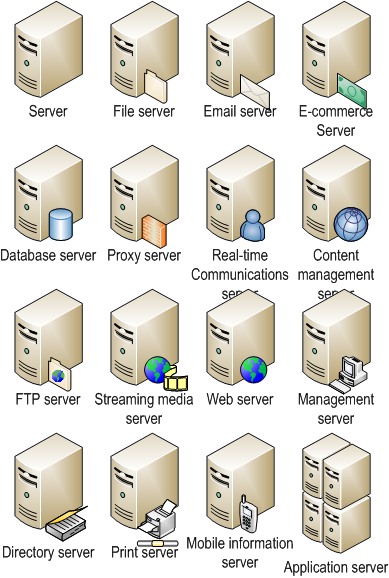
16 different server types is a good start, and people continue to create new Visio shapes with and disperse them throughout the web. But wouldn’t be great if you could easily create your own?
Well, with the Visio server shape icon customization tool, it’s a snap to create network server shapes like these!

Thanks to Benjigarner for that cool Visio icon, by the way!
Running the Visio Server Shape Icon Customization Tool
When you open up the Visio file, you’ll have to allow the VBA macro-code that is contained in the document to run. You can always disallow the code at first, and examine it once the document has opened to determine if it is in order. Once OK, just close and re-open the document, but this time enable the code.
If you are not familiar with VBA macros, please read: VBA Macro Security. It will help you to understand in-document macros, related security issues, and how to allow them to run when they come from trusted sources.
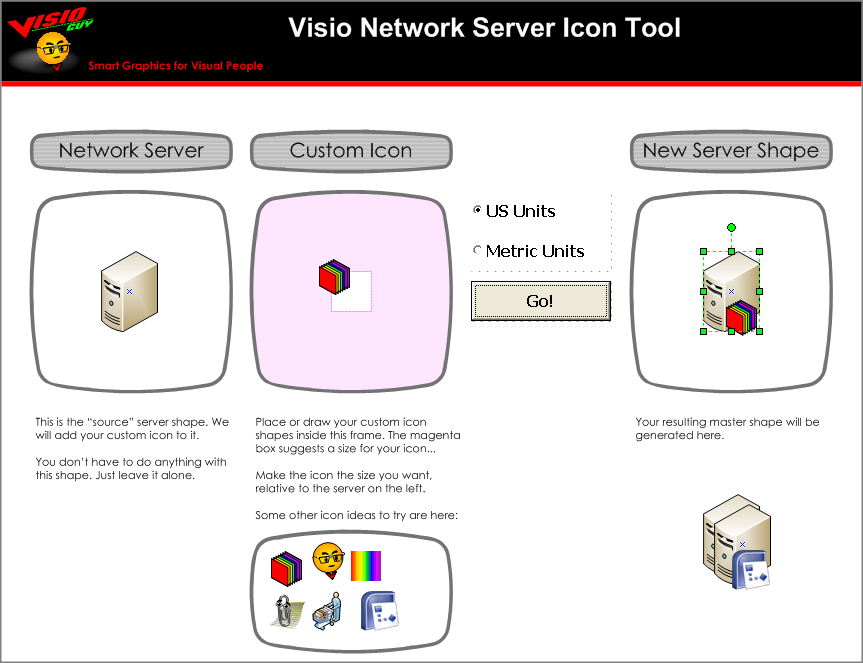
Once you’ve opened the document, you’ll see something that looks like this:
click to view larger image
The first box contains a “base” server shape that is used to create your new shapes. You don’t need to do anything with this. Don’t move it, don’t delete it.
In the second box, add your custom icon graphics. This can be any number of Visio shapes or imported images. The small white square in the middle is for your reference–icons as small as this square or smaller will look nice in your resulting server shape.
Choose the units that you use: US or metric. this will ensure that your final shape is a nice round size. For US, it will be 0.7 in x 1.0 in, and for metric 18mm x 25mm. Not a huge deal.
Now just click the Go! button. And the code will go to work! You’ll see a pop-up dialog that will ask you for a master name. You can leave it blank, or type in something descriptive like: “Colored squares server” for our example above.
Your new shape will appear in the right-most frame, and any shapes that were there before will be slid down and out of the way, so that you can concentrate on your new creation.
The shape is created as an instance of a master shape. So you’ll also notice a new icon in the document’s Document Stencil. (See: File > Shapes > Show Document Stencil if you don’t see a stencil on your screen) You can add it to your own custom stencils or to My Shapes and Favorites so that it is easily at your disposal for future network diagrams!
Download “Visio Network Server Icon Customization Tool”
s!Aj0wJuswNyXlhx87V3wIO51yDDZW – Downloaded 25543 times – 103.00 B
Well, before today, I always drag a “Server” and paste the icon I need, and then just group them together 🙂
Hi LM,
While grouping works fine as a quick solution, there are a few problems with grouping:
1. You bury the custom properties/shaped data fields that come with the server shape.
2. You lose the ability to easily edit and move the text that is attached to the server shape.
3. The alignment box of the server shape gets bigger, and less “grid-friendly”, which can make it more complicated to align the shape with other servers and network equipment.
4. You haven’t created a unique master that can be easily added to a stencil and re-used
These aren’t huge problems, and if you know how to sub-select shapes inside of groups (many users don’t know), they can be overcome. This tool makes a “real server shape” with your own icon, with all of the conveniences that go along with it.
Dear Visio Guy
Thank you very much for your great Server shape customisation tool! Is there any way of automatically generating the associated shadow?
WOW!! Thank you! This is a really handy cool tool!
Great tool! Can you make it so the server icon is editable as well? Looking for 1U and 2U servers to modify this way. And I do understand it will not look as clean.
Great tool, but I want just like whoapower to edit shapes on other source servers (like the virtualization servers (the blue ones)).
Is this possible?
Or at least can you unlock the source server shape?
Ok I see what you guys want. I could probably make it so that the server shape could be replaced as well. Unfortunately, I don’t have a lot of time right now. I suppose I could be persuaded if someone wanted to commission a small bit of work…
Does anyone knows how to add more than 5 icons in an icon set in Visio?
I know that in most of the forums and msdn itself, they say you cant have more than 5 icons. But theres a way to add… if anyone knows, please share it…
Bob
Thanks for the tool!
Where do you pull the original Server master from? That way we can add in any other type of device there.
Z
Hi Z,
The server comes from Visio’s server stencil, but the tool uses the one in the left-most squircle-box. This kept the code a bit simpler.
I think my plan was to see what the response was, then sell some sort of full-featured cheap-ware utility later. Now that I look at the numbers for this post, I think I should have done that already! 🙂
Hi,
I was trying to get some stencils and it made me sign up for a WordPress site, I got the login information and it doesn’t take you to where you get the stencils..
any ideas?
Brian Tinsley
Hi Brian,
The login/register page should have opened in a new tab in your browser. Once you’re registered and logged in, you can get the download from the original page (this page).
You can check the Meta section at the bottom of the right-hand sidebar to see if you’re logged in. If it says “Log In”, then you’re not logged in.
Hey Guy,
Your tool is great.
But I have to change the SourceServer with 1u or 2u Rackservers and I found no way to do this.
Do you have some suggestions for me?
Tom
Hi TF,
Not sure what rack units have to do with this article? What is a SourceServer?
Fabulous, what a webpage it is! This weblog presents valuable information to us, keep
it up.
Why does everyone make it so difficult to add the Visio Network Server Shapes to a Visio 2010 document?
hi guy,
I cannot download this link. Anyone can share the new link, pls?
Hi naviat,
This download requires a registration, to prevent abuse. We pretty much do absolutely nothing with registration info, but reserve the right to send out an e-mail to users once in awhile. I don’t think we’ve ever done it to date.
You can register here: http://www.visguy.com/wp-login.php?action=register
Where did all the original shapes go? I mean, nice tool, but why can’t I use what I had?