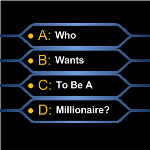
 Everybody knows (and loves?) the game show Who Wants to Be a Millionaire.
It has great graphics and an addictive format that you could use to add spice to your PowerPoint presentations.
And since a lot of you create presentation graphics in Visio, it seemed to me that a Millionaire SmartShape could help you save time piecing together questions for your audience that still looked great!
When Flying, One Gets: A) Stiff, B) Headache, C) Jet-lagged, D) Ideas
Recently I was cramping up sitting on a plane back to Munich from Seattle. Yup, ten hours of confinement made tolerable only by the presence of my dear wife, and a viewing of Slumdog Millionaire on the 9-inch, back-o-the-headrest monitor.
Ten hours in an aluminum tube gives you time to think. The show Who Wants to Be a Millionaire has been on for a long time now, so people must like it. It seems to have lots of catchy elements: great graphics, suspenseful music, play-along at home audience participation, jokers!, simple formatting of multiple-choice questions, and one heck of a prize for winners!
There’s something about those blue-on-black graphics that really catches my eye. A short, clearly-stated question, with four simple answers: A, B, C, D.
I would love to incorporate a bit of ‘millionaire style into a presentation. It would get my audience thinking, build up a bit of suspense, and provide an excuse to make some neat Visio SmartShapes!
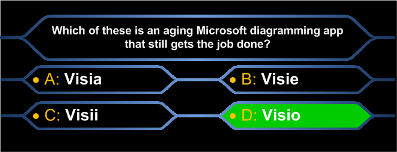
Imagine you’re giving a talk on the history of diagramming applications for the Windows platform. You could engage your audience with brain-involving stumpers like this:
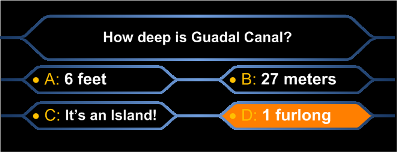
If your profession involves a lot of geography or history, you might try this:
But heck, it’s your presentation, and you’re trying to educate your audience, not send them home with a measly $500.
So why not try to wake them up with a trick like this? (back to diagramming software history…)
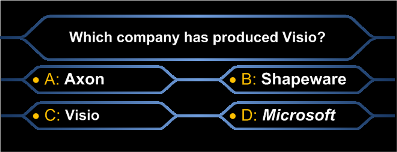
It looks innocent at first glance…but there’s a catch…
– BLING! –
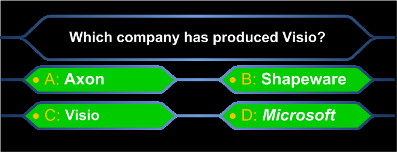
All four answers are correct. And with the Millionaire Visio shape, it is easy to make this happen!
Configure Your Shape Via: A) Control Handles, B) Shape Data Drop-downs, C) Right-mouse Actions, D) All of the Above
You can make the whole five-box Millionaire-style question unit using just one SmartShape, which can be downloaded at the end of this article.
As usual, the shape is packed full of features, which you can configure in a variety of ways.
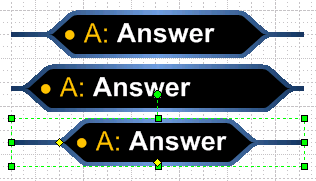
There is one yellow control handle to set the offset of the side “threads” that emit from the points on the left and right of the shape:
And another to set the thickness of the border:
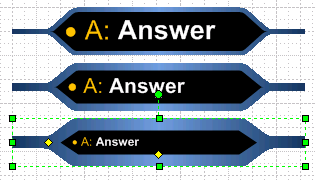
Notice how the font-size changes automatically when you change border thickness, and thereby reduce the available space for text?
You can right-click the shape, or go to the Shape Data window to change a bunch of other features:
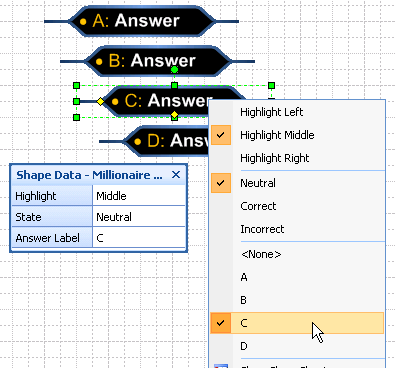
You can switch the position of the highlight to be on the left, the right or in the middle. The highlight is what makes the shape look shiny. It’s position is important when building the five-shape block that comprises the question set.
You can set the answer to be A, B, C or D at the click of a mouse, or select <None> if the shape is to hold the question. The text-alignment will automatically switch from left-aligned to center-aligned when you do this.
And you indicate if an answer is right, wrong, or undisclosed too! Right answers show a pleasing green, wrong an alerting orange, and there’s the black background for answers-in-waiting.
Download “Visio Who Wants to be a Millionaire Shape”
s!Aj0wJuswNyXlhXXOdRAY2GsNRltw – Downloaded 3316 times – 103.00 B
hey,
this is great! thank you very much for such quality SmartShapes!
I was using this shapes for a conference to interact with the audience. They were very useful. Thanks for creating them.
One question: is there a way to change the Fonts sizes for the A, B, C, D different than the answer?. For instance I will like to reduce the size of the A, B, C, D without changing the answer text font.
Thanks
Hi Alfred,
The letters’ font-size is tied tot he height of the shape. In my opinion, the letter is part of the “Millionaire look”, so I locked it to be an integral part of the shape.
It is possible to change these independently, but it would take more time and space to explain than I have right here.
This is going to be fun to play around.
Thank you so much for this.
Great job on the Visio file.
I do have one question: How can I change the inside color?
I’d like to have the selected color in orange and then the reveal either correct or incorrect. For a wrong answer, I’d like the color to display red instead of orange.
Thank you!