 It is pretty easy to type text onto a Visio shape. And linking text to shape data fields takes just a quick visit to Insert > Field.
But did you know that you can use Visio shape text as a data source? That you can evaluate it as a meaningful number or useful quantity?
Today, we’ll show you a few tricks that will allow you to use shape text as quantifiable data that you can take action on.
No “Text” Cell
If you scour the ShapeSheet, you won’t find any “Text” cell that magically holds the text of the shape. Sure, you’ll find ShapeSheet sections for Text Fields, Character, Paragraph, Tabs and Text Block Format, but you won’t find any Text cell in any of them.
While there are good reasons for this, I think this can initially trip-up would-be SmartShape designers.
The reason there is no text cell is because text can have different formatting characteristics. Bold, italic, underline, strike-through, bullets, font size, etc. Paragraphs can have different alignment. Some text might be typed by the user, other bits of text might be linked to inserted fields. In short, a shape’s text can be an unpredictable mish-mash. In light of all of this text-complexity, simply asking Microsoft for a Text cell might be a rather unclear feature request.
Workaround #1 to this problem is to insert a field that is linked to a Shape Data cell or a User-defined ShapeSheet cell. This allows you to control what is displayed in a shape’s text via data and logic stored in the shape. But it doesn’t solve the problem of utilizing text that the user types into a shape.
Make Sense of User-typed Text
We can’t directly modify the text a user types into a Visio shape using only the ShapeSheet. And if we have inserted fields that do smart things, the user is likely to destroy these fields by typing (unless we lock down the text and restrict any editing)
But we can respond to that text by using a special function: EVALTEXT!
With EVALTEXT, we can evaluate user-typed text as a number or a number-unit pair.
The syntax for EVALTEXT looks like this:
= EVALTEXT(TheText)
= EVALTEXT(Sheet.23!TheText)
TheText is a special token that tells Visio to either look at the text that is typed into the shape that contains the formula, or if we are using the “bang” notation, to look at another shape’s text. In this example, “Sheet.23!” is an identifier to some other shape on the page.
We are likely to enter this formula in a User-defined cell to do some sort of calculation, or to store the value for use with other cell’s calculations. You might end up with expressions that look like this in your ShapeSheet:
User.myTextValue = EVALTEXT(TheText)
or
User.myTextValue = EVALTEXT(Shape.24!TheText)
EVALTEXT will look at the entire text block and try to make sense of it. If the text is an expression that Visio understands as a valid mathematical or ShapeSheet expression, you will get a nice value that you can put to good use.
For example, say a user typed the following text into a shape:
0*1000 + 73
our function would look like–and evaluate to–this:
EVALTEXT(TheText) = 73
It is interesting to note that EVALTEXT cannot take a string as an argument. So EVALTEXT(“1 + 2”) will not give you anything useful as a result.
You might see that this capability will allow us to quickly build a “Scientific Calculator Shape”, or a “Visio Expression Tester Shape”. And that’s just what we’ll do to further illustrate the power of this function, and cover a few other SmartShape related techniques as well!
Let’s Build a Visio ShapeSheet Calculator Shape!
We’re now going to build a Visio SmartShape that works like a free-form calculator. Whatever text you type into the shape will be evaluated by our special ShapeSheet function.
Build the Calculator Parts
We’ll want to build a shape that has two rectangles, grouped together. The top rectangle will take our text, and the bottom rectangle will show the results:
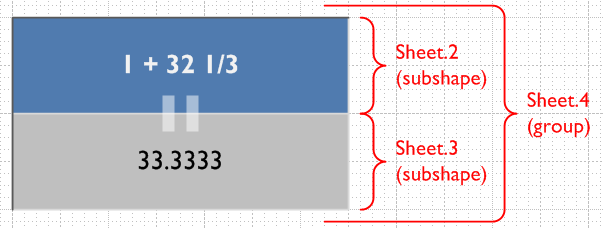
Here, I’ve drawn the two rectangles and grouped them together. You can see how the top text is evaluated in the bottom rectangle. Also note that I’ve found the “Sheet IDs” for each shape: the top block, the bottom block and the group itself. These will come in handy for building proper ShapeSheet formulas.
To find out how to discover a shape’s ID, read the article SmartShape Tutorial: Fading Trees. You’ll find the ID-related stuff in the Sheet ID section.
Insert the Evaluation Formula
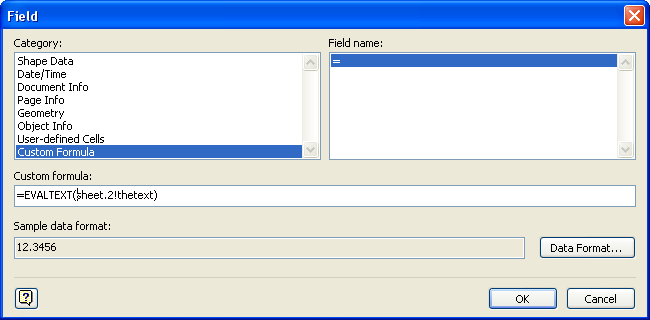
Now that you know the id of the top rectangle, sub-select the bottom rectangle and hit F2 to get into text-editing mode. Then, go to the menu: Insert > Field:
click to view larger image
You’ll see a dialog like this. Select Custom Field in the left list, then type a formula like: EVALTEXT(Sheet.2!TheText) into the Custom formula field, as shown. This tells the bottom rectangle to display the evaluation of the top rectangle’s text. In your case, Sheet.2 might have a different id, so make sure you get the right identification number!
Make the Top Rectangle Accept Text
Our calculator is just about ready to use, but there is still one detail to take care of.
If we select our grouped shape and start typing, the text goes to the wrong shape: it goes to the group!
We really want the text to go to the top rectangle, so we have to turn off the group’s text.
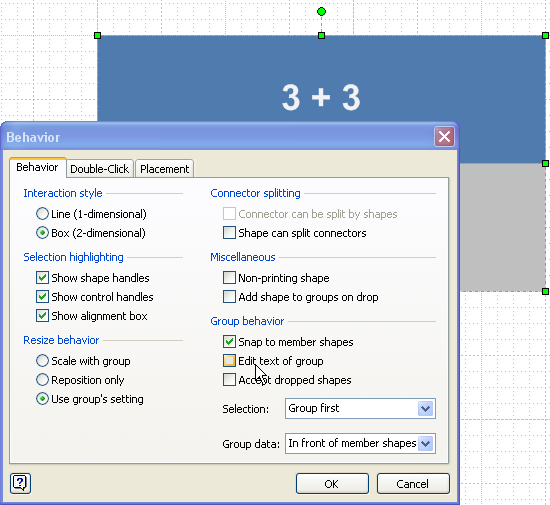
This is easy enough to do. Just go to Format > Behavior, then notice the Group behavior area. There, we can un-check Edit text of group. This easily turns off text-input at the group level. Now our text will go to the top-most sub-shape in the group, instead of the group itself:
click to view larger image
Now, I just mentioned the “top-most sub-shape”. What I really was talking about is the sub-shape that is foremost in the back-to-front sense. If the bottom rectangle is the top-most in the Z-order stack, we will destroy our inserted EVALTEXT formula. So we need to bring the top rectangle “to front”, ASAP!
Just sub-select the top rectangle and bring it to front via Shape > Order > Bring to Front, or simply Ctrl + F.
At this point, your calculator should work just fine. Select the group and type in an expression. The top rectangle should display what you’ve typed, and the bottom rectangle should evaluate it, as you type!
A Powerful Calculator!
Not only can you quickly input mathematical expressions, like 3 * 4 and get 12 back right away, but you can also enter complicated formulas that use functions that are understood by the ShapeSheet.
Here we’ve added a bit of trigonometry to the mix:
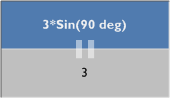
And since EVALTEXT is really performing a Visio ShapeSheet evaluation, you can even refer to other shapes and concatenate text.
There are lots of ShapeSheet functions that you can use: Ln(), Sin(), Cos(), Atan2(), Min(), Max(), etc. You can specify units like deg, rad, in, cm, mm, m and so-on. Just play around and see what you can discover!
Our next example gets tricky with some string concatenation.
Below, Sheet.4 is our group, and we are referring to it’s width by using the syntax “Sheet.4!Width. We then pre-pend the text “Length = ” to the expression and our calculator handles it just fine! Also, Visio knows that we are talking about a length, not just a number: see how it includes the inches tick-marks just after 1.75?
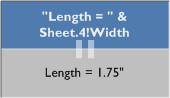
Note: Visio tries to automatically replace simple-quotes with “pretty quotes”–the ones that look like 66 99. These are not properly evaluated by EVALTEXT. So you’ll have to quickly type undo after you type each quote mark to get it to be the simpler version, or find the auto-replace options and turn off quote marks.
Visio does some interesting type-conversions. I’m not sure if I agree with this one:
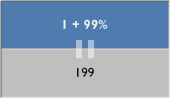
And you can mix and match decimals, plus, minus, and division using the forward-slash character:
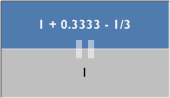
Here, Visio (or Office?) tried to ruin things again by inserting a long-dash for a minus sign. I had to undo after typing the minus sign, because EVALTEXT didn’t take the long dash as a mathematical operator.
The calculator shape is a very old idea that actually worked much better in older versions of Visio that didn’t have the auto replace feature!
Final Touches
Before you rush off and create your own calculator, I’ll throw out two more tips that will help you to finely-tune and polish your calculator SmartShape.
Non-text Sub-shapes
If you’ve been watching carefully, you will have noticed the vertical “=” sign in the shape I’ve shown here. Clearly it is the top-most sub-shape in the group, which should interfere with the text input. Ie: the equals sign should be intercepting the text typed into the shape–which make things rather ugly.
The way to avoid this is to lock text editing on any “foreground” shapes that have nothing to do with text. You do this via the Format > Protection menu:
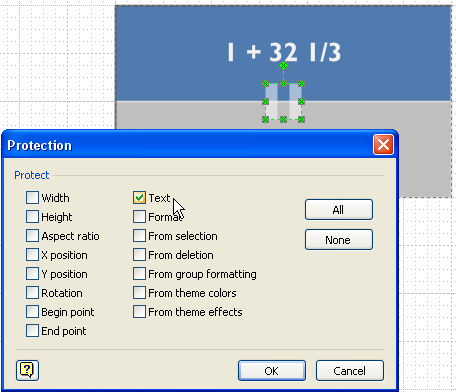
Now you can easily add foreground elements to your shape to make it prettier without having to worry about text messing things up. You’ll see that I’ve added some black and white lines to add a bit of 3D effect to the shape. These are also “front-most”, but have locked text so they don’t affect text-input to the calculator.
Stop Sub-selection by Users
Once your calculator is built, users won’t have a need to sub-select anything. It makes the shape feel more solid and well-built if you can prevent accidental sub-selection of the group’s members. It also avoids potential confusion for users who aren’t so sure if they’ve sub-selected a shape.
You can make a group feel like a single entity by going again to the Format > Behavior dialog, and selecting Group only from the Selection drop-down list:
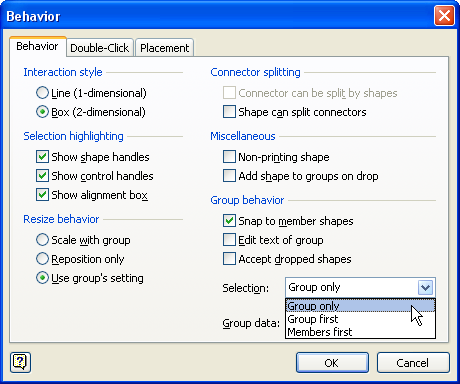
Now your group will behave like a single, sealed shape and users won’t be confused by accidental sub-selections!

Thanks for the great article. I can certainly see that using EVALTEXT offers all sorts of timesaving and functionality opportunities.
You’re welcome, Gary. Thanks for stopping by and for leaving a comment!
hi,
i need to display the page number in ‘xx’ format (that is 00, 01, 02 etc.) in Visio. i use VC++ IDE to update the cells in the shapesheet. i need to change the format of the page number based on a user selection (“xx” or “xxx” or “x” …). please let me knoe how to go about doing this.
Thanks in advance,
Satz
Hi Satheesh,
Another Visio Guy article has an example of a shape that has variable formatting for one of its data fields. Have a look at it: Title Block #2: Let’s Make a Multi-field SmartShape!.
The ShapeSheet has a FORMAT function that is similar to other applications. You’ll need to do something like:
shp.Cells(“Prop.Date”).Formula = “FORMAT( dateval, \”00\” )”
Assuming that your shape text is linked to a Shape Data (Custom Property) value. If you are programmatically inserting a field then your code will be different, but the formula will still be similar.
hi,
Thanks for your response.
I am displaying the Page number in a background shape. i did this using Insert-> Field-> Page Info category. this places a method PAGENUMBER() on the text field cell of the shapesheet. i feel that this PAGENUMBER() method just automatically adds a page number when a new page is included in the vst file (in sequence).
1. I wanted to know where i can use the formula which u have mentioned in the above writing.
2. I read the article u had specified which shows “A;B;C” for the date. how can i modify it for my case.
Please not that I am an amateur in Visio. I am still learning the basics of it. 🙂
Thanks a million,
Satheesh
hi Visio Guy,
Thanks for your reply. i was able to control the length of the page number using the formula which u had posted earlier 🙂
please ignore the previous post.
thanks a ton
satz
Hi Satz,
Glad to hear you figured it out!
– Chris
Hi,
i have a shape which is a group of several shapes. i need to add few more shapes to the group. when i ungroup, add the new shapes and group it again, all the settings of the previously grouped shape is lost. is there any way where i can retain the settings? or is that the normal working of Visio which cant be changed? 🙂
Hi Sateesh,
When you ungroup, you destroy the group. If there were any references or smart relationships with the group, then of course they will be gone (where would they go?)
But you can open a group instead of ungrouping. Select a grouped shape, then go to Edit > Open [shapename]. You’ll get a new window that is a view inside the group.
That should save you some time!
– Chris
From what I have learned so far about Visio, there is no way of adding a fixed amount of text into a fixed shape. Is this true? If not, can you please tell me how to do this (step by step)? It would be soooooooo helpful. Thank you!
Diane
Hi Diane,
I’m afraid I don’t know what you mean by fixed amount of text. I could select a shape and type “Fixed amount”, and that would be, erm, a fixed amount of text wouldn’t it? So I’m obviously not understanding your question.
– Chris
Hi there,
I was wondering if you could please help me with the following:
I have currently 100 boxes with texts inside them. I want to search for the text inside those boxes that i shall manually select and want visio to automatically position them.
For eg:
IF Selected_Shape contains “Cat”
then Move selected shape to (0,-4)
ELSEIF Selected_Shape contains “DOG”
then Move Selected_Shape to (3,-5.7)
and so on
I am a total amateur to Visio VBA. Please can you help.
Thanks
Hi,
I have a problem.
I made a few changes in the textfield section of a text box (under a group) in a few Visio templates (.vst files). I have hundreds of such templates and all those require the same changes. Making changes on all these templates manually is time consuming. Is there any way where i can automate this? May be a macro or something else??
please help me on this.
Thanks,
Satz
Hi Sateesh,
Yes, you can do this with macros and VBA. With Visio automation, you can open and save Visio documents. You can scan through all of the shapes in a Page.Shapes collection and make changes.
You can get an idea of how Visio automation works from these articles:
Combo Box Table of Contents
Connect All Shapes to Each Other
Create Visio Flowcharts Programmatically
I have few sheets in a Visio file. I have a shape (in one of the sheets) and in the shape data, I want create a hyperlink to go to one of the other sheets. Is this doable?
Hi Vijay,
You can’t directly put jump from a hyperlink in a Shape Data field, but you can certainly type a URL in as the data.
If you add hyperlinks to the shape, they could refer to values in the Shape Data, however. You could set this up by linking the ShapeSheet cell “Address” in the hyperlink to a particular Shape Data field.