 If you’re a developer, looking to create Visio-based solutions, then you’re going to need to programmatically connect Visio shapes together. Wouldn’t be nice to have a snippet or two to start from?
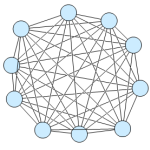
Today’s post shows you VB and C# code that instructs Visio to connect every shape to every other shape, and to create a beautiful mess, like that shown in the image at left.
Now, I strongly recommend the Visio 2007 SDK. It is an excellent, free download, and it has lots of snippets, utilities, sample code and sample applications, including examples of how to connect Visio shapes with code.
Nevertheless, I thought I’d address a particular newsgroup question that I encountered some time ago, which was:
“How can I automatically connect every shape on a page to every other shape?”
This seemed like an interesting example to me, and one that might appeal to folks who are creating network-related Visio-based solutions. And even if it’s not exactly the code you need, it’ll surely be a good place to start from.
In addition to the newsgroup query, I was moved to write this article by a YouTube video that a few whacky guys at Microsoft put together, called: MEDC 2007 Worst Practices, or according to Public Speaking for Geeks: The Best Bad Tech Speakers Video…Ever. Have a gander at some truly nightmarish Visio network diagrams, just after the halfway point…
Features
While the code isn’t complicated, it’s not super-simple and short. That’s because I added a few features to show off some of the things you can do with Visio automation. Among these are:
- Setting Layout & Routing settings for the page
- Creating and Undo Scope, so your users can undo all of the changes made by the code with one press of Ctrl + Z
- Rudimentary filtering of shapes by Shape.Type
- Connecting shapes via two methods: the newer Visio 2007 AutoConnect method, or the older GlueTo method
Hopefully, you’ll find the code well-commented, but let’s just run over each feature quickly:
Layout & Routing
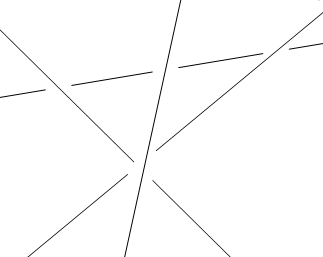
Code for the Layout and Routing settings can be found in the procedure: m_setPageLayoutSettings. Here, the connector style for the page is set so that the connectors are straight, and proceed from center of one shape to the center of the other. Also, the Jump Style for intersecting lines is set to Gap, as shown here:
Undo Scope
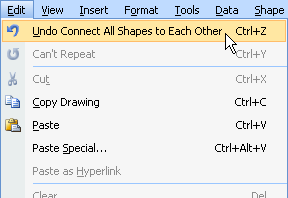
The Undo Scope code is found in the main procedure. When the code is finished running, you’ll see a named operation Undo Connect All Shapes to Each Other in the Edit menu. This makes things a lot easier, and more clear for your users.
The shape filtering in m_getShapesToConnect demonstrates the use of the Shape.Type property. With this information, we can decide which shapes don’t need connecting. In our sample code, ignored shapes include: Foreign Objects, 1D shapes, or Guides.
Shape Filtering
Ignoring Foreign Objects, allows us to place a VB Button on the page that calls the VBA code when clicked, but the button won’t end up with connections being glued to it.
1D shapes are most likely connectors, and you won’t want to connect connectors to other connectors!
Guides are just visual aids, and are so uninteresting, they don’t even print! <wink wink>
Two Methods for Connecting
m_connectShapes illustrates how to determine which version of Visio you are running, and then two different ways to connect shapes together.
Just before finishing this article, I realized that if you’re running a version earlier than Visio 2007, you might have to comment out a portion of the code, because it won’t properly compile — the Visio 12 method: AutoConnect doesn’t exist in Visio 2003. See the procedure for more notes.
VBA code
Below is the VBA code to get the job done. If you want to use VBA, you can copy the code and directly paste it into the ThisDocument module of any document’s VBA project,.
The code is easily converted to VB.NET. However, you’ll need to do the following:
- Add a reference to the Visio 12.0 Type Library (or Visio 11.0, or…)
- Add the line: Imports Visio = Microsoft.Office.Interop.Visio.
To connect the shapes, simply run the ConnectAllShapes subroutine.
Edit: 2014.02.14 I’ve added “Set” before object assignments in the code below, plus some clean-up code. The absence of “Set” statements was causing confusion. You don’t ned “Set” in VB.NET, but you do in VB6 or VBA.
Public Sub ConnectAllShapes()

  On Error GoTo Err

  '// Create an undo-scope, so that we can undo all the
  '// connections with just one Ctrl + Z:
   Dim UndoID As Long
   UndoID = Visio.Application.BeginUndoScope("Connect All Shapes to Each Other")

  '// This is where we really get the connecting done:
  '// Get a Visio Page object:
  Dim pg As Visio.Page
  Set pg = Visio.ActivePage

  '// Connect all shapes on the page:
  Call m_ConnectAllShapes(pg)
  Call Visio.Application.EndUndoScope(UndoID, True)

  Set pg = Nothing

Exit Sub

Err:
  Call Visio.Application.EndUndoScope(UndoID, False)
  Set pg = Nothing
End Sub

Private Sub m_ConnectAllShapes(ByRef visPg As Visio.Page)

  Dim shpFrom As Visio.Shape
  Dim shpTo As Visio.Shape
  Dim shpConn As Visio.Shape
  Dim shp As Visio.Shape
  Dim collShapes As Collection
  Dim i As Integer, j As Integer

  '// Set the page-layout settings for routing-style,
  '// jump-style, etc.
  Call m_setPageLayoutSettings(visPg)

  '// Add all the non-connector shapes to a VB collection:
  Set collShapes = m_getShapesToConnect(visPg)

  '// Loop through the shapes in the shapes collection:
  For i = 1 To collShapes.Count

    Set shpFrom = collShapes.Item(i)

    '// Connect to all the other shapes:
    For j = i + 1 To collShapes.Count

      Set shpTo = collShapes.Item(j)

      Call m_connectShapes(shpFrom, shpTo)

    Next j

  Next i

  Set shpFrom = Nothing
  Set shpTo = Nothing
  Set shpConn = Nothing
  Set shp = Nothing
  Set collShapes = Nothing

End Sub

Private Sub m_connectShapes(ByRef shpFrom As Visio.Shape, ByRef shpTo As Visio.Shape)

  '// Visio 2007 introduced a new method for connection
  '// shapes. This proc looks at the Visio version and
  '// decides whether to use the old way or the new way.

  Dim pg As Visio.Page
  Set pg = shpFrom.ContainingPage

  '// Note: if you're not running Visio 2007, this might not
  '// even compile -- you'll have to comment-out the first part
  '// of the If-Then block...
  If ( pg.Application.Version = "12.0" ) Then

    Call shpFrom.AutoConnect(shpTo, visAutoConnectDirNone)

  Else

    '// Drop the built-in connector object somewhere on the page:
    Set shpConn = pg.Drop(pg.Application.ConnectorToolDataObject, 0, 0)

    '// Connect its Begin to the 'From' shape:
    Call shpConn.CellsU("BeginX").GlueTo(shpFrom.CellsU("PinX"))

    '// Connect its End to the 'To' shape:
   Call shpConn.CellsU("EndX").GlueTo(shpTo.CellsU("PinX"))

  End If

  Set pg = Nothing

End Sub

Private Function m_getShapesToConnect(ByRef visPg As Visio.Page) As Collection

  Dim shp As Visio.Shape
  Dim collShapes As Collection

  Set collShapes = New Collection

  '// For this example, we will get all shapes on the page
  '// that ARE NOT of these:
  '//
  '//  1. Connectors
  '//  2. Foreign objects (like Buttons)
  '//  3. Guides

  For Each shp In visPg.Shapes

    If (shp.OneD = False) And _
         (shp.Type <> Visio.VisShapeTypes.visTypeForeignObject) And _
         (shp.Type <> Visio.VisShapeTypes.visTypeGuide) Then

      Call collShapes.Add(shp)

    End If

  Next shp

  Set m_getShapesToConnect = collShapes
  Set shp = Nothing
  Set collShapes = Nothing

End Function

Private Sub m_setPageLayoutSettings(ByRef visPg As Visio.Page)

  '// We can set layout and routing options for the page by
  '// accessing the ShapeSheet for the page, and setting cells
  '// in the Page Layout section.
  '//
  '// You can see the PageSheet by deselecting all shapes on the
  '// page, and choosing Window > Show ShapeSheet.
  '// Set page routing style to center-to-center:
  visPg.PageSheet.CellsSRC(Visio.VisSectionIndices.visSectionObject, _
        Visio.VisRowIndices.visRowPageLayout, _
        visPLORouteStyle).ResultIUForce = 16

  '// Set to connector intersection to 'gap':
   visPg.PageSheet.CellsSRC(Visio.VisSectionIndices.visSectionObject, _
         Visio.VisRowIndices.visRowPageLayout, _
         Visio.VisCellIndices.visPLOJumpStyle).ResultIUForce = 2

  '// Note: another way to access the PageSheet cells is by name, ie:
  '// visPg.PageSheet.Cells("RouteStyle").ResultIU = 16
  '// visPg.PageSheet.Cells("LineJumpStyle").ResultIU = 2

End Sub
C# Code
I created a partial class for a Windows Form, so that it was easy to call the code via a button click. You might have to mess with the namespace and class name to get it to work, but it should just be a few lines.
You’ll also have add a reference to the Visio 12.0 Type Library (or Visio 11.0, or…) in order to get the “using Visio…” line to work.
To get the ball rolling, make sure you have an instance of Visio running. There should be a document open that has some shapes that you don’t really care about. Then, just call the m_connectAllShapes proc and the connections will appear!
using System.Collections.Generic;
using Visio = Microsoft.Office.Interop.Visio;

namespace ConnectAllShapes
{
  partial class Form1
  {
    private const string VisioAppID = "visio.application";

    private void m_connectAllShapes()
    {
      // First, find a running instance of Visio:
      Visio.Application visApp = m_getVisio();

      if (visApp == null)
      {
        System.Console.WriteLine(
        "Couldn't find a running instance of Visio!");
        return;
      }

    int UndoID = -1;

    try
    {
      // Create an undo-scope, so that we can undo all the
      // connections with just one Ctrl + Z:
      UndoID = visApp.BeginUndoScope("Connect All Shapes to Each Other");

      // This is where we really get the connecting done:
      // Get a Visio Page object:
      Visio.Page pg = visApp.ActivePage;

      // Connect all shapes on the page:
      m_connect(pg);

      visApp.EndUndoScope(UndoID, true);
    }
    catch (System.Exception ex)
    {
      // Try to close the undo scope, but reject the changes:
      if ( (UndoID == -1) && visApp != null)
      {
        visApp.EndUndoScope(UndoID, false);
      }
      System.Console.WriteLine(
          "An error occurred!\n\n" + ex.Message);
    }
  }

  private void m_connect(Visio.Page visPg )
  {
    Visio.Shape shpFrom, shpTo;
    List collShapes;

    // Set the page-layout settings for routing-style,
    // jump-style, etc.
    m_setPageLayoutSettings(visPg);

    // Add all the non-connector shapes to a VB collection
    collShapes = m_getShapesToConnect(visPg);

    // Loop through the shapes in the shapes collection --
    // connect the ith shape to each jth shape, so to speak:
    for(int i = 0; i < collShapes.Count; i++)
    {
      shpFrom = collShapes[i];

      // Connect to all the other shapes:
      for (int j = i + 1; j < collShapes.Count; j++)
      {
        shpTo = collShapes[j];
        m_connectShapes(shpFrom, shpTo);
      }
    }
  }

  private void m_connectShapes(Visio.Shape shpFrom, Visio.Shape shpTo )
  {
    // Visio 2007 introduced a new method for connection
    // shapes. This proc looks at the Visio version and
    // decides whether to use the old way or the new way.

    Visio.Page pg = shpFrom.ContainingPage;

    // Note: if you're not running Visio 2007, this might not
    // even compile -- you'll have to comment-out the first part
    // of the If-Then block...
    if (string.Compare(pg.Application.Version, "12.0", true) == 0)
    {
      shpFrom.AutoConnect(shpTo,
            (short)Visio.VisAutoConnectDir.visAutoConnectDirNone, null);
    }
    else
    {
      // Drop the built-in connector object somewhere on the page:
      Visio.Shape shpConn;
      shpConn = pg.Drop(pg.Application.ConnectorToolDataObject, 0, 0);

      // Connect its Begin to the 'From' shape:
      shpConn.get_CellsU("BeginX").GlueTo(shpFrom.get_CellsU("PinX"));

      // Connect its End to the 'To' shape:
      shpConn.get_CellsU("EndX").GlueTo(shpTo.get_CellsU("PinX"));
    }
  }

  private List  m_getShapesToConnect(Visio.Page visPg )
  {
    List collShapes = new List();

    // For this example, we will get all shapes on the page
    // that ARE NOT of these:
    //
    //  1. Connectors
    //  2. Foreign objects (like Buttons)
    //  3. Guides

    foreach (Visio.Shape shp in visPg.Shapes)
    {
      if ( (shp.OneD == 0 ) &&
           (shp.Type != (short)Visio.VisShapeTypes.visTypeForeignObject) &&
           (shp.Type != (short)Visio.VisShapeTypes.visTypeGuide) )
      {
        collShapes.Add(shp);
      }
    }
    return collShapes;
  }

 private Visio.Application m_getVisio()
 {
   Visio.Application visApp;
   object objVis;

   objVis = System.Runtime.InteropServices.

   Marshal.GetActiveObject(VisioAppID);
   visApp = (Visio.Application)objVis;

   return visApp;
  }

 private void m_setPageLayoutSettings(Visio.Page visPg)
 {
   // We can set layout and routing options for the page by
   // accessing the ShapeSheet for the page, and setting cells
   // in the Page Layout section.
   //
   // You can see the PageSheet by deselecting all shapes on the
   // page, and choosing Window > Show ShapeSheet.
   // Set page routing style to center-to-center:

   visPg.PageSheet.get_CellsSRC(
         (short)Visio.VisSectionIndices.visSectionObject,
         (short)Visio.VisRowIndices.visRowPageLayout,
         (short)Visio.VisCellIndices.visPLORouteStyle).ResultIUForce = 16;

   // Set to connector intersection to 'gap':
   visPg.PageSheet.get_CellsSRC(
         (short)Visio.VisSectionIndices.visSectionObject,
         (short)Visio.VisRowIndices.visRowPageLayout,
         (short)Visio.VisCellIndices.visPLOJumpStyle).ResultIUForce = 2;

   // Note: another way to access the PageSheet cells is by name, ie:
   //visPg.PageSheet.get_Cells("RouteStyle").ResultIU = 16;
   //visPg.PageSheet.get_Cells("LineJumpStyle").ResultIU = 2;
   }
 }
…More comments after the C# code…

Wow – this is the weirdest Visio request and solution I have seen so far…
Hi Art,
Well storage is cheap these days…
…and like I mentioned above, it might be a good piece of code to start with.
A Visio developer could modify the shape-filtering in m_shapesToConnect to do something a bit more useful – like connect all Routers together or something.
– Chris
Hi
I have never used VBeditor before and I am trying to use your script. I was able to insert the script in the Visual Basic Editor through Visio 2007 but then I am not sure what to do after that. I chose the macro after this step but it didnt do anything. Can you explain to this dummy how to get it going?
thanks!
Hi Gabriel,
Well, that’s a big subject to cover, but I can point you to some articles that might help:
John Goldsmith’s visLog has a nice introductory article to get you going on Visio’s ShapeSheet and VBA – Visual Basic for Applications – coding. See this article: Just for starters
Also, a few articles on Visio Guy will be of help:
VBA Macro Security
Run VBA Code When Documents Open
hi
i looked over the resources but still havent figured it out. I am not looking to learn vba, I just want to run this one script. Do I need to change variables in your script? Like since I’ve named my pages should I change the “pg” in “Call m_ConnectAllShapes(pg)” to the name of one of my pages?
help?
gabriel
Hi Gabriel
You can get a page a number of ways:
dim pg as Visio.Page
Set pg = Visio.ActiveDocument.Pages.Item(3) ‘…index
Set pg = Visio.ActiveDocument.Pages.Item(“Page-1”) ‘…name
You can loop through all pages like this:
For Each pg in doc.Pages
…
Next pg
– Chris
are there any other variables that need to be changed?
i just want to connect my shapes to each other…
Thanks Chris, this did the trick.
Used some parts of you code to connect shapes.
Some small changes, and now it connects using the connection points instead of the shape itself.
– Lars
Lars-Erik is BACK!
I am glad you figured out something useful to do with this, and that you realized it was just supposed to be sample code for instructional purposes.
Some people seemed to think the example itself was supposed to be for real-world situations! (Hehehe I’m just teasing Art Braune!)
If people are wondering how to glue to specific connection points, then here’s some more info.
Say we’ve got two shapes. One has a connection point named “out” and the other has a connection point named “in”. The cell names for these points would look like:
Shape 1
Connections.out (or “.out.x”)
Connections.out.y
Shape 2
Connections.in (or “.in.x”)
Connections.in.y
You can glue a connector to the specific points by using these cell names:
// Connect its Begin to the ‘From’ shape: shpConn.get_CellsU(“BeginX”).GlueTo(shpFrom.get_CellsU(“Connections.out”));
// Connect its End to the ‘To’ shape: shpConn.get_CellsU(“EndX”).GlueTo(shpTo.get_CellsU(“Connections.in”));
Hy!
I am new in VISIO and in VBA in VISIO. That sounds like a solution for my problem but I need to ask you a question. Does that also work if I have an Excel Sheet behind and just want to connect the shapes with the value true from the excel sheet?
How would that look like?
Hiya,
First congrats on all your stuff.
When I copy and paste the code (using visio 14) it does nothing.
It fails on the
pg = Visio.ActivePage
line with a
Object variable or With block variable not set
error…..
Hi Kevin,
It needs to be:
Set pg = Visio.ActivePage
I’ll go and correct the code in the article.
hi…
can anyone suggest how to add connection points to visio shapes in visio 2013 using c#;
Hello,
The VB code should work also in Visio 2010?
I’m asking because when it runs I get an error Compile error: Argument not optional and the collShapes = under ‘// Add all the non-connector shape… gets highlighted.
I would appreciate any hint on this.
Thanks!
yes i added that set command – there are many that means it doesn’t work……
I probably cut and pasted from VB.NET. If you are using VBA, then you’ll need to put “Set” in front of object assignments. For example:
Set collShapes = m_getShapesToConnect(visPg)
I think you need to change the text in the article then becasue its misleading…
Below is the VBA code to get the job done. You can copy the code and directly paste it into the ThisDocument module of any document’s VBA project.
The code is easily converted to VB.NET. However, you’ll need to do the following:
Add a reference to the Visio 12.0 Type Library (or Visio 11.0, or…)
Add the line: Imports Visio = Microsoft.Office.Interop.Visio.
Hello all,
I want to say a big THANK YOU! for this piece of code. The VBA code require some “set” to be added, but finally it works.
I needed to connect 72 shapes in an any-to-any manner to reflect the functionality of a network tunnels. So, you can imagine what this would mean to do it manually.
I did achieve using this code and another one (search for polar array vba) the following image 🙂
https://drive.google.com/file/d/0BwRKmY-AxWA3QXdEZkowYXZHT28/edit?usp=sharing
Calin, thanks for sharing the image link, very cool!
Ok folks, thanks for chiming in. I’ve added the “Set” statements to the VBA code, so it will actually work in VBA. Let me know if I missed any!
So great! Ok with 2013 version.
Thanks for codes,
Good