 Yet another newsgroup post caught my eye today. I’m not sure if I answered the guy’s actual question, but I had fun creating this example anyway.
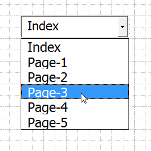
Today’s sample shows you how to create a table of contents. This particular version lists the pages in a Visio document in a drop-down combo box that sits on a Visio page. Just select an item from the list, and Voila! You are sent to the corresponding page in the document!
Anatomy of a Table of Contents Solution
The code for making this all happen is fairly straight-forward and is listed at the end of this post. I thought I’d point out a few interesting items before leaving you to slosh through it all.
Controls on Visio Pages (!?!?)
Yes, you can add controls to Visio pages! They end up behaving like shapes and like controls. It’s very odd, neat, and flexible!
To add a combo box control to a page, follow these steps:
- You need to activate the Developer tool bar by right-clicking on a blank area of Visio’s toolbar strip.
- Click the Insert Control button on this toolbar
- Choose Microsoft Forms 2.0 Combo Box from the list in the dialog box
- You should see your combo box, sitting in the middle of the page.
You can edit it’s properties and code by right-clicking the control and choosing Combo Box Object > Properties or Combo Box Object > View Code.
You can stop and restart the VBA code by clicking on the Design Mode button in the Developer toolbar. This is the button with the little blue triangle. This stops and restarts the VBA project.
Events
The code to get a list of all pages is fairly easy. The interesting things are the Visio events need to be tracked. In VBA, we have a built-in document object: ThisDocument, which has a whole set of events pre-wired for our use. In the code below, you’ll see that I’ve called for an update of the combo box’s list items for these events:
- RunModeEntered
- PageAdded
- BeforePageDeleted
- PageChanged
RunModeEntered does double-duty. It fires when you click that Design Mode button on and off, but also when the Visio document loads. This saves us from having to wire the DocumentOpened and DocumentCreated events, and also allows us to test without closing the document and re-opening it.
When a page gets deleted, we see the BeforePageDeleted event. But a simple updating of all the pages in the document at this time would be the wrong thing to do, since that page isn’t gone yet. (it’s a Before event!) So the code in this event stores the name of the about-to-be-deleted page in a module-level variable called m_deletedPageName. The update-combo-box code then simply avoids adding that page’s name to the list.
The Code (Finally!)
Here’s the VBA code that you’ll find in the document:
[code lang=”vb”]
‘// Combo Box Table of Contents
‘// Visio Guy
‘// http://www.visguy.com/
‘// November 8th, 2006
‘// A variable for tracking pages that are
‘// about to be deleted.
Private m_deletedPageName As String
‘// This flag stops the code from jumping back
‘// to the index page every time the combo box
‘// is updated.
Private m_editingList As Boolean
Private Sub Document_RunModeEntered(ByVal doc As IVDocument)
‘// This event fires when you click the
‘// run-mode/design-mode button on the
‘// Developer Toolbar, as well as when
‘// this document gets opened or created
‘// (created = a copy is opened)
Call m_updatePageList
End Sub
Private Sub Document_BeforePageDelete(ByVal Page As IVPage)
‘// Since this event fires before the page
‘// is actually gone, we’ll save it’s name
‘// so that m_updatePageList can ignore it.
m_deletedPageName = Page.Name
Call m_updatePageList
‘// Reset m_deletedPageName to nothing:
m_deletedPageName = vbNullString
End Sub
Private Sub Document_PageAdded(ByVal Page As IVPage)
Call m_updatePageList
End Sub
Private Sub Document_PageChanged(ByVal Page As IVPage)
‘// Occurs when page-name or background is changed.
Call m_updatePageList
End Sub
Private Sub cmbPages_Change()
If m_editingList Then Exit Sub
‘// Switch the active window’s page
‘// to correspond to the user’s choice
‘// in the combo-box. Do nothing if there’s
‘// an error (i.e. the user types in a bad
‘// page name)
On Error GoTo Err
ActiveWindow.Page = cmbPages.Text
Exit Sub
Err:
End Sub
Private Sub m_updatePageList()
m_editingList = True
‘// Update the combo-box with a list of
‘// all foreground pages in this document.
Dim collPgs As Collection
Dim sPageName As Variant
Set collPgs = m_getPageList()
cmbPages.Clear
‘// Add all pages in collPgs, except a page
‘// that might have just been deleted. Such
‘// a page is stored in m_deletedPageNameName.
For Each sPageName In collPgs
If (StrComp(sPageName, m_deletedPageName, _
vbTextCompare) <> 0) Then
Call cmbPages.AddItem(sPageName)
End If
Next
cmbPages.Text = cmbPages.ContainingPage.Name
m_editingList = False
End Sub
Private Function m_getPageList() As Collection
‘// Return a collection of all foreground
‘// page names in this document.
Dim collPgs As New Collection
Dim pg As Visio.Page
For Each pg In ThisDocument.Pages
‘// Add non-background pages to the list:
If Not (pg.Background) Then
Call collPgs.Add(pg.Name)
End If
Next
‘// Return the collection-list of page names:
Set m_getPageList = collPgs
End Function
[/code]
Download “Visio Combo Box Table of Contents VBA Code”
s!Aj0wJuswNyXlhS9vEoErwyx9TI_M – Downloaded 4652 times – 103.00 BMore on Table of Contents in Visio
Dan Brown’s greenonions
A nice code sample for creating a table of contents in a Visio document.
John Marshall’s VBA Information
This page has another code sample. Just search for Table Of.

Very helpful
Looks really usefull for those large files. But I get this error when I go into run mode or try to click the combo box. Sorry if its a total newbie question!
– Runtime error ‘424’:
Object required
And when I debug it goes to the line
cmbPages.Clear
in the Private Sub m_updatePageList() function
any help appreciated
Ok sorry, total newbie question after all. The Combo box needs to have the name ‘cmbPages’. Thanks Again
Chris in the forum there was a posting regarding reorganizing the pages order, is it possible to use
ActiveDocument.Pages.Item(2).Index = (3)
with the combolist to do that?
Thanks
Rod.
Hi Rod,
If you say, have a three page document, then try this:
visio.ActiveDocument.Pages.Item(3).Index = 2then the third page will move to the second location. The old page 2 will now be the third page in the document.
As far as the combobox goes, I’m not sure exactly what you want to do.
There *might* be a “sorted” property for the combo box that allows alphabetical sorting, and the .Add method might support a position index. These might be of use to you. But I haven’t looked at this in awhile.
Thanks! Great post!!
Yet another OUTSTANDING bit of code and work! Many thanks for the dedication to helping others!
Tim
hi everyone
this post was really BIG help for me while working in Visio files but i have question regarding same problem and it will be huge help for me and i think for many Visio users …
now question:
is it possible to make same flowchart like this above but instead of pages in chart use shapes ? i mean shape names or something like that coz i am using visio for drawing and there i have huge number of shapes and i need quick way to zoom on one of them and flowchart will be best coz ctr+f feels like stoneage ……….
hope for response and some help
mabe some one can change code for shapes or mabe show me how to
make one.
I am trying to create a chart detailing the organisation and team members, if i create text boxes with simple lists of names in, it will become unwieldy and hinder rather than help.
I know how to place a drop down box, but i cant fill it. All i want to do is under each team name, to have a box with a drop down arrow next to it that lists the team names. No links or codes are necessary, but thats all i can find online!
OK so everyone else is gonna swing on the nuts but not me. I havent got the patience for half assed tutorials. OK, so maybe they all knew enough about Visio to figure out where the author messed up. In defense of the author, it is better than most VB tutorials; which really arent tutorials at all but are instead a confusing bunch of garble. I am sure most will agree because not a single one is intuitive and step by step. Thus, stupidly leaving enormous room for error. Duh.
VB guys who write this need to learn to consider their audience and assume they are writing to somewhat unskilled scripters. Why they dont already assume that, being that they are writing self help articles, is beyong me. One day, they will grow some sense. But until then, condescending guys like me have to belittle.
First, all of you need to stop assuming everyone reading has the same knowledge as the author. If they did, they wouldnt be looking through the internet for help. Duh.
You have a guy on your post that points out a runtime 424 error. But the author and the guy with the problem are both to stupid to have a little clarity. The author is to lazy to correct it. So, instead, the author left a FRIGGIN FAIL TUTORIAL BECAUSE HE DIDNT EDIT IT SO ITS TOTALLY WORTHLESS TO ANYONE WHO IS AS CLUELESS AS MOST SYS ADMINS ON THE SUBJECT.
i am convinced now that everyone that writes VB tutorials is a tool and should head back to the tool box; beef up on their communication skills. Do a little QA on their tutorials. I dont know how many forums i see a guy respond to someone asking a question about VB and the dude asking NEVER gets back to him. because he/she didnt understand shit. lol.
A ComboBox is good but I prefer the following method. Plus you will find the above script fails since it has incorrect sub functions. IE. the private sub functions need to be “dim” rather than Private. Moving on. I think the below script will satisfy the needs of nearly anyone trying to automate the creation of a Table of Contents in Microsoft Visio. I found the base for this script after scouring the internet for a concise, succint, and straight forward self help article that is easy to understand and implement. I found a few ways to improve the script and I was unable to retrieve the name of the original author but at any rate; here ya go.
First, inside the Visio Document hit “Alt F11” or click Tools> Macros> Visual Basic Editor. Either way you get there, once inside the VB Editor Click Insert> Module. Input the following text:
Option Explicit
Sub TableofContents()
‘// Creates a shape for each page on the first page
‘// Adds a Double-Click GoTo link for each page.
Dim PageObj As Visio.Page
Dim TOCEntry As Visio.Shape
Dim CellObj As Visio.Cell
Dim Posy As Double
Dim PageCnt As Double
‘// The below event creates a shape only for the purpose
‘// of being deleted. Without this the script would fail.
Set TOCEntry = ActiveDocument.Pages(1).DrawRectangle(1, Posy, 4, Posy + 0.25)
ActiveWindow.SelectAll
Application.ActiveWindow.Selection.Delete
‘// ActiveDocument.Pages.Count gives the number of pages
PageCnt = 0
For Each PageObj In Activedocument.Pages
If PageObj.Background = False Then PageCnt = PageCnt + 1
Next
‘// Loops through pages.
For Each PageObj.Background = False Then ‘ Only Foreground pages
‘// Positions the page entries.
Posy = (PageCnt – PageObj.Index) / 4+ 1
‘// Creates rectangle shape for each page entry.
Set TOCEntry = ActiveDocument.Pages(1).DrawRectangle(1, Posy, 4, Posy + 0.25)
‘// Inputs page name inside rectangle.
TOCEntry.text = PageObj.Name
‘// Add link pointing to the Page when double-clicking rectangle.
Set CellObj = TOCEntry.CellsSRC(visSectionObject, visRowEvent, visEvtCellDblClick) ‘ Start
CellObj.Formula = “GOTOPAGE(“”” + PageObj.Name + “””)”
End If
Next
‘// The following event selects the Table of Contents shape
‘// and centers it.
Application.ActiveWindow.SelectAll
Application.ActiveWindow.Page.CenterDrawing
‘// Clean Up
Set CellObj = Nothing
Set TOCEntry = Nothing
Set PageObj = Nothing
End Sub
This code for a Table of Contents works fine. Thanks!
I want to add an index to each page though; I have approximately 40 pages and I want to switch between these pages. Several pages contain commandbuttons and I have to paste the codes of the indexes between the codes of the CommandButtons.
This is the code (with at the end the CommandButtons) and this works, but when I add a new Combobox on another page, the codes becomes complicated and do interfere. How can I avoid that multiple codes (for the Comboboxes) interfere (with the commandbuttons), when I use this code for the ComboBoxes. Which command lines do I need to add (End sub, end function)?
‘// Combo Box Table of Contents
‘// Visio Guy
‘// http://www.visguy.com
‘// November 8th, 2006
‘// A variable for tracking pages that are
‘// about to be deleted.
Private m_deletedPageName As String
‘// This flag stops the code from jumping back
‘// to the index page every time the combo box
‘// is updated.
Private m_editingList As Boolean
Private Sub Document_RunModeEntered(ByVal doc As IVDocument)
‘// This event fires when you click the
‘// run-mode/design-mode button on the
‘// Developer Toolbar, as well as when
‘// this document gets opened or created
‘// (created = a copy is opened)
Call m_updatePageList
End Sub
Private Sub Document_BeforePageDelete(ByVal Page As IVPage)
‘// Since this event fires before the page
‘// is actually gone, we’ll save it’s name
‘// so that m_updatePageList can ignore it.
m_deletedPageName = Page.Name
Call m_updatePageList
‘// Reset m_deletedPageName to nothing:
m_deletedPageName = vbNullString
End Sub
Private Sub Document_PageAdded(ByVal Page As IVPage)
Call m_updatePageList
End Sub
Private Sub Document_PageChanged(ByVal Page As IVPage)
‘// Occurs when page-name or background is changed.
Call m_updatePageList
End Sub
Private Sub cmbPages_Change()
If m_editingList Then Exit Sub
‘// Switch the active window’s page
‘// to correspond to the user’s choice
‘// in the combo-box. Do nothing if there’s
‘// an error (i.e. the user types in a bad
‘// page name)
On Error GoTo Err
ActiveWindow.Page = cmbPages.Text
Exit Sub
Err:
End Sub
Private Sub m_updatePageList()
m_editingList = True
‘// Update the combo-box with a list of
‘// all foreground pages in this document.
Dim collPgs As Collection
Dim sPageName As Variant
Set collPgs = m_getPageList()
cmbPages.Clear
‘// Add all pages in collPgs, except a page
‘// that might have just been deleted. Such
‘// a page is stored in m_deletedPageNameName.
For Each sPageName In collPgs
If (StrComp(sPageName, m_deletedPageName, _
vbTextCompare) 0) Then
Call cmbPages.AddItem(sPageName)
End If
Next
cmbPages.Text = cmbPages.ContainingPage.Name
m_editingList = False
End Sub
Private Function m_getPageList() As Collection
‘// Return a collection of all foreground
‘// page names in this document.
Dim collPgs As New Collection
Dim pg As Visio.Page
For Each pg In ThisDocument.Pages
‘// Add non-background pages to the list:
If Not (pg.Background) Then
Call collPgs.Add(pg.Name)
End If
Next
‘// Return the collection-list of page names:
Set m_getPageList = collPgs
End Function
Private Sub CommandButton1_Click()
UserForm2.Show
End Sub
@Tom, you can’t “dim” a function or sub in VBA!
For multiple combo boxes, you can at least shorten the code by calling a subroutine.
Here are two procedures. One updates the list items of the combo box, the other is a very simple, non-error-checking, go to page sub.
Private Sub m_updateComboBox(ByRef cb As ComboBox)
cb.Clear
Dim pg As Visio.Page
For Each pg In ThisDocument.Pages
Call cb.AddItem(pg.Name)
Next pg
End Sub
Private Sub m_gotoPage(ByVal pagename As String)
Visio.ActiveWindow.Page = pagename
End Sub
Now, for each combo box, you need to set the DropButtonClick event to call m_updateComboBox, and the Click event to call m_gotoPage. It’s repetitive, but short:
Private Sub ComboBox1_DropButtonClick()
Call m_updateComboBox(ComboBox1)
End Sub
Private Sub ComboBox2_DropButtonClick()
Call m_updateComboBox(ComboBox2)
End Sub
Private Sub ComboBox3_DropButtonClick()
Call m_updateComboBox(ComboBox3)
End Sub
Private Sub ComboBox1_Click()
Call m_gotoPage(ComboBox1.Text)
End Sub
Private Sub ComboBox2_Click()
Call m_gotoPage(ComboBox2.Text)
End Sub
Private Sub ComboBox3_Click()
Call m_gotoPage(ComboBox3.Text)
End Sub