1980 witnessed the launch of the classic arcade game Battlezone by Atari.
In 2007, Microsoft launched Visio 2007, which included the new Themes feature.
For 28 years, the two have been on a collision course with destiny…linked by computers, the Geek Factor…and Fate.
Ok, ok, this is all just a thinly-veiled excuse to play with the new Themes feature, see what it takes to create a custom theme with Visio 2007, and share some of that info with all y’all.
Clearly, the mid-life crisis is approaching and my longing for the glory days of computing strengthens with each passing sunset. If you’ve read: “Laser” Shape, then you will start to see a pattern–a searing, green-on-black, “vector-graphics” pattern.
Ah the Apple IIE, the Vectrex, Tempest and ‘Stroids…
So I created the Battle Zone Theme template for Visio 2007. This one will be great for that Tuesday-morning status meeting. Use this in your PowerPoint presentations and you’ll be sure to delight your 30-50 year-old co-workers. But stay away from the printer with this one!
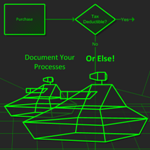
To get a better taste of what the Battle Zone Theme entails, let’s take a closer look at this article’s thumbnail. I created the background and the tanks, but the flowchart shapes are standard, Visio flowchart shapes that I didn’t touch in any way, except to add some text:

click to view larger image
By the way, I think these tanks need to make an appearance in an Office Offline comic (see article:Word Balloon Shape)
Regardless of whether you like Battle Zone or not (Over Thirty-somethings Unite!) Visio Themes are cool because they save you time.
You don’t have to individually select a bunch of shapes and change their line, fill or text attributes to get a different look. Shapes that are correctly built for Themes will automatically pick-up the theme that you have chosen. You don’t have to do anything, formatting-wise!
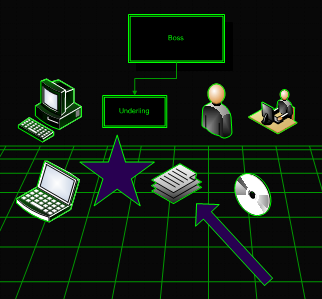
Here’s some of Visio 2007’s built-in shapes, “As-Dropped” into a document with the Battle Zone theme. They look pretty good!
Creating Custom Themes
So how did we create this puppy? Well, to create a custom theme…
- First, make sure the Theme Task Pane is visible. You can do this via the Format > Theme menu, or click Theme button on the Formatting toolbar.
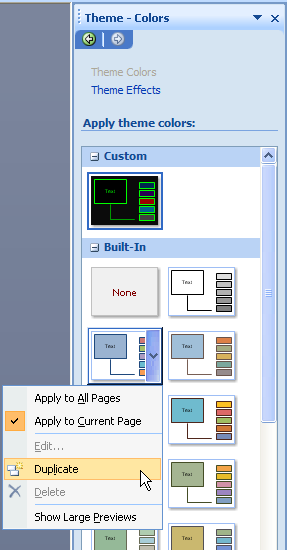
- Right-click and existing Theme Colors item and choose: Duplicate
You’ll see an new icon at the top of the pane, under Custom - Right-click your new icon and choose: Edit
- Change the named colors that you see in the Edit dialog
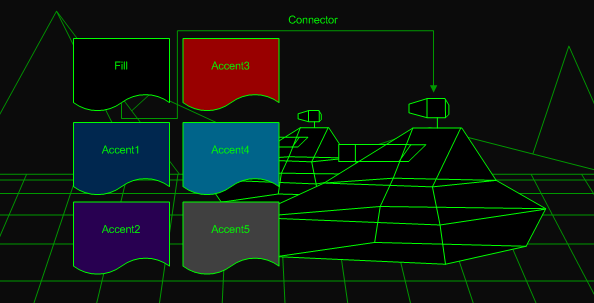
Below we see the full set of Fill, Accent and Line colors for the Battle Zone theme:
click to view larger image
If you’ve been happily distracted by the mountains in the background and the perspective grid on the “ground”, then you’ll be happy to know that the template contains four backgrounds: Battle Zone 1, Battle Zone 2, Battle Zone 3 and Battle Zone 4.
You can find Master shapes for these backgrounds in the local stencil, or Document Stencil. The Document Stencil is found via: File > Shapes > Show Document Stencil, if you don’t see it directly when the file is opened.
Background Shapes
The four backgrounds have varying combinations of grid-density and mountains. They look like this (tanks not included)
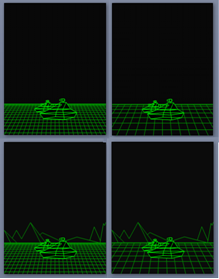
To add a background to your diagram, just drop a background shape onto a foreground page, and Visio will automatically send it to the background. Visio will also replace any background that might have been there in the first place! You don’t have to mess with deleting anything or tabbing to the background page to make any changes.
Transferring Themes
There doesn’t seem to be a really great way to deploy your custom themes, other than including them in custom Visio templates that you build and distribute. I.e.: you can’t centrally deploy them so that they are available to all templates that your users might already be using.
But transferring a theme isn’t difficult. One easy way to get a theme into another document is this:
- Draw a rectangle in a document that has the them you are interestedin
- Apply the theme of interest
- Copy the rectangle into the new document
The custom theme will transfer with the rectangle. You should see the custom theme in the Theme Pane when the new document is active.
Themes are Masters!
Themes are actually stored in the Document Stencil as a special type of master. Visio has been overloading the local-master mechanism for several versions now. Data Graphics, Themes, Custom Fills, Custom Line Patterns, and Custom Line Ends are all stored as Masters.
If you are examining or editing a Visio document programmatically, you can distinguish between “normal” masters and “special” masters by examining the Master.Type property.
For Themes, the Type property will be one of two values:
- Visio.VisMasterTypes.visTypeThemeColors
- Visio.VisMasterTypes.visTypeThemeEffects
We didn’t talk about Theme Effects in this article, but they are closely related to Theme Colors, and use a similar mechanism.
Download
The download has four files: two .vsd drawings and two .vst templates. There are 8.5 x 11 Letter size “US Unit” offerings, as well as A4 “Metric Unit” files for the NOT( USA ) crowd.
Download “Battle Zone Theme”
s!Aj0wJuswNyXlhRGpQDAbDuPzxvAj – Downloaded 13176 times – 103.00 B
Wow – I am totally blown away by this theme!
Truthfully – I wonder how many college educations I put into arcade machines in my teens?
Me too. Thank God for Dad’s change jar, and that he pretended not to notice.
It’s not that the theme is so gotta-have-it useful, but it was so easy to create!
Very cool, thank you for the techie tip. I am going to use this somewhere soon. BZ is a great classic atari game and I loved playing it as young kid, I hope this doesn’t age me too much… LOL
Kyle
I am looking for a TANK SHAPE for use in VISIO. 2-D would work better for my purposes. Is there one available somewhere?