 An old Visio Corporation coworker of mine used to talk about “…being a two-handed Visio user, as opposed to being a one-handed Visio user.”
What he meant was that you can get a lot more done if you learn a few keyboard shortcuts and mouse techniques.
The Visio keyboard shortcuts that we’re sharing with you today will allow you push, pull and prod Visio in a fashion that seems almost natural. By learning them, the drudgery of tasks that you need to perform often will become reactionary, and almost invisible!
Zooming & Panning
If you’re working on large or detailed drawings or charts, you’ll need to do a lot of zooming and panning. Doing this with the zoom drop-down list and the scroll bars will slow you down, and interrupt your work flow.
But there are two sets of mouse techniques that will get you sailing again:
- Ctrl + Shift + Mouse-click or Mouse-drag
- Ctrl or Shift + Roller-mouse movements
Ctrl + Shift Zooming & Panning
The next four techniques allow you to zoom in and out and pan the drawing window. You hold down the Ctrl + Shift keys and either click or hold a mouse button to get the job done.
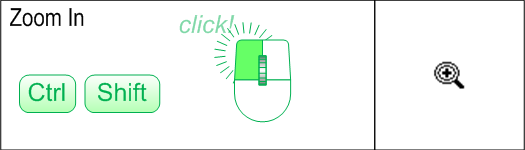
Zoom In 2x: Ctrl + Shift + Left Mouse-click
Double your zoom by simply holding down the Ctrl + Shift keys, then clicking the left mouse button!
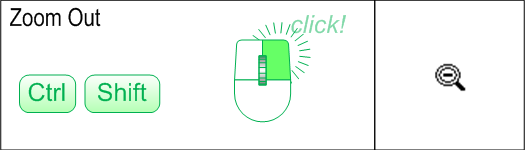
Zoom Out 2x: Ctrl + Shift + Right Mouse-click
The opposite of the previous shortcut, holding down the Ctrl + Shift keys and clicking the right mouse button zooms you out to half the previous level.
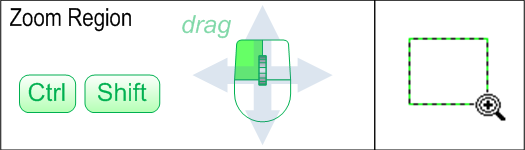
Zoom to Region: Ctrl + Shift + Left Mouse-drag
You can specify exactly where you want to zoom with this command. Press the Ctrl + Shift keys together, then hold the left mouse button. You can now drag a net around the area that you want to zoom. Visio will fill the window with the region that you specify.
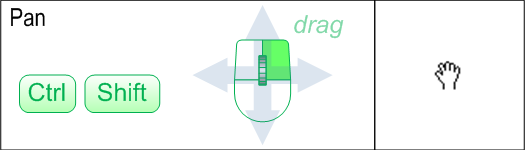
Pan: Ctrl + Shift + Right Mouse-drag
Hold down the right mouse-button to push and pull your page to the desired location. You’ll see the little hand cursor which lets you know that you’re ready to pan.
Wheel-mouse Zooming & Panning
If you have a “roller mouse”–that is, a mouse that has a wheel, you can zoom and pan with these alternative techniques.
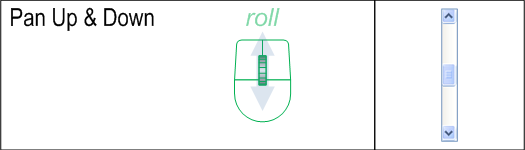
Pan Up & Down: Wheel forward/backward
You don’t need to hold down any special keys to to pan up and down with the wheel. Just roll the wheel forward to pan the page downwards, and roll the wheel backward to pan the page upwards.
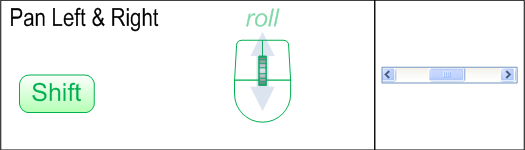
Pan Left & Right: Shift + Wheel forward/backward
Holding the Shift key while rolling allows you to pan left and right. With the Shift key held down, just roll the wheel forward to pan to the right, and roll the wheel backward to pan to the left.
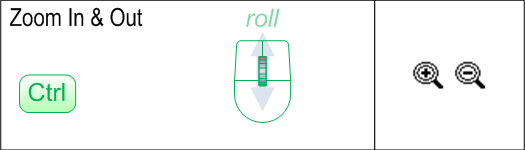
Zoom In & Out: Ctrl + Wheel forward/backward
If you switch to the Ctrl key while rolling, you can zoom in and out! With the Ctrl key depressed, rolling forward will zoom in, and rolling backward will zoom out.
General Shortcuts
The following keyboard shortcuts aren’t worth categorizing, but are worth learning! You’ll perform these functions a lot, so they can really save you a lot of time and effort!
Select Pointer Tool: Ctrl + 1
A lot of Visio tools are “mixed-mode”, meaning functions overlap. For instance, you can still select shapes when are working with the Rectangle, Ellipse, Line, Arc, Freeform or Pencil tools. But at some point, you’ll need to switch back to the pointer tool. And you’ll find yourself needing to do this a lot. Ctrl + 1 is your man.
Note: you can select the other drawing tools with other Ctrl + Number combinations.
- Ctrl + 2: Text Block Tool
- Ctrl + 3: Connector Tool
- Ctrl + 4: Pencil Tool
- Ctrl + 5: Freeform Tool
- Ctrl + 6: Line Tool
- Ctrl + 7: Arc Tool
- Ctrl + 8: Rectangle Tool
- Ctrl + 9: Ellipse Tool
Select All Shapes: Ctrl + A
This is pretty standard Windows stuff. Sometimes you want to move or delete everything on the page. With this command, you don’t need to zoom out to see everything. Just quickly select all the shapes and proceed with whatever you wanted to do.
Speaking of standard Wndows behavior, you can also duplicate shapes via Ctrl + Left mouse-drag.
Save File: Alt + F, S
Ok, Visio has an Auto-save feature. But now that you have learned all these shortcuts, you’ll be working so fast, you’ll want to save more often then Microsoft deems necessary. Plus some of you probably turn Auto-save off because it can be annoying.
Edit: Reader Steve has pointed out a that Ctrl + S is a quicker and better way to save a file!
I like Alt + F, S and Alt + F, A for Save and Save As, respectively because they are similar, and occupy a similar compartment in my mind.
Zoom Whole Page: Ctrl + W
You’ve zoomed WAY in. You’ve finished getting your details just so. Now you want to step back and have a look. You can either zoom out fifteen times, or
Edit: Attention Visio 2010 users!
You now have to press Ctrl + Shift to zoom to the whole page! Ctrl + W now closes the document!
Switch Between Visio Windows: Ctrl + Tab
Whether your working on several drawings at once, have a bunch of group windows open, or are switching between several ShapeSheet windows, you’ll get it done a lot faster if you keep your thumb on the Ctrl key and another finger hovering over the Tab key.
Edit: Reader Mark Nelson has pointed out somewhat related shortcuts: you can quickly switch between pages in a document using the Ctrl + Page Up and Ctrl + Page Down key combinations.
Developer Shortcuts
For those of you who have dug a little deeper into the crazy world of Visio and have a need to create SmartShapes, work with ShapeSheet formulas, or automate tasks using the built-in Visual Basic for Applications programming environment, then there’s a couple of shortcuts for you!
Show ShapeSheet Window: Alt + W, S
Yes, you can get a Show ShapeSheet menu item in your right-click context menu by turning on Developer Mode (You do this via: Tools > Options > Advanced Tab, then check: Run in developer mode) But if you’re a two-handed Visio user, your right hand will be hovering over the Alt, W and S keys, just waiting for a chance to fire-up the ShapeSheet!
Show VBA Editing Environment: Alt + F11
Do you really want to fish through the cascading menus for:Tools > Macro > Visual Basic Editor every time you want to slam out a bit of test-code? Of course you don’t. Just hit Alt + F11. I bet a lot of Visio MVPs don’t even know where the menu item is!
Hopefully, these tips will increase your productivity with Visio, and improve your overall experience as well.
More…?
If you’re in need of more keyboard shortcuts, check out some of these links below. While they were created for older versions of Visio, most of the shortcuts still apply, even in Visio 2007!
- Visio 2002 Shortcut Keys – A nice Visio drawing in VSD format from Visio Cafe.
- Visio 2002 Shortcut Reference – A Microsoft-provided guide, which downloads an EXE that simply unzips a good-looking PDF to your hard drive.
- Visio 2003 Keyboard Shortcut Mousepad – Keep those shortcuts handy, and your mouse-hand cozy! From Dan Brown on greenions.
- Visio 2003 Keyboard Shortcuts – A boring but well-organized collapsable list of Visio shortcuts from Microsoft.
- Visio 2003 Quick Guide – A nice PDF file from the folks at Ball State University.


@Bill Bates,
Thanks for sharing! I truly believe the experience with Visio is so much better when users can pan and zoom without thinking about it. I see too many novice users who lose their trains of thought when they have to look for pan and zoom controls.
Nice list!
I’ve been using Visio for years (since it first came out…oh, the days of Win 3.1 with Visio or ABC Flowcharter).
I’ve been trying to find the “whole page view” button for some time – that’s an excellent find. And I’d never heard of the “Zoom to Region” feature – very nice (though I use the Shift/Ctrl and mouse wheel to same effect).
Thanks for the list, and the links!
I’m looking for a way to pan and zoom while in View Mode (F5).
I can zoom in, but beyond that I cannot find how to move around.
Kevin
Great article! Pan short cut saves me lot!
I would like a quick way to add a guide to a shape… for example if I have a repetitive block in drawing a fence. it would be quick to – something to add a Guide to the left/right/top/bottom.
Hi Demron,
You can group shapes and guides together, but you’d have to ungroup to see the guide.
A drawing technique might help: You could just make, say one piece of your fence and put a guide next to it. Then, select both the guide and the shape, and do a Ctrl + drag to make a copy of it. You can then hit F4 and you will get repetitive copies of both shapes, with the same offset as you did before.
It’s a great technique that I use all the time to create rows and columns of equally-spaced shapes.
We use Visio 2007, and this article from 2008 was exactly what I was looking for to tell me how to pan and zoom, and the extra mouse/keyboard shortcuts were a nice bonus.
Thanks for this great information!
This is a great list. Thank you post this.
Do you know if we can customize the shortcut in Visio2010? I don’t find it. Another people remind me that this is possible in Visio 2003, is this true? Why the feature is dropped?
thanks.
Hi,
Thank you very much for the shortcuts.
I am using 2010 and there use the new SmartShape with Autoconnect: Mouse over the shape until the 4 triangle appear, and click on it which creates the new shape in the right place and connected to the master shape.
Now mouseover and click on the little triangle can slow you down when you’re past the complete novice stage. But I can’t seem to find a short cut for this? Any suggestion?
Thank you,
Luan
Hi Luan,
Good point. I don’t think there are any keyboard shortcuts that replace what the blue arrows do. The way I usually work is to just draw the flowchart shapes first, then connect them later using the connector tool.
I find that I can rapidly create shapes by Ctrl+dragging duplicates of shapes already on the page. Once I’ve got 5 or 10 or 15, I can go back and connect them with the connector tool, dragging from center to center for each shape. No waiting for blue arrows to show up!
Awesome! Thank you so much for these shortcuts. They will make my life a lot easier!
Thanks. Spent ages trying to find how to tab between pages.
Is there any way to get Visio’s pan to function like AutoCAD (and other drafting software)? In other words when you click the middle mouse button (or wheel), you can then pan the view by moving the mouse around. Panning in X or Y directions only while holding CTRL or SHIFT is bogus as is the silly auto pan feature when you tilt the wheel side to side.
Thanks.
Hi Mike,
If I press my roller mouse down, I then get the “fly around” behavior that I think you’re asking for. I didn’t do anything special for this. My mouse isn’t a traditional three-button mouse, but I can click the roller like a button, it is similar.
My mouse wheel doesn’t tilt.
You can also pan vertically by rolling the mouse wheel, and horizontally by Shift + rolling the mouse wheel.
I don’t find Ctrl + Shift + right drag silly at all. Many drawing apps have the hand feature for panning. Visio doesn’t have it as a dedicated tool, but the keyboard shortcuts give it to you temporarily, which is exactly what you want. I find it fast and accurate. Where as the flying around is not accurate, and is hard to stop right where you want.
When I press the wheel button, I get the fly around thing which is not very helpful as you indicate. What I’m looking for is a quick way to get full X-Y panning like you get in CAD tools (AutoCAD, Revit, Sketchup, etc.). Tools like Photoshop, Acrobat also honor X-Y panning via middle click.
I’m ready to completely quit using Visio because of this limitation. I can actually draft things faster in AutoCAD and then import into Visio and save as a Visio file than I currently can do trying to draft directly in Visio.
I should add that CTRL-SHIFT plus right mouse button does to the X-Y panning but it is rather cumbersome for such a basic function. I guess I’m ranting more than anything here. Was hoping there would be a way that I was missing to make X-Y panning easier to get at.
Thanks for helping though, I guess this is just a limitation of Visio.
While I don’t expect Mike will ever be coming back to see this I thought I’d share for those, like me, who had the same question. I was able to get this remapped using AutoHotKey with a little bit of fiddling using the following script:
; Visio
#IfWinActive , Visio Professional
MButton::Send {Control down}{Shift down}{RButton down}
MButton up::Send {RButton up}{Control up}{Shift up}
; reset window-specific context
#IfWinActive
I’m new to AutoHotKey, so maybe i didn’t copy/paste Josh’s script correctly. Anyways, here is what ended up working for me:
;Visio. grab pan on middle mouse.
IfWinActive , Microsoft Visio
{
MButton::Send {Control down}{Shift down}{RButton down}
MButton up::Send {RButton up}{Control up}{Shift up}
}
I’m new to AutoHotKey, so maybe i didn’t copy/paste Josh’s script correctly. Anyways, here is what ended up working for me:
;Visio. grab pan on middle mouse.
IfWinActive , Microsoft Visio
{
MButton::Send {Control down}{Shift down}{RButton down}
MButton up::Send {RButton up}{Control up}{Shift up}
}
What I also found is that some web browsers make the title of the window the same as the title of the tab you are viewing. So changing the active window title to just “visio” would cause it to be active on this page as well. Or any other window that has “visio” anywhere in the title. Which is why I went with “Microsoft Visio” in the script.
Anyways, works well and I’m happy. Thanks for the tip Josh!
uh…. not sure how i messed that up, sorry. here is the post I meant to make….
Found an issue with my last script. Ended up being active for all windows… Some more digging I found that I had a problem with Josh’s script because of the Title Match setting. Changing the mode to match on any hits for my Title seemed to be the fix. Script below.
;Visio. grab pan on middle mouse.
SetTitleMatchMode 2
#IfWinActive , Microsoft Visio
MButton::Send {Control down}{Shift down}{RButton down}
MButton up::Send {RButton up}{Control up}{Shift up}
What I also found is that some web browsers make the title of the window the same as the title of the tab you are viewing. So changing the active window title to just “visio” would cause it to be active on this page as well. Or any other window that has “visio” anywhere in the title. Which is why I went with “Microsoft Visio” in the script.
Anyways, works well and I’m happy. Thanks for the tip Josh!
I love the scroll wheel based shortcuts here. I used to use them all the time. But MS changed them in Visio 2010 and it is painful.
Give me back the old pan (scroll wheel for up and down and shift+scroll wheel for left and right) shortcuts.
JAR
How do I get the latest version of text on circle, and how do I move a text circle once it created and copied to a new file?
Hi 8uz,
There’s the newest version, which has a free trial, but ultimately is not free:
Text on a Circle Visio Shape
http://www.visguy.com/2014/05/09/text-on-a-circle-visio-shape/
And the older version that used VBA to get the job done, and doesn’t really let you change the text without starting over:
Circular Text Generator (version 2)
http://www.visguy.com/2008/01/05/circular-text-generator-version-2/
Thank you so much!! I’ve been trying to figure out how to right-click drag (which is apparently called panning!) for like 15 minutes… apparently the hand doesn’t show up until after you right-click. Ctrl + shift alone shows the magnifying glass