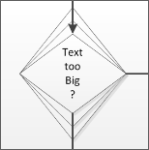
 Visio 2010’s flowchart shapes have gotten smarter.
See how they save you work when you add lots of text to them!
Flowcharts are supposed to be concise explanations of complicated processes. Each step should contain a very brief message that explains what the process step is about.
But some folks are verbose. Companies have their own jargon. And technical words can be long. Sometimes being precise requires that you use a few extra words.
Well Visio 2010 flowchart shapes accommodate wordiness by automatically expanding to fit the text!
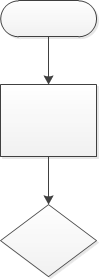
If I create a simple, text-free flowchart, it might look like this:
If I add text to the shapes, Visio 2010 automatically expands the shapes for me. Below I’ve only added text. I didn’t resize the shapes at all!
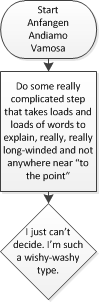
This is really cool! It will save you the extra step of having to tweak your shapes so that they are big enough to hold all of the text.
Now some Visio shapes have had similar features for years, but the technology was never applied whole-sale across a family of shapes that could really use it!
Technology Behind the Feature
ShapeSheet junkies and Power Users might be interested in the intricacies of how this has been implemented.
First off, the shapes are not protected in any way. You can freely resize them yourselves by pulling on the resize handles. Be advised that as soon as you manually resize a flowchart shape, though, you kill the auto-resizing smarts.
Copying the shapes also seems to have the effect of wiping out the resize-with-text behavior too.
Never fear, there’s a back door to restore brains to your flowchart shapes. Just right-click one and you might see two custom actions: Set to Default Size and Resize with Text:
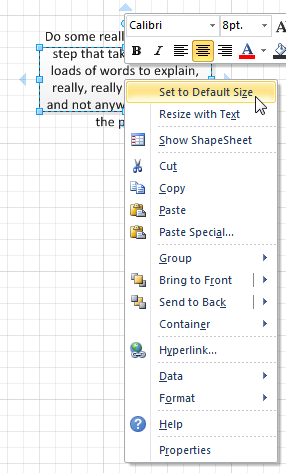 I say might, because the options aren’t always available, depending on the state of the shape.
When you drop a shape from the flowchart stencil, you’ll see none of these actions because the shape is at it’s default size, and it resizes with text, so you don’t need to “reset” anything.
Set to Default Size just blasts numbers into the Width and Height cells of the shape. This is great if you’ve messed with the shape, but have now reduced the text and would like to restore a consistent look to your diagram.
Resize with Text simply reinstates the auto-grow feature so that your shape will accommodate the text effortlessly.
Inside the ShapeSheet, you’ll see a number of interesting formulas. The size of the shape is controlled by the Width and Height cells:
Width = User.DefaultWidth
Height = User.ResizeTxtHeight
Notice that they are not GUARDED. So resizing the shape manually will blast these formulas and replace them with numbers.
The User cells to which Width and Height refer look like this:
User.ResizeTxtHeight= MAX(User.DefaultHeight,CEILING(TEXTHEIGHT(TheText,TxtWidth),0.25))
User.DefaultWidth = 1 in*DropOnPageScale
User.DefaultHeight = 0.75 in*DropOnPageScale
The TEXTHEIGHT function helps to figure out if the text is in fact taller than the shape, and the CEILING function causes the shape to grow in increments of 0.25 inch.
The DropOnPageScale cell-reference is used in case flowchart shapes are dropped into scaled drawings. Since flowchart boxes aren’t physical objects, there’s no sense in them maintaining a scaled value, so Visio will scale them up so that they are still visible and readable. (Imagine a 1-inch flowchart shape on a floorplan that is 50 feet wide!)
Right-clicking the custom actions simply stuffs Width and Height with references to these user-cells, or with values from these user-cells.
Actions.SetDefaultSize = SETF(GetRef(Width),User.DefaultWidth)+SETF(GetRef(Height),User.DefaultHeight)
Actions.ResizeWithText = SETF(GetRef(Height),”User.ResizeTxtHeight”)
On quick inspection, it looks like all the shapes on Visio 2010’s Basic Flowchart Shapes stencil have this behavior. But I don’t have an exhaustive list of all shapes and stencils that incorporate this behavior. If you find more auto-grow-with-text shapes, let us know where in the comments below!

This is a great feature for those who want it. For my companies process maps, we require all shapes to remain at the default size even if the text is going to spill out of the box.
Other then selecting ever shape I put on a page and disabling the auto-resize option, how can I make this a default for all shapes?
Thanks!
Cody
Hi Cody,
Unfortunately, it’s a custom behavior build into specific flowchart shapes, and isn’t some sort of generic Visio feature that can be applied at the click of a button.
As is usually the answer with Visio, someone could write a utility in VB/VBA or C# that would insert this behavior into selected Visio shapes. But it’s not super-straightforward.
I’ve seen some 2003 VISIO shapes with 3 handles per side – which is really useful for the multi-decision flows.
Anyone have a source for these shapes?
Hi WG,
Not sure what you’re talking about. All “2D” Visio shapes (ie: not lines) have three handles per side. Although when you zoom way out, the corner handles will disappear so that you can still easily grab the side handles.
Interesting – except in my Visio 2010 those two top menu items “Set to Default Size” and “Resize with Text” – does NOT exist!
And not in the horrible ribbon either!
Hi Tom,
Yes the menu items do exist, as the screenshot above shows.
However, if you just drop the shapes and don’t resize them at all, you won’t see the menu items. Try typing lots of text so that the shape grows. Or resize a shape so that it is shorter.
You will then see the right-click menu items that this article talks about.
It is infuriating that one can’t disable the ‘resize with text’ option on all shapes. The result is that if you don’t want your shapes to grow as you add more text you have to manually re-size each affected shape before returning it to its original size – this switches the ‘resize with text’ option off.
In my example I wasn’t even over-filling a shape – just trying to put the text into a decision box in 3 lines is enough to make the shape grow a little in height which it doesn’t need to as when you select ‘set to default size’ the text still fits in just fine.
I’m sure ‘resize with text’ is a useful feature for some users but it’s certainly not something that should be imposed on all users as many of us do not want it and have no way of easily disabling it. If anything it should be something you can switch on if you want it with a simple on-off button on the home menu.
Hi Matt,
Maybe you could switch tactics. Most flowcharts only contain a few different symbols. So the first time you drop a shape, and it starts to grow with “too much” text, reset it to default size.
Thereafter, copy that shape (Ctrl + drag) instead of dragging from the stencil.
Or create a set of flowchart shapes with resize turned off, drag them to a new stencil, then create your own flowchart template that opens with the custom stencil.
I like this feature, but is it possible to automatically increase the height and width proportionally so that the shape looks the same except bigger?
My main concern is fitting the text within the shape itself and not just the shapes width and height. For example, I am working on fitting text within a diamond shape. Fitting the text to the height and width still leaves part of the text outside the shape itself but within the shapes height and width. Is it possible to limit the text to the outer lines of the shape?