Printing in Visio. Phew!
I’ve been digging through the various options, and I am surprised to see how many different dialogs control aspects of printing in Visio.
Here is a quick overview of the chaos.
What’s great about printing in Visio is that there are many pathways to get where you are going. You can choose to scale a drawing by setting the actual drawing scale, like 1:10. Or you can scale the drawing at print time by choosing “print zoom to 25%.”
There is more than one path to print a small drawing on a large sheet of paper. And there is more than one way to print a large drawing on a small piece of paper. Likewise for tiling a large drawing across several small sheets of printer paper. Etcetera, etcetera.
The bad news is that at first glance, it looks horribly confusing. It also makes an exhaustive discussion of all printing features and possibilities extremely awkward, long-winded, and near-impossible.
So we’ll choose the short route.
What follows is a quick tour of Visio’s printing-related dialog boxes, along with a few words on how to find them, and (maybe) what they’re good for! Have a look around. Notice a few things. Say “Oh!” a few times. Don’t think too hard.
Getting Started With Printing
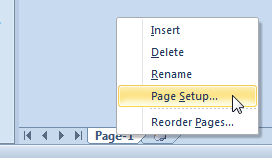
The first place to start is the Page Setup dialog. In Visio 2010, you can get there by right-clicking any page tab at the bottom of the drawing window:
Another nice way to get there is from the parallel world of Print Preview. In Visio 2010, the Print Preview uses the ribbon UI, which looks like this:
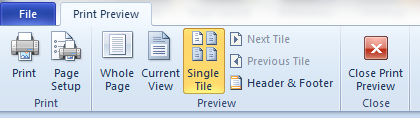
I’ll go out on a limb and say that I like this ribbon tab! It’s got what you need in one, easy to use place, and it beats digging around in the backstage area for print options.
The Page Setup Dialog
Once you’re in Page Setup, you’ll notice a whole slew of tabs. The first two are the most important for printing.
Print Setup Tab
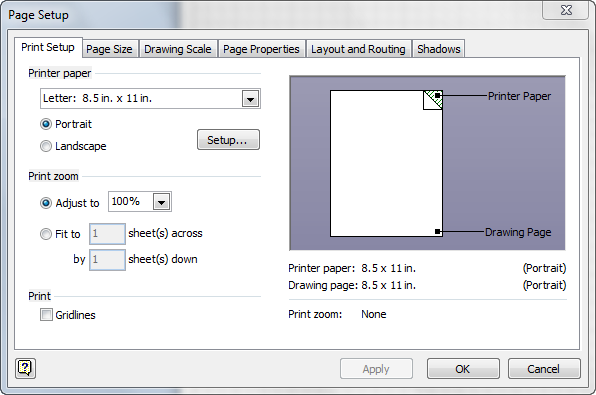
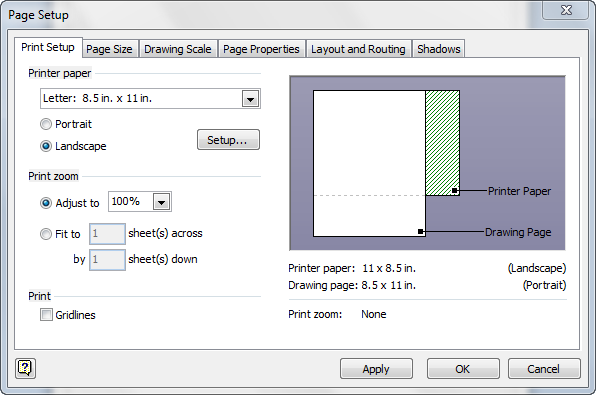
Print Setup is mostly concerned with the paper that is inside of the printer:
click to view larger image
You can see that there are orientation options, as well as a couple of zoom settings. You can also choose to print gridlines, which is kind of nice!
Page Size Tab
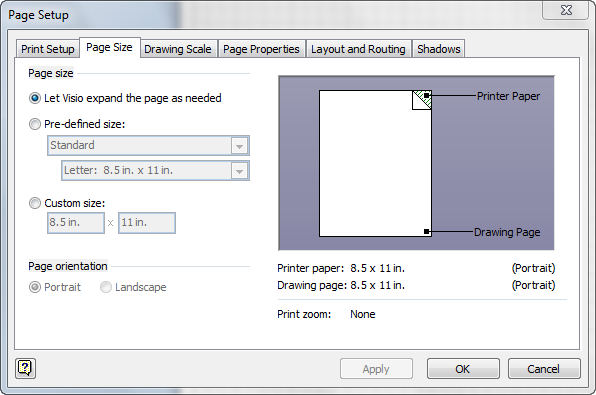
The second tab, Page Size, is more concerned with the virtual paper that you see in your Visio drawing window.
By specifying the size and orientation of the “desired” paper, you tell Visio how to draw the paper on the screen.
click to view larger image
The Drawing Scale tab is also important but we’ll stay out of there for now. I’ll just note that you can specify scales for your Visio drawing, such as 1” = 1’-0” or 1:10 or 25:1. Drawing scales save you the trouble of doing the math, and allow you to draw real-world objects in real-world units. For instance, 1” = 1’-0” means that 1 inch on the screen represents 1 foot (12 inches) in the real world. Similarly, 1:10 means that 1 mm on-page is 10 mm in the real world. Or 1 furlong on-page is 10 furlongs in the real world.
A nice feature of the Page Setup dialog is the preview area on the right. It helps you better understand current settings by visualizing the drawing page and the printer paper. Here we can see that we’ve set our drawing page to have a portrait orientation, but the printer settings are at landscape. Clearly settings need to be tweaked before we print!
click to view larger image
Print Setup
If you look again at that first tab, Print Setup, you’ll notice that there’s a Setup… button in the top-left quadrant of the dialog.
That ellipsis tells you there’s more lurking behind this dialog. Click the button and you’ll see the Print Setup dialog:
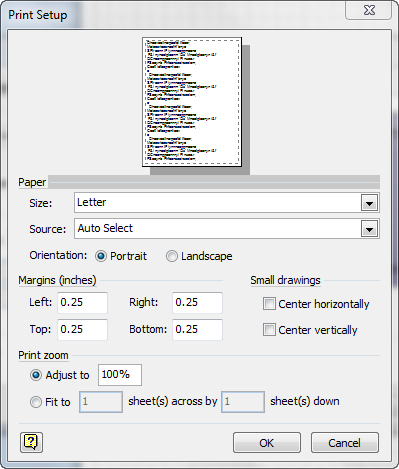
Not only does this dialog have the same name as the tab from whence it came, but it has almost the same settings. There are a few extras, however, such as the margins and the centering options for Small drawings.
I’m not sure why this dialog exists, but it may be related to the printer driver for you printer, and may be slightly different for different printers. But don’t quote me on that. Perhaps it’s just a historical artifact.
Just Before Wasting Trees
And last, but not least the there’s the Print dialog:
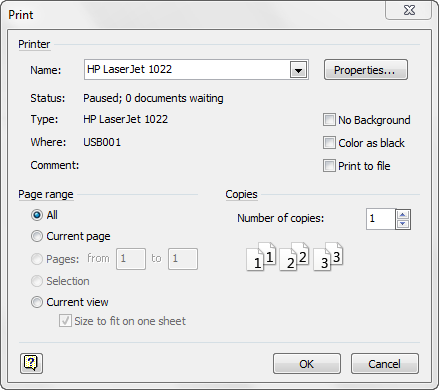
Ok, not really last. If you click the Propertiess… button, you’ll get into a printer-specific dialog. This is basically an interface into the options that your printer manufacturer has decided you can hae access to.
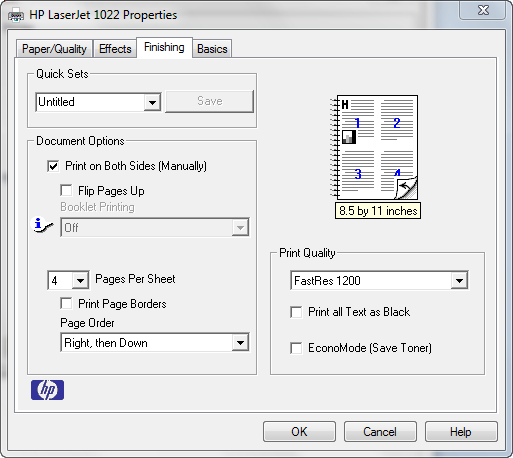
For my HP Color Laserjet 1022, it looks like this.
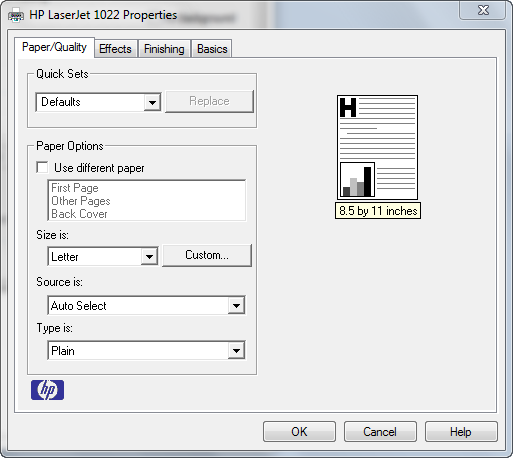
My favorite tab here is the Finishing tab. That is where I can print four pages per page, and specify double-sided printing, to save even more trees!

I am new to working with Visio. Problem I am having is getting my diagrams to print on a single sheet of paper. How do I get my diagram on a single sheet of 17x 11? Right now it prints in tiles and I end up taping them together – looks pretty tackie to say the least.
I’m having a problem when I print zener diodes in visio they print with a bowtie shape above them instead of the regular two 90 degree angled lines. In visio they look like they should but they don’t print that way. If you could give me a fix for this I would really appreciate it.
Hello,
Is there a way to apply default print settings for visio? I’d like to have the print setting to fit to 1 x 1 (one page) every time visio launches.
Is this possible?
Thanks!
Hi Dan,
I don’t think there’s any global/Visio settings per se. However, you can modify the templates that you use most often and set up the Page Setup > Print Setup options for pages in those templates.
You can also configure your printer with some defaults in Devices and Printers. The 1 page across by 1 page down is, of course, a Visio setting, but you can setup defaults like 2-sided printing, print quality, paper size, etc. in Devices and Printers.
Hello,
I created a detailed diagram in landscape orientation with Visio 2010 and now I find I need the diagram to be in portrait orientation. Is there an easy way to update the diagram from landscape to portrait without redrawing the entire thing?
When I’m done, I want to insert the diagram into a Word document. How can I ensure the Visio “screen tips” will be accessible and viewable after I insert the diagram into Word? Thanks for any guidance you can provide on these two items.
Sincerely,
Mark
Hey Visio Guy,
I’m using Visio Standard 2010 to create a (very) wide sitemap for work and I am struggling to produce a PDF from the Visio drawing. The drawing itself is a whacking great 15980mm wide by 510mm high!!
I do have a full version of Acrobat XI Pro, which apparently can handle documents up to 250000mm in both directions.
I have used the info at this link (http://www.textndata.com/forums/how-do-i-specify-large-152471.html) to try to resolve my issue, but it seems to only go as far as allowing me to choose a custom paper size created within the Printing Preferences for the Adobe PDF printer, which can be seen in Visio, however whenever I try to use it to print the drawing to PDF, it always produces a portrait document so that the long side goes up and down rather than left to right.
Now I know that sounds like a schoolboy error and that I’ve somehow got my portraits and landscapes mixed up, but I’ve tried creating a second new custom paper size in Acrobat using the opposite orientation to the first time I did it, and I get the same result.
Also, strangely, all of my content gets pushed out to the extremities of the left and right edges of page and get scrunched into a tiny thin line either side, with the majority of the middle left as white space!!!
It’s been driving me mad for a couple of days now and can’t work out what I’m doing wrong…
Anything you’ve come across before that might resolve my issue please? If I’ve left any vital information out that you need, just let me know and I’ll get back to you.
Thanks in advance.
Maustin
“Hi! I’m having problems with printing org. structure using Visio 2013.
I already plotted everything. However, the “Executive” box keeps printing without the shadow. It turns out to be just like the “Manager” box when I print it. Even when I convert it to PDF or JPEG, the shadow in the “Executive” box disappears.”
This is a really annoying problem, Does MS think people add a shadow effect just to look at and not want it to print out that way?? Well the problem is you have to set the properties to ‘High Quality’ (really intuitive, Not). Now you would expect to find that under ‘Page setup right? NOPE some bored programmer figured that was too easy!
Solution:
In Visio 2013 Click on FIle > Print then click the down arrow on the right hand side of the box that is under ‘Settings’. At the bottom of the drop down menu it says ‘High Quality’. Select that and a check mark will appear beside the word. Guess they were to lazy to put in a box, again not very intuitive!! I’m sure they will move it again in the next Version LOL.
Hello
I use Visio at work. We have had instances where the “Setup…” button is greyed out in the page setup dialog box. This occurs, seemingly randomly, in both 2007 and 2010. Do you know why this occurs and how to correct it?
Hi Angela,
Any chance your printer isn’t installed or somehow isn’t recognized by Visio?
Hello. I have created several documents in Visio 10 that look perfect on the computer screen. However, when I print them, none of the connectors are visible on the printed document. All of the shapes and text is there, just no connectors. Am I missing something?
Thanks!
Hi Jessica,
Often connectors are on a layer called “Connectors”. Any chance the Connectors layer has had “Print” turned off?
Hi there. I did take a look there-and the print box is checked.
Hello,
I created a Cross-Functional Diagram in Metric. I have two questions: How to I change to US Units? Also, when I tried to print it, the diagram is on a small area of multiple sheets. I tried printing to fit one page and it doesn’t work. Please help 🙁
Hello Visio Guy,
Would you please answer Brian’s question or direct me to the answer given (if I have overlooked it). I too cannot get Visio to print on 1 sheet or when I do the font is so small and not legible.
Thank you!
Visio guy,
I am just trying to use Visio and am trying to print a floor plan a customer sent me to a HP plotter. I only prints the added comments but will not print the background floor plan. I have tried every printer setting i can find but it will not print the background floor plan. Any idea.
Thanks.
Hi
I am having some problems with printing..
The Print Preview does not match with the print. There are some colors missing. Yesterday it worked fine and all the colors wore in their place. Not today.. The printer’s settings are the same as yesterday. any suggestions?
The flow chart colors on my screen are all blue. The properties all match as blue. Yet it prints out green and blue. Any ideas?
Hi Rebekah,
Is it possible you’ve applied a theme or colored shapes on a specific layer? I haven’t heard of anything like this, and you haven’t provided much information to go on. Hopefully somebody else reading the comments can help you.
Hi Radu,
I just don’t print that often, and don’t have any spare time to research right now. Hopefully other readers can chime in and help!
Hello,
I’m having a problem with Visio 2007 in Windows 10 (didn’t happen before I upgraded Windows).
I can print a plan fine, but when I try to publish as a PDF, it shrinks the page (so the PDF shows the drawing in the upper left of the page with an approx 2″ white space along the bottom and right hand side). I have set the Page Setup correctly, as it prints full page fine. The work-around is to ‘Print to PDF’, but the quality isn’t there when I try that (although it does fill the page correctly).
Any ideas? Thanks so much!
I have Visio 2016. I created a swim lane document, it goes beyond the 8.5 x 11. I have changed everything I an to landscape mode. So with AutoSize it now is mostly on one page, with a little bit on a second page. I go to page Setup, Print setup and have it fit to one page. But it does not fill up the page, only maybe 50%, and it is unreadable.
Also, when I go to page size and play around with it – all I can get is the small piece that goes onto the second page, not the whole filled up page. Can anyone help me on how to get it to fit on one page and also to be something I can put in a Word doc and fill up one page? Thanks!
I often need large swimlane diagrams, and can strugglee with printing lots of 11×17 pages and taping them together. If I print 3 wide by 2 tall the swimlane boundary lines print – if I go to 4 wide by 2 tall, the boundary lines don’t print. Is there a fix for this besides using a continuous roll fed plotter?
Thanks!
Just came across your site – hope you can help. I use Visio 2013 @ 2016 for generating my drawings. I’m a general contractor, and generate a lot of Arch D-size drawings. I use an HP Plotter with roll-feed for all my large drawings. I can set the page size in Visio to 24X36, but I can’t find a way to set the printer paper size to the same. It always defaults to 22X34, which leaves me with a lot of extra white space, and an un-centered drawing. Any suggestions?
We are using Visio 2013 and Adobe Pro DC. I have a user who prints a multi page Visio document to Adobe PDF, having selected Landscape as the default orientation. The odd pages print in landscape and the even pages print in portrait. I checked every page set up I could find and made sure that portrait was not selected and could not find anything indicating alternating or even/odd page set up.
This doesn’t happen in Word, Excel or Powerpoint when printing to PDF. Is this a bug in Visio 2013 or am I missing a setting?
She can save to PDF and it comes out fine. And this solution will be ok, I just want to make sure I am giving accurate information before doing so.
Thank you for any insight!
I have found that if I cut the respective image/picture out of Visio, paste it into (for example) MS Paint, save it as a different format (I am having problems with certain PNG’s, so I use JPG) then open it again, copy and paste back into Vision or Insert/picture …. the problem is resolved. I hope this is of assistance to somebody.
And I’m just gonna drop a note in case google brought you here when you were searching how to get *guides* (the blue guide lines) to print. Guides are shapes like any other, but configured not to print. To make them print, you can modify the guide’s shapesheet: Section Miscellaneous, Cell “NonPrinting”. Set it FALSE. Thanks to one of Bonnie Biofore’s excellent Visio books for this tip getting into google results.
Hi there,
I have a largish flowchart which I am printing on multiple A3 sheets but the swimlane lines are only printing on the first page. Any ideas on how to fix that?