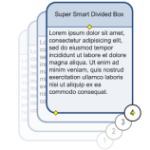
 Visio Guy reader Sim sent me a request a few months ago for a Divided Box Shape. You know, title at the top, description in the bottom portion.
I’ve built lots of variations of this shape over the years, but I thought I’d do a super-duper, ultra-mega version this time. And I even threw in auto-numbering!
We see divided box shapes all over the place. Data-base diagrams, UML and class-hierarchy diagrams. Heck, even our Post-Its take on this form: Big title at the top, smaller description below. Here’s another example you might recognize:
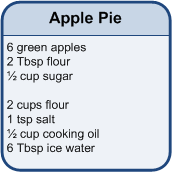
To edit the title, simply select the shape and start typing. To edit the description in the lower rectangle, sub-select it, then start typing. You can also use the F2 key to edit already-existing text, instead of overwriting it.
And here is the full anatomy of today’s Super-smart Divided Box Shape:

click to view larger image
As you can see from that diagram, this shape has a ton of features. Here’s a quick list of them in text form:
- Auto numbering on copy
- Specify current number via Shape Data field
- Format number to include leading place holders, like: 001, 002, 003
- Add a prefix to each number, like: step 01, step 02, step 03
- Turn off auto-numbering
- Hide the number sub-shape
- Change corner rounding with control handle
- Change height of title space using control handle
- Height of box and title space automatically change to accommodate all text if shape made narrower
Now let’s take a closer look at what you can do with this baby…
Auto Numbering
When you copy the shape, say via Ctrl + Drag, the number for the new shape increases by one, automatically!
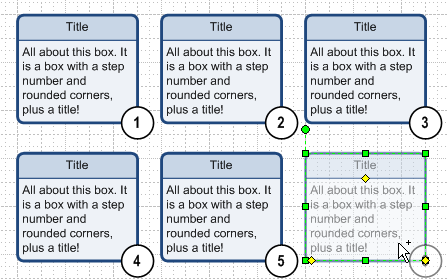
You can set leading place holders for the number, so that you can display 001, 002, 003 for example. You can add a prefix to the number to get, say step 01, step 02, step 03 in the little number circle. You can explicitly set or reset the number for a shape, and you can turn off auto-numbering and even completely hide the numbering bubble.
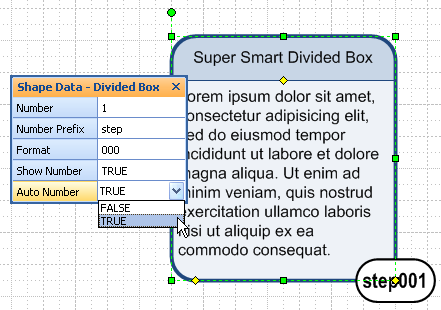
You can set options for auto-numbering and other shape features using Shape Data fields…
Shape Data Field Options
A lot of the features can be controlled via the Shape Data window, which you can show and hide via Visio’s View menu.
Here we can see shape data fields that let you specify the number, indicate a prefix for the number, choose the digit place-holders, show and hide the number bubble, and turn auto-numbering on and off:
While Shape Data gives you control over all the intricacies of the shape, some features can be quickly accessed by right-clicking…
Context Menu Options
You can also quickly access some features by simply right-clicking the shape:
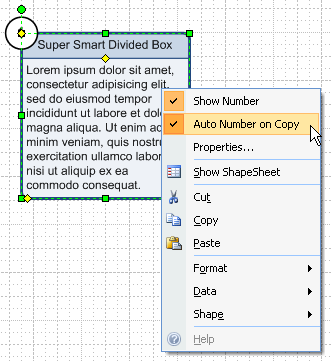
There are also other UI elements that let you directly manipulate this shape…
Control Handles for Corner Rounding, Number Position and Title Height
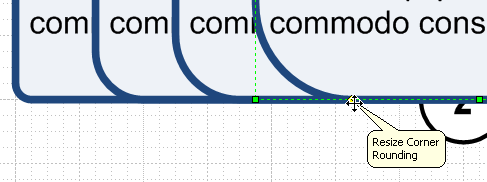
A little, yellow control handle lets you quickly adjust the roundness of your divided box. Just give it a tug to the left or the right:
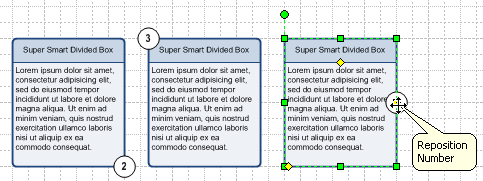
Similarly, another control handle lets you reposition the number bubble:
Note the third control handle, sitting on the divider line between the title and description? If your box is tall enough, you can increase the height of the title box with this handle. If there isn’t enough space for the description, then the handle will not move.
One other bit of user-input controls the look of this shape: the amount of text you type…
Auto Height
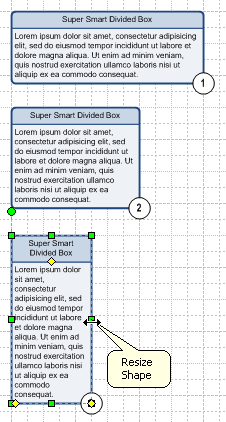
This shape does its best to make sure your text is contained within neat little boxes. If you resize the shape, it will grow (if necessary) to accommodate your text. Here we can see that as we make a box narrower, the height increases.
Note how the Title tries to stay the same height, until it just can’t anymore, and grows in the third example:
Download “Super-smart Divided Box Visio Shape”
s!Aj0wJuswNyXlhw0aBYFQYIUf_t-W – Downloaded 7793 times – 103.00 B
Well done
How did you implement the number bubble positioning? I’m working on a shape and need to do something similar, i.e. have something that can be positioned in a finite set of places.
Hi OMZ,
Some hints for the bubble positioning: the PinX and PinY of the bubble sub-shape are linked to a control handle in the group. The control handle has the BOUND function in it’s X and Y position cells.
If you use Visio 2007 and have applied Data Graphics, you’ll notice that they can be repositioned using a control handle too. You can look at the formulas, and the help for BOUND to get an idea for how it all works.
Great shape! Thanks Visio Guy!
Your welcome, JCS!
Excellent shape! Thanks.
I’d like to extend this shape beyond the original intent and seek advice.
I can use this in Entity Relation diagram for communication purposes, rather than design. For which this shape is almost perfect. I’d like to have many more ‘connection points’ for the relationship lines. I know how to do this from toolbar etc but I’d like something a little slicker. I’d like the hook points to remain equidistant and have new hook points appear (at the same spacing) as the shape is stretched, and similarly in reverse, these points disappear as the shape is shrunk.
Is this possible?
Great shape – very useful, thanks!
Much appreciated!
Hi Visguy,
i tried to change the tittle box from top-based into the bottom side. This is to represent ‘output’ on my flowprocess chart, since the title box already represented by the label on cross functional.
Can you give some tips how to makeover it?
Thanks!
Hi Eric,
Will it work if you just flip the shape vertically? Select a shape, then press Ctrl + J for the flip-vertical, shortcut.
The title goes to the bottom, but the text doesn’t turn upside down (a Visio feature), which sounds like what you need. Of course you can move the number to various positions as usual to counter the effects of the flip.
@Visguy
wow.. i don’t think it would be so easy :]
Great job you did here.. thanks!
Is there any way to not have the “title” in this shape? I am just interested in the numbered shape more than anythigng else. Thanks – very nice work!
Great work on putting such a detailed procedure together!
I am looking to do something similar but the question then comes where “10” or “100.”
How would you represent them if you wanted to use a three-digit base numbering scheme such as “010” or a four-digit base numbering scheme as “0100”?
Cheers
Very good shape! I liked it, specifically for numbering purpose 🙂
Practical writing . Speaking of which , if your company is requiring a WA WPF DRPSCU 01.0100 , my colleagues came across a blank version here
http://goo.gl/lfn1fI.Hi VisGuy,
I am not able to download the Super-Smart divided box shape.Is it still available ($ or not)? It seems that I am not authorized to download it.
Thanks for your time.
Bruno
Hi Bruno,
Try it again. I had to switch some download managing software, and the new one isn’t notifying users of “must be logged in to download” very well, so I’ve just made this available to everyone now.
Cheers,
Chris
Hi,
Great shape, I would love to see a tutorial on making this or a similar shape to implement. I’m trying to construct a SysML style library on a closed system and would find it really helpful.
I am wanting a simple process box with the bubble. Can this be accomplished by modifying your divided box or would I need to create from scratch?