 You can quickly create detailed shapes by importing images into Visio. If you don’t have time (or budget!) to make a detailed drawing of that special ThinkPad or iPhone or USB Stick shape that you’ve been craving, you can simply browse for an image, and insert it into Visio!
It’s a fairly simple matter that you can achieve via two ways: Choose the menu: Insert > Picture > From File… or: Copy an image from an image-editor or image-viewing program and paste it into a Visio page. Simple indeed!
But what happens to Visio file sizes when you import images?
Does Visio compress famously-large BMP files on import, or will the .vsd become huge itself? Will we get significant savings by importing JPG or PNG files as opposed to straight-bitmaps?
Well today, we ran a few tests to see what happens!
Process and Summary
In order to test Visio’s handling of imported images, we created a test image, and saved it in three common image formats: BMP, PNG and JPG. We then loaded each image into a Visio 2007 file and noted the increase in file size for each image. Pretty standard stuff.
We also tested what happens when you simply copy and paste an image into Visio.
It looks like Visio does indeed do some compression on the imported images. For bitmaps, you’ll get big savings, which isn’t surprising.
But for PNGs and JPGs, it’s hard to tell what’s really going on. It appears that PNGs and JPGs slightly increase in size inside the Visio document! But we have to remember that Visio is wrapping a shape object around each image, which adds some overhead.
Empty Drawing
First, we created an empty Visio drawing – a default drawing that we created by clicking the New button on the Standard toolbar:

Then we noted the size of this document:
- Empty .vsd = 11.0 KB
Adding a single rectangle to the document only added 1 KB to the file size. We could guess that 1 KB is the approximate amount of overhead that a shape adds to an imported image, but perhaps the story is more complicated than that.
Test Images
Next, we created a test image by Snagging a shot of a YouTube page from our browser:
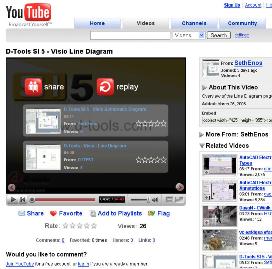
We saved this image to three different file formats, and noted their file sizes:
- YouTube.bmp = 1520 KB
- YouTube.png = 195 KB
- YouTube.jpg = 106 KB
Wow! That bitmap sure is big!
Visio Files With Imported Images
Finally, we loaded the various file formats into our blank Visio drawing, and saved them so as to compare the resulting file sizes. We also “imported” an image by copying it from Internet Explorer, then pasting it in the Visio document.
The file sizes are listed below, with the increase in file size over the empty Visio drawing is shown in parentheses.
- Visio Size Test BMP.vsd = 363 KB (352 KB)
- Visio Size Test PNG.vsd = 257 KB (246 KB)
- Visio Size Test JPG.vsd = 135 KB (124 KB)
- Visio Size Test CopyPaste.vsd = 363 KB (352 KB)
The PNG and JPG files grew by 51 KB and 18 KB respectively. This is quite a bit more than the 1 KB of overhead that a simple rectangle-shape added to the file.
Clearly something is going on! Perhaps Visio’s internal compression algorithm is actually ballooning the size of the files, which are already compressed?
We see this every once in a while when we try to zip files that are in a format that is already compressed. Although I would imagine that technology has progressed over the years and this happens less often nowadays than it did in the past.
Note: The size of the copy-paste file didn’t vary from BMP to PNG to JPG. We’re not sure if that’s because of what Internet Explorer serves up on Copy, or how Visio deals with images on Paste.
Images In Other Apps
We were curious to see how Visio file sizes stacked up to other Office applications, so we ran a similar procedure in Microsoft Word 2007:
- Word Size Test Blank.docx = 0 KB
After importing the various image formats, we had:
- Word Size Test BMP.docx = 213 KB
- Word Size Test PNG.docx = 205 KB
- Word Size Test JPG.docx = 117 KB
And for reference, we remember the original sizes of the image files: bmp = 1520 KB, png = 195 KB, jpg = 106 KB.
The size of an empty Word document is 0 KB, so we didn’t have to do any difference calculations.
But again, the bitmap was significantly reduced, and the PNG and JPG files grew slightly inside of the Word. The increase in size was similar to that of the Visio. But Word seems to handle the images more efficiently. The Visio file-size-increases were more: 352 KB, 246 KB, 124 KB.
Other Considerations
Of course a complete test would investigate further. Some things we might look at:
- Different images: lines, text, photos
- Different JPG-compression settings
- Save lots of images in a single file
- Analyze with statistics, look at percentage size increases, etc.
Conclusion
I think the only conclusions we can come away with after these simple tests are:
- Image file size correlates to Visio file size – smaller image formats like JPG will be yield smaller Visio file sizes
- Visio isn’t stupid about potentially huge BMP file format in a stupid way – it compresses them
- Visio doesn’t do anything overly scary to compressed image file formats (ie: your JPGs and PNGs)
- Cutting and pasting is the same as inserting a bitmap
At any rate, computer performance is increasing, and storage costs are decreasing, so there’s nothing to get alarmed about here.
It is nice to know that BMPs get significantly compressed, and it’s also nice to know that your choice of image format has an effect on the resulting Visio file size.
If any of you have expertise or knowledge about this subject, we’d love to hear from you in the Comments section below!

A tip for the PNG files. You can use an opensource program called PNG Crush to shrink the file down as much as possible. This will save you some disk space and may even improve the performance of the document as i have seen with many PNGs included.
PNG Crush
Note that compression is available in Visio 2003 or later. Bitmaps were stored in all their bloated glory before that.
Thanks Mark!
I had a feeling I was remembering something *awful* from the past when I started researching this one!
– Chris
Has anyone ever experienced the problem where you copy an image into Visio and it’s visible and everything appears to be fine. Then you save and close the file. Then reopen it. The image is still “there” (ctrl+a shows it being selected) but the images isn’t visible – it’s just transparent.
This seems to only happen to jpg and png. Bmp is fine.
Hey Xman,
I’ve noticed a difference when copy/pasting an image into Visio, vs. importing the image. I haven’t seen your problem specifically, but I have seen oddities.
Try to see if you can Insert > Picture > From File… works better for you, instead of just pasting. You might have to save your image to a file first.
Good luck, and let us know!
– Chris
a stupid tip :
when there is a nice image with transparence in powerpoint.
if you cut/paste to visio :transparence is gone.
but if you cut/paste TWO images from ppt to visio : transparence is kept.
so, when there is a nice image in ppt :
– in PPT : I add a “empty” line behind “my” image (line with color=transparent)
– then, I copy my image + the empty line to visio.
and transparence is kept !
I guess you already knew this but for me it was cool when i accidentally discovered this.
I am using Visio 2003, but I generally save in Visio 2002 format so that others in the office who have not been upgraded can open my files.
As a technical writer using Word, I often have to place Visio diagrams in Word documents so I am more interested in what happens to the size of the Word document than the Visio file.
For this test I used a 213 kB png image extracted from a pdf file. I inserted the png image onto a blank Visio page using Insert>Picture, and saved it in the following 3 ways:
1. Save in Visio 2002 format
2. Save in Visio 2003 format
3. Save in visio 2003 format then resave in Visio 2002 format
Then I inserted each Visio file in a blank Word 2003 document, first by using Insert>Object and then using Copy/Paste from Visio to Word. The results are interesting. There are three numbers for each test:
a. Size of the Visio file
b. Size of the Word file with Visio inserted using Insert>Object
c. Size of Word file with Visio inserted using Copy/Paste
Test 1: Save in visio 2002 format
a. 2778 kB
b. 4618 kB
c. 3685 kB
Test 2: Save in Visio 2003 format
a. 245 kB
b. 1981 kB
c. 1987 kB
Test 3: Save in Visio 2003 format then resave in Visio 2002 format
a. 1840 kB
b. 1987 kB
c. 1987 kB
In the final analysis it seems that no mater what I do in Visio, the Word file comes out way fatter than the original graphic. Does anyone know a way to avoid this?
Forgot to mention, size of an empty Word file is about 29 kB, so it’s clear that all of the bloat has to do with how Word handles Visio files that contain imported images.
@eric c,
Thanks for the tip. I wonder if your PowerPoint to Visio behavior will change if you do a Paste Special. Perhaps different formats will give you different results.
Also, when you say “image in PowerPoint”, are you specifically talking about bitmap images that have transparency? Or are you talking about any PowerPoint graphic in general?
Hi YossiD,
Can you double-check that there are no “local” master shapes in the document’s stencil? This is often a place where bits get wasted in Visio.
Go to: File > Shapes > Show Document Stencil. This stencil holds copies of any master that have been dragged into Visio from other stencils.
Also, Visio generates a preview image that wastes space. You can turn this off under: File > Properties > Save Workspace check box.
Visio 2007 also has File > Remove Hidden Information dialog. This has a File Size Reduction tab that might be worth exploring.
Something to keep in mind, when converting a Visio file to a DXF or DWG the image will not be processed correctly. Typically, the shapes are fine and convert with no issue, though I have not made any effort to extensively verify this. If you need the image, then your AutoCAD file will need post-editing. If you are working with company logos, then it is best to natively draw the logo in Viso. Then you also have the added bonus of being able to do fun things with the shape(s).
hello Visio Guy,
I use this tip when a simple copy/paste don’t keep the transparency from ppt to vsd.
for some image, ctrl-c/v will be enough.
But for some others, transparency will be replaced by white color.
So when a ctr-v loose the transparency, I add an hidden element behind the source image and then I do a new ctrl-v of the 2 images.
and it works
don’t ask why
😉