 An old Visio Corporation coworker of mine used to talk about “…being a two-handed Visio user, as opposed to being a one-handed Visio user.”
What he meant was that you can get a lot more done if you learn a few keyboard shortcuts and mouse techniques.
The Visio keyboard shortcuts that we’re sharing with you today will allow you push, pull and prod Visio in a fashion that seems almost natural. By learning them, the drudgery of tasks that you need to perform often will become reactionary, and almost invisible!
Zooming & Panning
If you’re working on large or detailed drawings or charts, you’ll need to do a lot of zooming and panning. Doing this with the zoom drop-down list and the scroll bars will slow you down, and interrupt your work flow.
But there are two sets of mouse techniques that will get you sailing again:
- Ctrl + Shift + Mouse-click or Mouse-drag
- Ctrl or Shift + Roller-mouse movements
Ctrl + Shift Zooming & Panning
The next four techniques allow you to zoom in and out and pan the drawing window. You hold down the Ctrl + Shift keys and either click or hold a mouse button to get the job done.
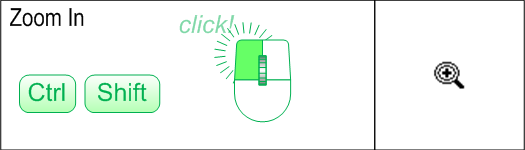
Zoom In 2x: Ctrl + Shift + Left Mouse-click
Double your zoom by simply holding down the Ctrl + Shift keys, then clicking the left mouse button!
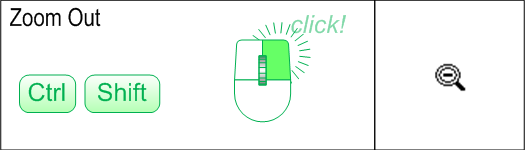
Zoom Out 2x: Ctrl + Shift + Right Mouse-click
The opposite of the previous shortcut, holding down the Ctrl + Shift keys and clicking the right mouse button zooms you out to half the previous level.
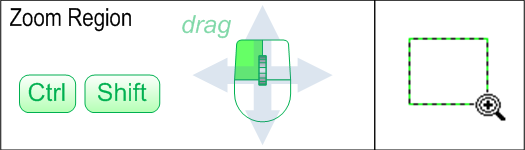
Zoom to Region: Ctrl + Shift + Left Mouse-drag
You can specify exactly where you want to zoom with this command. Press the Ctrl + Shift keys together, then hold the left mouse button. You can now drag a net around the area that you want to zoom. Visio will fill the window with the region that you specify.
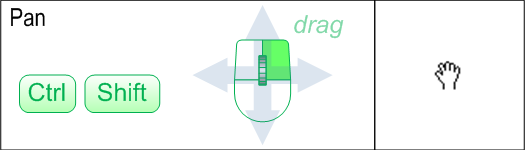
Pan: Ctrl + Shift + Right Mouse-drag
Hold down the right mouse-button to push and pull your page to the desired location. You’ll see the little hand cursor which lets you know that you’re ready to pan.
Wheel-mouse Zooming & Panning
If you have a “roller mouse”–that is, a mouse that has a wheel, you can zoom and pan with these alternative techniques.
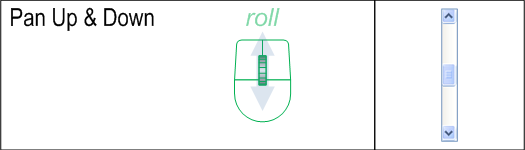
Pan Up & Down: Wheel forward/backward
You don’t need to hold down any special keys to to pan up and down with the wheel. Just roll the wheel forward to pan the page downwards, and roll the wheel backward to pan the page upwards.
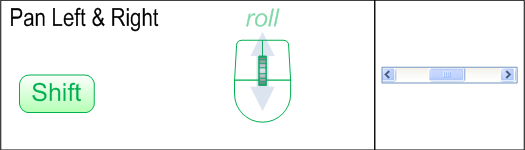
Pan Left & Right: Shift + Wheel forward/backward
Holding the Shift key while rolling allows you to pan left and right. With the Shift key held down, just roll the wheel forward to pan to the right, and roll the wheel backward to pan to the left.
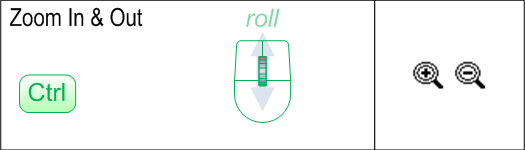
Zoom In & Out: Ctrl + Wheel forward/backward
If you switch to the Ctrl key while rolling, you can zoom in and out! With the Ctrl key depressed, rolling forward will zoom in, and rolling backward will zoom out.
General Shortcuts
The following keyboard shortcuts aren’t worth categorizing, but are worth learning! You’ll perform these functions a lot, so they can really save you a lot of time and effort!
Select Pointer Tool: Ctrl + 1
A lot of Visio tools are “mixed-mode”, meaning functions overlap. For instance, you can still select shapes when are working with the Rectangle, Ellipse, Line, Arc, Freeform or Pencil tools. But at some point, you’ll need to switch back to the pointer tool. And you’ll find yourself needing to do this a lot. Ctrl + 1 is your man.
Note: you can select the other drawing tools with other Ctrl + Number combinations.
- Ctrl + 2: Text Block Tool
- Ctrl + 3: Connector Tool
- Ctrl + 4: Pencil Tool
- Ctrl + 5: Freeform Tool
- Ctrl + 6: Line Tool
- Ctrl + 7: Arc Tool
- Ctrl + 8: Rectangle Tool
- Ctrl + 9: Ellipse Tool
Select All Shapes: Ctrl + A
This is pretty standard Windows stuff. Sometimes you want to move or delete everything on the page. With this command, you don’t need to zoom out to see everything. Just quickly select all the shapes and proceed with whatever you wanted to do.
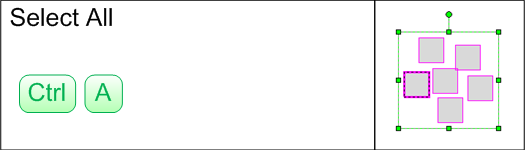
Speaking of standard Wndows behavior, you can also duplicate shapes via Ctrl + Left mouse-drag.
Save File: Alt + F, S
Ok, Visio has an Auto-save feature. But now that you have learned all these shortcuts, you’ll be working so fast, you’ll want to save more often then Microsoft deems necessary. Plus some of you probably turn Auto-save off because it can be annoying.
Edit: Reader Steve has pointed out a that Ctrl + S is a quicker and better way to save a file!
I like Alt + F, S and Alt + F, A for Save and Save As, respectively because they are similar, and occupy a similar compartment in my mind.
Zoom Whole Page: Ctrl + W
You’ve zoomed WAY in. You’ve finished getting your details just so. Now you want to step back and have a look. You can either zoom out fifteen times, or
Edit: Attention Visio 2010 users!
You now have to press Ctrl + Shift to zoom to the whole page! Ctrl + W now closes the document!
Switch Between Visio Windows: Ctrl + Tab
Whether your working on several drawings at once, have a bunch of group windows open, or are switching between several ShapeSheet windows, you’ll get it done a lot faster if you keep your thumb on the Ctrl key and another finger hovering over the Tab key.
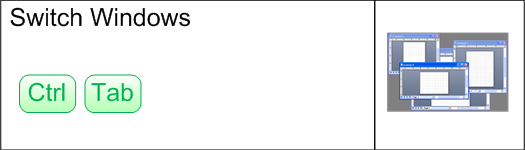
Edit: Reader Mark Nelson has pointed out somewhat related shortcuts: you can quickly switch between pages in a document using the Ctrl + Page Up and Ctrl + Page Down key combinations.
Developer Shortcuts
For those of you who have dug a little deeper into the crazy world of Visio and have a need to create SmartShapes, work with ShapeSheet formulas, or automate tasks using the built-in Visual Basic for Applications programming environment, then there’s a couple of shortcuts for you!
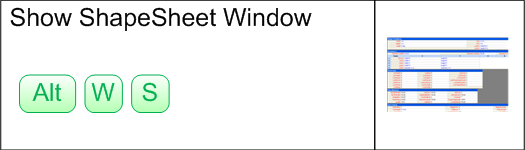
Show ShapeSheet Window: Alt + W, S
Yes, you can get a Show ShapeSheet menu item in your right-click context menu by turning on Developer Mode (You do this via: Tools > Options > Advanced Tab, then check: Run in developer mode) But if you’re a two-handed Visio user, your right hand will be hovering over the Alt, W and S keys, just waiting for a chance to fire-up the ShapeSheet!
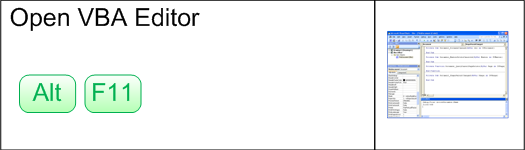
Show VBA Editing Environment: Alt + F11
Do you really want to fish through the cascading menus for:Tools > Macro > Visual Basic Editor every time you want to slam out a bit of test-code? Of course you don’t. Just hit Alt + F11. I bet a lot of Visio MVPs don’t even know where the menu item is!
Hopefully, these tips will increase your productivity with Visio, and improve your overall experience as well.
More…?
If you’re in need of more keyboard shortcuts, check out some of these links below. While they were created for older versions of Visio, most of the shortcuts still apply, even in Visio 2007!
- Visio 2002 Shortcut Keys – A nice Visio drawing in VSD format from Visio Cafe.
- Visio 2002 Shortcut Reference – A Microsoft-provided guide, which downloads an EXE that simply unzips a good-looking PDF to your hard drive.
- Visio 2003 Keyboard Shortcut Mousepad – Keep those shortcuts handy, and your mouse-hand cozy! From Dan Brown on greenions.
- Visio 2003 Keyboard Shortcuts – A boring but well-organized collapsable list of Visio shortcuts from Microsoft.
- Visio 2003 Quick Guide – A nice PDF file from the folks at Ball State University.


Reading this, I have learned that I return to the pointer tool too often, by habit. Or maybe because this way I won’t draw anything by accident.
In fact, I am still looking for a place where I can only use the pointer tool.
Hi Philippe,
Are you trying to set Visio so that ONLY the Pointer Tool can be used? That is, disable the other tools? Or have I misunderstood?
– Chris
No,
I am using e.g. the rectangle tool, and I haven’t needed the pointer tool yet.
It is just curiosity.
Where would I really need the pointer tool ?
I find the Pointer tool works better for moving shapes around, copying them, etc. You can work fast without accidentally drawing something (ie: a rectangle) or editing vertices, etc.
One of your shortcuts confuses me. Why would I Alt-F-S instead of Ctrl+S? Is there a difference?
This is helpful though, I did not know you could select pointer or text with a shortcut.
Steve,
(embarrassed smile…) I’ve been using the Alt+F+S for so long, I didn’t even notice the Ctrl+S, very silly of me!
I think I just liked the way Alt + F + S corresponds to File > Save so nicely. Also, Alt + F + A works for File > Save As, so the similarity of the two got put into the same corner of my brain.
Good catch!
– Chris
Previous page, Next page: Ctrl + PageUp, Ctrl + PageDown
Hey great summary of useful shortcuts!
The one I simply can not find that would save just ludicrous amounts of time is how to cycle through pages (or sheets in Excel-speak) within a single drawing – I know the SHIFT+F4 dialog box one but that’s much too clumsy to actually use. Do you know such a beast?
-Cheers!
Mark Nelson = The Man!
Thanks!
Bgw,
You might also be interested in this article: Combo Box Table of Contents
It shows you how to use code to create a drop-down combo box that helps you to navigate mutli-page drawings. It requires VBA code in your drawing, but might nevertheless be useful for your projects.
– Chris
As a MOS:Master and trainer I always encourage people to learn some simple shortcuts to save tons of time (and often to reduce errors). My PowerPoint shortcut keys list is available here (pdf file which you are free to download for your own use but not to redistribute):
http://www.meteorit.co.uk/documents/Microsoft_PowerPoint_Shortcut_keys_sample.pdf
One shortcut that I find very useful in both Visio and PowerPoint is CTRL-D to duplicate a selection. I hate that if I want multiple copies and use CTRL-V,V,V… to paste several times, they are all on top of one another, whereas CTRL-D duplicates at a small offset to the right and down from the original or subsequent duplicate in a nicely spaced diagonal line.
In PowerPoint it is even more sophisticated: if you duplicate an object then move the duplicate and hit CTRL-D again (without deselecting the new duplicate) then the subsequent dupes have the same offset as from the original to the first one – perfect for an evenly spaced row of boxes, and would be ideal for Visio too (eg desks arranged at a set interval along a wall without moving them all individually). (Oddly enough, PowerPoint also does perfect centre-sizing by holding CTRL, unlike Visio as you mention in your other article. Why does PP have the upper hand on some of these features, I wonder?)
I too am an “ALT” user, F,S; F,A; F,P and F,V just come naturally. Shame that some of these combinations and others such as Excel’s ALT-E,S,V no longer work in 2007.
Thanks for this very helpful post, a few useful and not widely known combinations here for the unusual animal that is Visio.
Incidentally, the shortcut using CTRL-SHIFT and mouse keys to zoom in only doubles/halves below 400% – if the resulting zoom is above that it goes in steps of 200% instead (*in 2007 at least, I no longer have an older install here to test). So you can go from 199 to 398 to 598, or from 201 to 401 to 601.
Just got reminded of one from Twitter:
F4 is really great for “repeating the last action”.
So you can Ctrl+Drag a copy of a shape, then hit F4 F4 F4 F4 to get four more copies at the same spacing as your first drag!
Thanks @lauraph!
Thank you!!
How to “knudge” a wall in smaller increments?
Select the wall, Shift Right Arrow
It seems to move it in minimum 1/4inch or even 1/16″ but I can never get it to stop on EVEN 4ft-9″.
It is always 4′-9 1/16 of 4-8 15/16 ?
Any way to adjust the Shift+arrow key to allow an even dimension?
You say
“Ok, Visio has an Auto-save feature. But now that you have learned all these shortcuts, you’ll be working so fast, you’ll want to save more often then Microsoft deems necessary. Plus some of you probably turn Auto-save off because it can be annoying”
I cant find this functionality anywhere. Can you elaborate?
Thank you
is there a keyboard shortcut to insert a picture from a file?
I have found references to it but can’t actually find one.
This would be a big help!
Thanks,
Shane
Ctrl + w closes the current window in just about every program (including Visio), but you mention it as zooming to view the whole page.
Is there another shortcut for that?
Ctrl + W does a “zoom fit” in all versions of Visio, *until* Visio 2010. Now Ctrl + W closes the current window, which is a shock for Visio freaks!
In Visio 2010, Ctrl + Shift + W does the zoom-fit, and Ctrl + W closes the window.
Ctrl + F4 closes individual drawing windows in Visio, analogous to Alt + F5 closing applications windows.
Hi Shane,
A keyboard shortcut for insert image, hmmm. I couldn’t find one.
In Visio 2010, you can drag straight from Explorer and drop into a drawing. In Visio 2007, you can drag from Explorer into Visio, but not into a drawing (ie: onto the Visio menu, and you get a new drawing with the image in it)
If you are doing it enough, it’s worth learning the “Alt chords”.:
In Visio 2007: Alt + I, P, F.
In Visio 2010: Alt + N, P.
hi there! @ Visio Guy
You said if you’re doing it enough:
“If you are doing it enough, it’s worth learning the “Alt chords”.:
In Visio 2007: Alt + I, P, F.
In Visio 2010: Alt + N, P.
Do you have a tutorial on the alt chords for 10? That would be awesome!
So many things I was unaware of! Now to break the habit of the old long way eh? This will make my job so much easier! I very much appreciate the tips and such that you have informed me of!
jenna
this shortcuts is a whole lot of help. with these shortcuts and my keyboard macros, doing simple things in the computer would be easier.
Hit the Alt key in Visio 2010, then look for the little letters next to each command in the Ribbon. That’s all there is too it!
I’m a two-handed user looking to become a one-handed user. Thanks for the shortcuts and for making them so printer friendly. A lot of manual writers could do with lessons from you!
I agree with Robert. This kind of visual (pun intended) tutorial makes things so much easier to learn. Cheers!
I can’t help but laugh at myself. i didn’t know there’s a better way of doing things. As you know, a lot of older people learned how to use computers on their own with no formal training. Now little kids are being taught computer subjects in school. Thank you so much for your great article! It really enlightened me. 🙂
I’ve been waited years for a list like this!! Shortcuts can save your life (and patience if you get them right) sometimes. Brilliant post!
So glad I found this site what a time saver bookmarked it! Anything that helps save time is a winner for me, I spend enough time online. Great work thank you 🙂
Is there a way to make the wheel of the mouse pan (found the zoom setting) without keys the way non-Microsoft graphics programs do? In other words can I pan without having to hold the CTR-SHIFT (why would you set it up to need this anyway)?
Does anyone know of a way to quickly enter todays date in Visio? In Word you can use alt+shift+D but it doesn’t work in Visio. I have to do this all the time and would love to find a shortcut.
Great list of keyboard shortcuts. Just one amendment:
Zoom Whole Page: Ctrl + W
should be
Zoom Whole Page: Ctrl + Shift + W
Ctrl + W closes the file
p.s. Bought your Using Microsoft Visio 2010 book yesterday, enjoying that too.
Neil brings up an important point:
Visio 2010 changed the shortcut for Zoom Whole Page. In previous versions it was Ctrl + W. In 2010, that closes the file!
So in Visio 2010, you need to press Ctrl + SHIFT to zoom to whole page.
It’s a dangerous habit that takes a week to modify. I’ll edit the article text too.
Thanks for the nice words re: the book, Neil!
hi i would like to know as much as possible about working on visio i am still new to this and it takes me ages to do my work any help ?
Hi! THanks for the great list..
Is it possible to some use of the extra buttons on some mice? eg button 4&5 on an mx518..
Hi Stefan,
I’m sure the extra mouse buttons can be used, but I’m not sure that it is up to Visio. Some mice buttons are used for page-forward and page-back, especially in browsers. Those probably function similarly in Visio.
Sometimes there is mouse-driver software that lets you specify the functions, per-application. I think that often-times, the extra mouse buttons simply execute keyboard shortcut commands like page forward/backward or page-up/down.
Mh, just as I thought, sadly, installing some special mouse driver is not possible at work :\ Visio itself doesnt seem do assign any function to it…
I was hoping for some way to map the delete key to a mouse button as it takes my left hand away from the ctrl/alt/shift keys… guess I will have to stick with abusing ctrlX 😉
Anyway, thanks for making my work much easier 🙂
Thanks for these tips, I’ve been using Visio for sometime now, and was learning a few shortcuts. Then I decided to google some ‘tips and shortcuts’ for Visio, and Boom, this page was the result.
Thanks Again!
I have Visio 2007, and I haven’t used it in three years (semi-retired). Built some process charts on Monday and Tuesday and the zooming and scrolling were killing me.
When I came up for air, I used my searched engine to find “keyboard shortcuts” for Visio. MSFT was useless. Shame on them. But there you were!
There is a place in heaven for you, Visio Guy. Many thanks for sharing. Now if you could only help me with line jumps (just kidding. Not your problem).
You are a kind soul.
To quickly change the size of text within a shape:
Ctrl + Shift + > will enlarge the text size
Ctrl + Shift + < will reduce the text size
You can also select multiple shapes and still use the short cuts. Very useful! Enjoy.
Super-cool, Bill! I have never seen those two before!