 Microsoft has published a brand-spanking-new set of Visio shapes for Microsoft Exchange Server 2007. You can download the stencil for free from Microsoft’s web-site and immediately get to work planning your next Exchange deployment. You’ll also amaze your co-workers with your unmatched graphic-abilities and non-boring PowerPoint slides!
Exchange Server Shapes Up Close
If you want to have a sneak-preview of what the shapes look like, I’ve created a screen-shot of all the master-shapes and their names, for your convenience. Just clikc the thumbnail at right to see an up-close view of all the neat, new graphics!
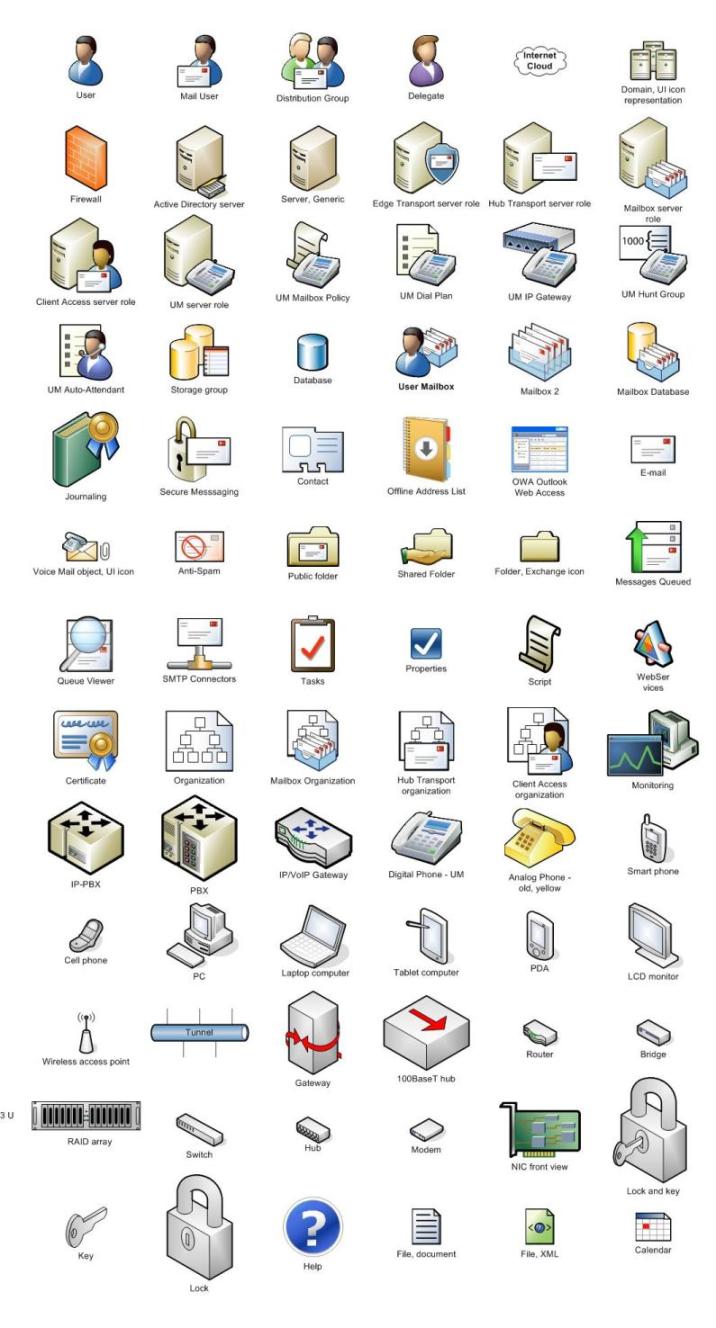
If you like what you see, you can download the shapes from Microsoft…here!
Sneak in Some VBA Code
By the way, I didn’t align all those shapes on the page and type in the text by hand. Whaddaya think I’m crazy!?!? I wrote a small snippet of VBA code to drop the shapes on the page, and set the text automatically.
Here’s the snippet:
Sub LayoutShapes()

  Dim pg As Visio.Page
  Dim mst As Visio.Master
  Dim shp As Visio.Shape
  Dim iRow As Integer, iCol As Integer, iCols As Integer
  Dim dSpcX As Double, dSpcY As Double

  '// Get a page object:
  Set pg = Visio.ActivePage

  '// Specify the number of columns:
  iCols = 5
  iRow = 0
  iCol = 0

  '// Spacing between columns and rows:
  dSpcX = 1.75
  dSpcY = 1.5

  '// Loop through each master in the document:
  For Each mst In pg.Document.Masters

    '// Drop the master and retain the shape variable:
    Set shp = pg.Drop(mst, iCol * dSpcX, -iRow * dSpcY)

    '// Increment or reset the column index:
    iCol = iCol + 1
    If (iCol > iCols) Then
      iCol = 0
      iRow = iRow + 1
    End If

    '// Set the text:
    shp.Text = mst.Name

  Next

  '// Center the shapes on the page:
  pg.CenterDrawing

End Sub
And here’s the complete procedure for setting up the code and documenting the stencil:
- Open a stencil that you want to automatically document
- Create a New blank Visio drawing
- Show it’s document stencil via File > Shapes > Show Document Stencil
- Drag all the shapes from a stencil file into the document stencil
- Close the original stencil
- Press Alt + F11 to open the VBA editor
- Paste the code snippet from above into the VBA project
- Hit F5 to run the code
- Alt + Tab back and forth between Visio and VBA to check how the code ran. Tweak the values for dSpcX, dSpcY, and iCols until you like the results.
Visio used to ship with a stencil catalogue add-on, but I don’t know where it’s gone. Hopefully you’ll find this snippet useful in helping you to regain some of that lost functionality!
(Download Microsoft Exchange Server 2007 Visio Shapes Stencil)

Great post. This is why MS will never die. Sadly for linux heads like me lol. Nah I use windows daily. Just kidding.
Thanks for the posting!
This is really the third post, of urs I personally browsed.
Yet I enjoy this 1, “Visio Guy ? Microsoft Exchange Server 2007 Stencil”
the most. Take care -Ashlee
What is the diffence between this version and the current version of Microsoft Exchange Server? Any ideas?