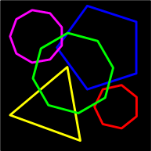
Another question popped up on the newsgroup forums today asking about making polygon shapes in Visio. This triggered a neuron, and I was off like a flash to perform a search of my …\Visio directory.
Sure enough, I found “PolygonMaker 2002.vsd”, which I have prettied-up for presentation to you today…
Note: Visio does have some polygon shapes. But they only provide three to eight sides. You can find them here: File > Shapes > Visio Extras > Drawing Tools. The masters are called: Multigon Edge and Multigon Center. You can change the number of sides by right-clicking the shapes and choosing from the menu.
The download that accompanies this post is more flexible in that it uses VBA code to create brand-spankin’ new shapes. This code, of course, allows you to create polygons with any number of sides.
A Quick Note About VBA Macros
The drawing has a Visual Basic for Applications (VBA) project inside it. You’ll have to enable macros, and allow them to run in order for the Polygon Maker to function.
While I could tell you to Always trust software from Visio Guy, that would be irresponsible of me. I urge you to examine all VBA code before you actually run it. A good way to do this is to follow these steps:
- Under Tools > Macros > Security, set your macro protection level to Medium.
This allows you to enable or disable VBA macros to run when you open the drawing. - The first time you open a drawing from a little-known source, simply click the Disable Macros button that appears in the pop-up dialog.
- Hit Alt + F11 to open the VBA project. Examine the various modules to make sure there’s no code that deletes your Windows installation or formats your hard drive.
- Once you believe that the code is on the up-and-up, you can reopen the .vsd and click Enable Macros. Now you’ll get the full benefit of the code behind the drawing!
Code
I won’t post all of the code here, but just some of the key bits. We’ll ignore all the UI stuff and just post the portion that creates the Visio shape, with its geometry sections.
You can below see that DrawShape takes two arguments. One simply specifiec the number of sides in the polygon, the other specifies the radius of the circle in which the polygon is circumscribed. The radius value is in inches, so you metric folks need to multiply by 25.4 if you want think in millimeters.
Private Sub DrawShape(iNumSides, dRadiusInches)

  Dim i As Integer
  Dim shp As Visio.Shape
  Dim xy() As Double
  Dim ang As Double, angDelta As Double</span>

  '// Create an array to hold all of the points:
  ReDim xy(1 To iNumSides * 2 + 2)</span>

  angDelta = 3.14159265358 / iNumSides

  '// Use trigonometry to calculate each vertex:
  For i = 1 To UBound(xy) Step 2
    ang = (i - 2) * angDelta
    xy(i) = dRadiusInches + dRadiusInches * VBA.Math.Cos(ang)
    xy(i + 1) = dRadiusInches + dRadiusInches * VBA.Math.Sin(ang)
  Next i

  '// Use Visio's DrawPolyline function to create the shape:
  Set shp = Visio.ActivePage.DrawPolyline(xy, 0)
  '// flag = visPolyline1D or visPolyarcs or just 0

  '// Close off the polygon by setting the last geometry
  '// row's formulas to reference the first row:
  shp.Cells("Geometry1.X2").Formula = "Geometry1.X1"
  shp.Cells("Geometry1.Y2").Formula = "Geometry1.Y1"

  '// Set the polygon to be filled:
  shp.Cells("Geometry1.NoFill").Formula = "FALSE"

End Sub
Download “Visio Shape Polygon Maker”
s!Aj0wJuswNyXlhX-p0HeT3fqLap-8 – Downloaded 3929 times – 103.00 BGeek Notes
It would be useful to build these polygon shapes such that the shapes are exactly R x R in width and height, and the polygon is exactlly centered inside of this rectangle. (R is the radius of the circle which circumscribes the polygon)
The center of such a shape would match the center of the polygon as well. The current shapes are “tightly fit” and the center of the shape does not always match the center of the polygon (for odd number of sides.)
Well, perhaps an update someday…or a reader contribution? 😉

nice little program
just what I needed ….
thank
Hi,
Very nice macro indeed.
Concerning the creation of polygons, I just found out an other polygon maker in the “download section” of Visio’s MVPs website:
I think though that this shape behaves oddly.. you cannot resizing it by dragging…
Hi Fabien,
With the shape you found on John Marshal’s Visio Information site, you can do this:
1. Configure the shape as you want (number of sides, etc)
2. Go to: Shape > Operations > Fragment.
This will create a “dumb” shape that you can freely resize, but the ability to change the number of sides will be lost.
– Chris
Visio Guy, you saved me a lot of time with this very neat macro!! I don’t often need 11-sided shapes, but when I do, it’s usually for a rush job and no time for manual fiddling!
Thanks again!
Jacques
Awesome Jacques!
Hello,
I am using Visio 2013 (Build 15.0.4841.1002) and it is not closing off the shape correctly. I know it was written back in 2006, any chance you could look at it and fix?
Also, any chance you could add connection points on each ‘corner’ – that would be awesome.
Cheers
M
martinco-cae,
All you need to do to make it work in the newer version is just remove the lines that close the polygon. The new subroutine looks like this:
Private Sub DrawShape(iNumSides, dRadiusInches)

  Dim i As Integer
  Dim shp As Visio.Shape
  Dim xy() As Double
  Dim ang As Double, angDelta As Double

  '// Create an array to hold all of the points:
  ReDim xy(1 To iNumSides * 2 + 2)

  angDelta = 3.14159265358 / iNumSides

  '// Use trigonometry to calculate each vertex:
  For i = 1 To UBound(xy) Step 2
    ang = (i - 2) * angDelta
    xy(i) = dRadiusInches + dRadiusInches * VBA.Math.Cos(ang)
    xy(i + 1) = dRadiusInches + dRadiusInches * VBA.Math.Sin(ang)
  Next i

  '// Use Visio's DrawPolyline function to create the shape:
  Set shp = Visio.ActivePage.DrawPolyline(xy, 0)
  '// flag = visPolyline1D or visPolyarcs or just 0

  '// Set the polygon to be filled:
  shp.Cells("Geometry1.NoFill").Formula = "FALSE"

End Sub