 If you are developing solutions for Visio, then you’ve probably dabbled with VB code in Visio’s Visual Basic for Applications editor. If you’ve been in the industry as long as I have, then you know that VB means Visual Basic. Period. End of story. But if you happen to also be from Australia, then it’s a different story…
We’ve been Down Under for nearly two months now, but I still can’t get past the awkward feelings I have when I saddle up to the bar and ask the man to pour me a “VB”. Of course, it’s Victoria Bitter in these parts, but it’s just plain wrong for an old VB programmer. This really makes it hard to leave your work at the office! Imagine going down to your local pub and asking;
“Bartender, pour me a pint o’ C-sharp!”
Or even worse;
“Gimme a C++! And make it a double; “
So now that you’ve indulged my sense of humor, it’s time for a reward. The download that accompanies this post includes five vessel Masters that you can use or modify to your heart’s content. I think they’ve turned out rather nicely, especially considering they are created entirely with Visio. Have a look:
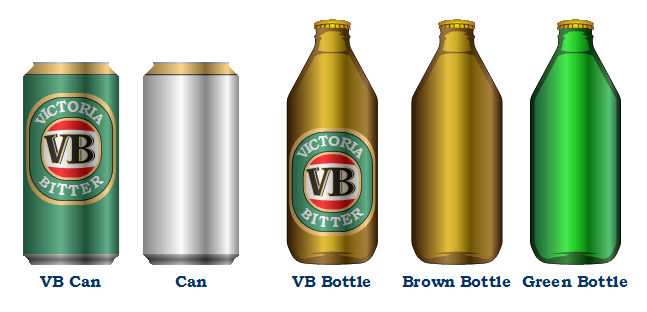
click to view larger image
To keep with the development-theme of this web-site, I’d like to note that the vessel shapes use a few interesting techniques that you may wish to exploit and explore:
- Four transparent, gradient-fill overlays make the vessels appear shiny
- The shiny-overlays gradate from 75%-transparent white to 50%-transparent black, allowing background shapes to show-through
- Bottle, can, and logo shapes can be more simply drawn, because they needn’t incorporate any shading
- The “Victoria Bitter” letters were made from individually rotated shapes, each containing one character
- These character shapes were copied as a unit, and pasted as metafiles, so that they would easily size with the shape
- This metafile-text can’t be edited or formatted, however
- The control handle that repositions the shape isn’t visible until there is text on the shape (see cell: Controls.txtPos.XCon)
- If you reposition the text using the Text Block Tool, the control-handle positioning won’t break, due to SetAtRef formulas in TxtPinX and TxtPinY
One nice thing about the generic shapes is that you can easily add your own labels to make your own cool-looking cans or bottles. You don’t have to do any fancy shading, though. Just draw or import your logo, and insert it into the group of one of the vessel shapes:
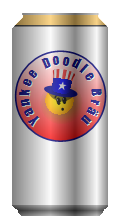
In order to take advantage of the fancy-schmancy shading, you need to get your logo into the group, and behind the transparent overlays. To do this, follow these steps:
- Copy your logo shape via Ctrl+C
- Select a can or bottle shape
- Open the group via Edit > Open Group
- Paste your logo shape into the group window
- Zoom way out to find your logo. Visio often pastes shapes way out-of-view in the group window…bug!
- Position your logo as desired
- Send the logo backward one level using Shape > Order > Send Backward
- Repeat this send-backward operation three more times by pressing F4 three times
- Close the group window
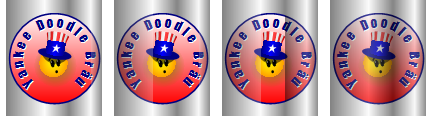
Here we can see the logo as it progresses towards the back. You can see the individual stripes of the shiny-overlay shapes when the logo is on top of some of them, but they blend together nicely once the logo is behind all four of them:
If you are interested in making a logo with nifty text-on-a-circle, be sure to check out this article that shows you how to curve your text: Circular Text Generator (version 2).
Download “Visio VB Shape”
s!Aj0wJuswNyXlhjVRQN8J8Qru7rb8 – Downloaded 2213 times – 103.00 BMore VB Silliness
John Walkenbach, who authors the excellent The Spreadsheet Page, has an entry on VBA Humor. Have a look and a laugh!

VERY COOL !!!
So when do get to see a can of Visio?
As to asking for C# or C++, the bartender will give you a glass of fortified orange juice.
Awesome, I am going to send some of the best customers for our product a can of beer gratis with our company logo on it.
Ooooooh! Multi-stop gradients.
That’s gold…