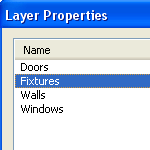
 So I’ve been working on this Layer Utility for a customer the last few weeks, and stumbled upon a neat trick for adding multiple layers to a page in one fell swoop!
I got this idea to sneak in a handy feature for adding multiple layers at once. As I was writing the code, I thought; “I wonder if those guys at Visio already snuck this [hidden] feature in?“…
Well, to my surprise, Visio does have a secret add-layers feature after all!
The big secret is to enter a semi-colon separated list when Visio prompts you for a new layer name. So for example, if I select a shape, then choose the menu item: Format > Layer…, I can enter a list of names, as shown here:
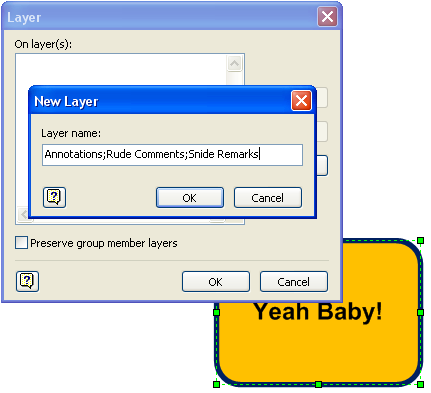
As a result, three layers are created, and the shape is applied to all three of them. Really easy, really powerful:
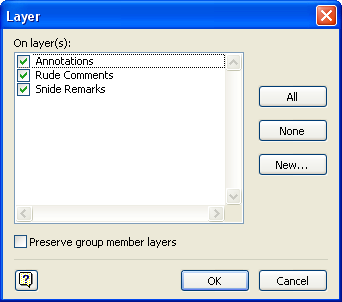
You can also do this at the page level, where you don’t need to have any shapes selected. This is a good way to setup a new page, much more quickly.
Just go to the menu: View > Layer Properties…, or click the Layer Properties button on the View toolbar.
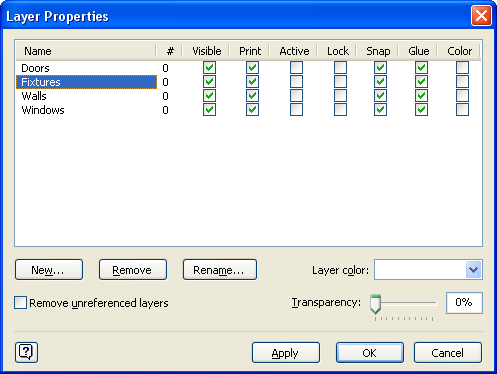
Here we see a more realistic and useful set of layers being entered as a list:
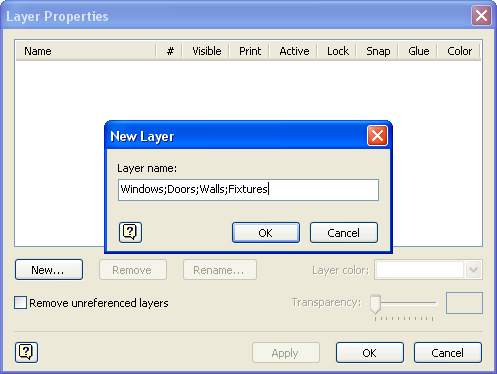
Which results in a nice set of ready-to-go layers:
I hope this tip helps you get your Visio work done faster and with more enjoyment!

this was a great little feature that was unknown to me – thanks for the great tip!
what is best way to show 2-D relationships of four components?
Are you aware of an add-in or workaround to allow easier view of layer dialogue box?
I have a drawing with 65 layers, all of which need a relatively long explanation and date in the title.
Problems:
1. The existing dialogue box will not scale in size and only presents the names of 9 layers. Repeated scrolling results.
2. The text box only shows the first 30 characters of the layer name.
3.When a layer is turned on or off the list then jumps back to the top.
It would be nice if the box could be scaled to a larger size such that all 65 layers could be listed and that the box would be wider to allow enough text for a fuller description of the layer
Microsoft’s website states that new layers will only be added to the current page. When I add a layer I usually want it on all the pages in my document – do you have a super-cool way to do this?
Hi Joe,
No super-cool way to add layer to all pages. Maybe I’ll whip up a little utility and put it up on the Products page.
Hi Joe,
I have indeed created a utility that might help you out. You can learn more here.
Cheers,
Chris
Welcome to visit my blog! you can find your dream .
Welcome to visit my blog! you can find your dream .
Welcome to visit my blog! you can find your dream .
Welcome to visit my blog! you can find your dream .