 Macro security is an important topic for anyone who deals with automated Microsoft Office solutions. Since Visio and other Office documents can contain Visual Basic code that can perform potentially harmful operations, you need to understand a little bit about how to secure your system.
This article will inform you about the various security settings available forVisio 2003 and Visio 2007, so that you can more confidently enjoy the downloads and code samples that you’ll find on Visio guy.
.
.
What are Macros and VBA?
For several versions now, Visio has shipped with Visual Basic for Applications (VBA), which offers a quick (and sometimes dirty) way of creating small automated solutions. It also offers an extremely convenient way of experimenting with Visio’s automation capabilities.
VBA also provides a wonderful vehicle for delivering sample-code and automated examples, that help you to learn the stuff of Visio development. In one Visio document, you can have custom master shapes, pre-built template graphics, and VBA “code-behind” that very effectively demonstrate the important parts of an automated Visio solution!
But often times, automated solutions require initialization code. Events such as OnDocumentCreated, OnDocumentOpened, and RunModeEntered allow code to execute when a Visio document is opened. This is where the danger presents itself. Any number of operations can take place just by opening a document! In security parlance, this VBA code-in-a-document is called macros. And protecting yourself from this code is, of course, called macro security.
Macro Security
Of course, it would be all too simple to advise you as follows: Always trust software from Visio Guy! But that would be naiive and irresponsible of me (and of you!), now wouldn’t it?
I could also list every line of VBA code in every single download. Then you could meticulously examine and approve each line, then copy it into your own VBA projects. Tedious at best, and rather impractical. It would also negate the convenience of all the nifty, pre-built downloads that you’ve come to know and love from Visio Guy.
Therefore, the Wizards at Microsoft have come up with a solution. And they’ve allowed you some flexibility in how you defend yourself. Using Visio’s macro security settings, you can choose what level of macro security you want. Based on the settings you choose, Visio will do one of the following when you open a macro-containing document:
- Ignore macros and disable them
- Inform you that macros are present
- Allow you to enable or disable macros on a per-document basis
- Allow all macros to run
Since there have been some changes to macro security in the newest version of Visio, we’ll look at the options for both Visio 2003 and Visio 2007.
Visio 2003 Macro Security
To configure your security in Visio 2003, look under the menus: Tools > Macros > Security. You’ll see this dialog box:
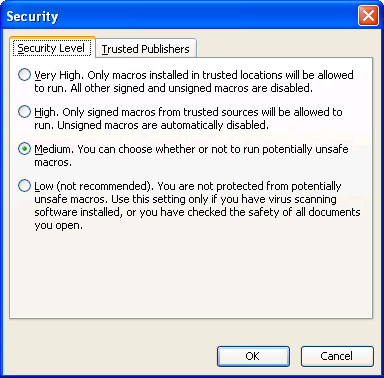
These settings will have the following effects on the opening of a Visio document that contains VBA code:
Very High – The macros will not run, and you won’t be notified unless they are installed in trusted locations.
High – You will get a warning that macros are disabled, unless they are properly signed and certified.

click to view larger image
Medium – you get a warning that there are macros in the document, and you can choose to enable or disable them:
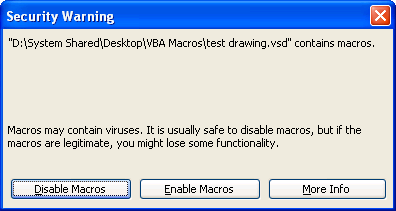
Low – All VBA code will run without any warning. If you are getting documents from various sources, this is rather risky.
Medium is the setting that I use. Most of the Visio documents that I use are created by me, or by other Visio freaks whom I know and love. If I get a document from a stranger (or a rookie), I can quickly and conveniently choose disable macros, then personally examine the VBA code before allowing it to run. Disabling the macros doesn’t make the VBA project inaccessible. It just stops it from running. So with a quick flick of the wrist, Alt + F11 will bring up the VBA editor, and I can search for something like: “Format C:\” or something equally malicious.
One final note: in Visio 2003, you have to close-down and restart Visio each time you change the level of your macro-security setting.
Visio 2007 Macro Security…er…Trust Center
In Visio 2007, there were slight changes made in the area macros security, along with the inevitable Microsoft name changes. In the new version, you’ll find your macro-security settings a bit more accessible. They now live right under: Tools > Trust Center.

click to view larger image
These settings will have the following effects on the opening of a Visio document that contains VBA code:
Disable all macros without notification – This setting disables all macros that are not in a trusted location (more on trusted locations later) It’s not clear to me if digitally signed macros are still ok with this setting, though.
Disable all macros with notification – If you open a non-trusted, macro-containing Visio document, you’ll be presented with this sneaky bar that appears at the top of the Visio drawing window:

click to view larger image
All hope is not lost at this point. If you know where the code came from, and want to allow the macros to run, just click the Options… button. You’ll then see this dialog:
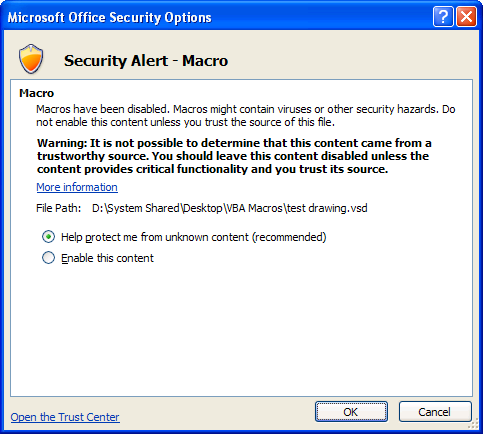
A quick click of the Enable this content radio button will allow you to proceed. This is analogous to the Medium setting in Visio 2003, but it’s a lot more work — well, three more clicks for every document, anyway.
Disable all macros except digitally signed macros – This one is pretty self-explanatory. No sign, no go.
Enable all macros (not recommended; potentially dangerous code can run) – Also pretty clear. Everything goes! Open Visio document, run macro, Format C:\!!!
You’ll also see the setting for Trust access to the VBA project object model right here on this screen. This is nice and convenient. In Visio 2003, this check box was buried under Tools > Macros > Security > Trusted Publishers Tab.
Also, another improvement is that in Visio 2007, you don’t have to restart Visio for the security settings to take effect.
Let’s Play: Complain About the Changes in the New Version!
As I mentioned before, the second option; Disable all macros with notification is about the same as the Medium security in Visio 2003, except that you have to click a button, view another dialog, click a radio button, and then (finally) click OK. If you have as many Visio files with VBA code as I do, then you will immediately file this change under HUGE PAIN IN THE ASS.
“But, Mr. Visio guy, you can easily get around this, by digitally signing your VBA projects, right?” Well yes, but this might pose a hindrance because:
- You have to actually have a Digital Signature certificate for signing a document’s code project
- You have to actually bother to sign the document
- If you change the code in the project, you have to re-sign the document
I think there are cost-free methods for creating and obtaining your own personal Digital Signature, so that code that you created can be run by you. I haven’t researched this yet. If you plan on deploying your documents to a wide audience, then you’ll need to get a certificate and properly sign your stuff. I have no qualms with this, but I believe that is not cheap to obtain one.
I’ll go so far as to say that Visio Guy should probably grow up digitally sign the downloads it offers, but, well, we aren’t generating a lot of cash with free downloads, and we’re, like, travelling around the world right now, and well, um, er, you know… 🙂
Fortunately, there’s another option. Back in our friendly Trust Center, you can set up trusted locations on your machine. If you highlight the Trusted Locations tab, you’ll be able to add local folders to a list of trusted locations. These files will behave as though they’ve been digitally signed, and not pester you with macro warnings:
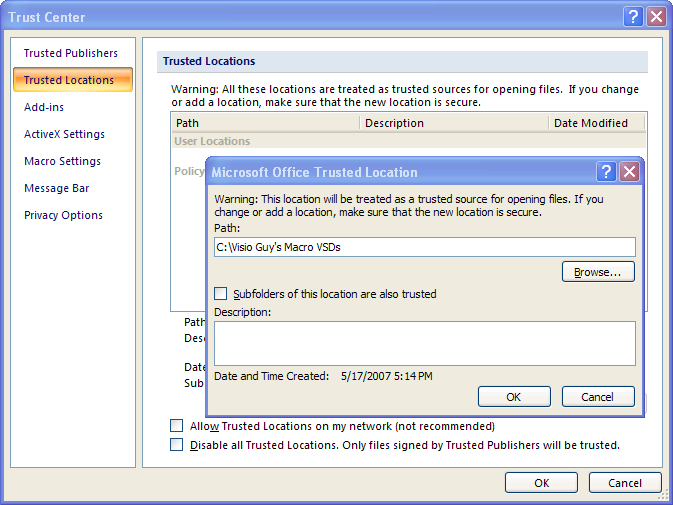
click to view larger image
Note also the handy-dandy subfolders check box in the path-entry dialog box. This allows you to set up an entire Good Guy Macro-document Location on your machine, where all macros are benign and benevolent.
Summary
Visio 2007 seems to offer more features regarding macro security than Visio 2003. I’m sure that Microsoft were faced with loads of security issues that I haven’t considered or would necessarily even fully understand. It seems that the new method is more flexible, and is surely more secure.
However, I personally like the Visio 2003 flow better, because it allows lazy hackers like me to be safer. I didn’t find it difficult to click Enable or Disable every time a macro’d document was open, because MS put the dialog right in my face, when I chose the Medium setting.
With Visio 2007, it seems likely that a developer would set, say, the Desktop and all sub-folders as a trusted location, and then haphazardly drop a document from an e-mail to that location and open it. In this case, they won’t get any warning about the macros, and they could possibly get bitten. It would be nice to still have the ask me every time option.
With the new setup, users need to be disciplined enough not to defeat the system too widely — with trusted locations that are too general. They also have be disciplined enough to place unknown documents in non-trusted locations. I imagine that opening a document from an e-mail is the same as opening from an untrusted location, but I haven’t researched this yet.
I do like the fact that with good habits, Visio 2007 will allow you to do less. You can easily get rid of macro-warnings for all of your trusted files.
More on Macro Security
Enable or disable macros in Office documents Covers all the options involved in Trust Center, and highlights the differences in macro security between the various Office 2007 applications.
Todo…
Some items that might make this article more complete:
- Discuss the other tabs under Trust Center: Trusted Publishers, Add-ins, Active-X Settings, Macro Settings, Message Bar, Privatcy Options. What they are, where they were buried in older versions, if they existed at all, etc.
- More about Digital Signatures and how to obtain a certificate. Obvious places to start: VeriSign.
- More links to “Office Security”, links to information about Microsoft Office solution-distribution and deployment.

This is a test of the Visio Guy commenting system. The bloggers of your area, in voluntary cooperation with Federal, State, and Local authorities, have developed this system to keep you informed in the event of a comment. If this had been an actual comment, the attention signal you just heard would have been followed by news and instructions. This system serves the http://www.visguy.com area. This concludes this test of the Visio Guy commenting system.
In Visio 2003, I get warned of macros, but there are no macros in the document. How can I find out what is causing the warning and eliminate it?
Hi Gary,
Is your document opening with other stencils? Some of the stencils might have some VBA code.
Also, sometimes a project with virtually nothing in it still “counts” as a project. I just tried this in Visio 2007, maybe it’ll work in 2003:
1. Delete everything in the ThisDocument module (use Ctrl + A to Select All, then delete)
2. Close the ThisDocument window
3. Save
That should clean out your VBA project so you don’t get the macro warning any more.
– Chris
I have download and unzipped the Circular text generator (V1) but there is no ‘File’ menu button – ????
Hi, I am trying to save/create a macro, but after clicking alt+F8 all options are grayed out. In the Trust center, I have added the folder where the file is located to the trusted locations, enabled all macros, and checked “trust access to the VBA project object model”, closed Visio and opened it again. I also cannot access the VBE. I’m using Visio 2007 (activated) in Developer Mode. Any ideas why I can’t create any macros? Thanks for your help!
Hi Edgar,
I think that is how Excel and Word work, but Visio doesn’t have a “central repository” of macros or a Normal.dot-like structure.
The macros you use have to be in the Visio drawing that is open (or one of the Visio files that is open, really)
You could have a document called “General Code” full of all your macros, and just open that with any drawing you need to work on.
Thank you Visio Guy. I think my issue is that I cannot create any Macros because the option is greyed out, even if I start a brand new Visio document. I have a script in a text file that I was trying to edit in the VBE, but I can’t start the VBE or record a Macro.
What happens when you press “Alt + F11”?
Your security settings might be on “High” or your network administrator has turned off macros for Visio. Do you work for a big company that locks down computers?
Nothing happens on my computer. On other computers in the office the VBE opens, just not on mine. We have system administrators but I am also an admin on my computer. Do you know how I can enable VBE on my computer? Are there other security settings to modify other than Macro settings in the Trust Center?
Thanks again!
Thank you thank you for this tip. I have been bombarded by so many Visio macro messages each time I open my documents, and forced to click “enable” so many times that the frustration has become second nature! For the first time in over a year I just opened a vsd pain free… I’m in shock!
Hi JK,
I know the feeling! When I work on a project for a customer, I add the project-directory to the “safe macro” list, and it is like a breath of fresh air, absolute heaven, to not have that darn warning pop up every time!
– Chris
Hello everyone,
I recently download Visio 2007 to do some assignment for my class. But I do not see “Database” tab all I have is following:
File, Edit, View, Insert, Format, Tools,Data, Shap, Window and help. And of course help does not help in this situation. Is anybody know why I am missing “Database” tab?
Thank you
Data is available only with Visio 2007 Professional and 2010 Pro or Premium. Perhaps you have Standard?
QUESTION:
Is there a way to permanently brand or watermark a Visio document/template prior to distribution such that the actual information, shapes, etc on the template could be altered – but the permanent brand/watermark could not be deleted or altered??
This would allow for the distribution of Visio templates which would be permanently marked as “different” from the original file – but allow recipients to alter the components of the Visio document/template.
Hi Ed,
Three ways to do this:
1. Printer settings often have a watermark option, might not be what you need though.
2. Background pages: put a watermark on a background page, then assign the background to the foreground. User will have to do a bit of futzing to get rid of this.
3. Use layers. Make a “watermark” shape. Assign it to a layer. Lock the layer so the shape can’t be moved or selected. Only drawback is that shapes can be “brought to front” or “sent to back” so they can appear in front of and behind the watermark. But this will work fairly well.
Hello to every body, it’s my first pay a quick visit of this web site; this weblog consists of remarkable and really good stuff designed for readers.
Hi VisioGuy,
A challenge for you 🙂
My Case:
I have an Access Application for multiple users, calling a Visio Template file with macros – the file open and my code runs and the diagram is complete; I need to save as “.vsdx”, it’s not working.
It should be given that, having Visio able to except VBA, then common operations should be enabled and easily accessible, all true but one operation is where I need your help in – I have a Visio template with code to link data and draw shapes on a new Drawing1 by default; all good until one try to “SaveAs”. This is where I found this articular hoping to find an answer,, but none so far… Please help, Thanks!
Code:
ThisDocument.SaveAs (“” & myPath & myVisFile & “”)
Error:
Run-Time “-2032465727 (86db08c1)’:
VB projects connot be saved in macro-free files
(continuation)
To save time – I just read further here that; code is not saved when saving to “.vsdx”; great that is what I want anyway, my code is in a Template – it is the product of the template is where I need to save but getting the error above, Thanks!
Hi Abeiis, if you want the macros saved, then you need to save as .VSDM.
Visio doesn’t do templates the way Excel does. The code is saved in EVERY copy of the drawing. There is no “Normal.DOT” where new copies of templates can look for code.
For this reason, we usually put code into stencils that open with the templates. Templates are the palettes on the left that usually contain shapes, but can also contain macro code.
By placing code in a stencil, you stop “code proliferation”, where you have 100s or 1000s of copies of the code, which may be out of date. You can update the code by sending users a new stencil, which the drop into Explorer over the old version. Templates and drawings will the open with the new version of the stencil, and the code.
The only drawback is that users MUST have the stencil open in order to get the functions in the VBA code.
Cheers,
Chris