 We’ve got more New & Improved Visio SmartShapes for you today! Today’s download contains the new flavors of the marketing shapes: Triangle & 3-D pyramid. The new shapes allow you to show up to 10 or 20 levels, have improved usability and automatic coloring.
The Triangle and 3-D pyramid shapes that ship with Visio only allow you to add 5 and 6 levels, respectively. These shapes are found on the stencil: Charts & Graphs > Marketing Diagrams. Over the years, I’ve seen several requests to add more levels(!!!) This isn’t trivial to do for developers, and is out of reach for Visio end-users. So I’ve created four shiny new shapes for you to use.
Here’s a little sample of what you can do with them:
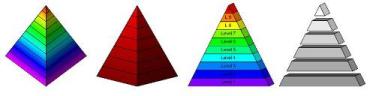
You can change the angle on the pyramid and the 3D projection on the triangle by simply pulling on a yellow control handle. Also, there’s auto-magic coloring — you just select a top color and a bottom color, and the shapes do the rest.
One technical note: Keep in mind that these shapes work by hiding unneeded levels, not by deleting them or magically creating them on the fly.
So if you “only” need 9 levels, your drawing will by smaller if you use one of the “10” shapes, instead of one of the “20” shapes.
Hope you all enjoy these shapes, and that your marketing diagrams become truly spiffy!
Download “Visio Marketing Pyramid Shapes”
s!Aj0wJuswNyXlhyKGNhH3Z6BZ_TiI – Downloaded 8408 times – 103.00 B
Hello!
Thank you for the triangles! I have one question about the colors. I’d like to give each level a color that i can pick myself. Now it uses auto coloring, but I can’t find a way to turn it off.
Thank you! Harald
Nice comment, Harald!
I’ve uploaded a new file, which fixes a bug in one of the masters (wrong shape!) and adds four more “manual format” shapes.
Hope these help. Also, I’m considering making the right-side shapes automatically be a darker shade of the left-side shapes. Not sure if that’s what folks want or not, though.
– Chris
Very helpful. Thank you!
I was just looking for pyramid with more than the default six layers.
However with these pyramids when I turn them upside down (rotate 180 degrees) my rotated (also 180 degrees) text blocks move one layer down. (??)
so in the end my upside down pyramid top layer has no text and the bottom layer’s text hangs below the pyramid shape.
Is there a solution to keep rotated text in the correct rotated pyramid layer (instead of one layer beneath it)?
Hi Rianto,
I’ll have to get around to fixing this one of these days. I didn’t realize that people would use them upside down.
Unfortunately, I can’t see an easy solution, but here are the steps. It isn’t hard to do, but you have to do it for each bar.
For each bar in the pyramid:
1. Sub-select the bar
2. Go to: Window > Show ShapeSheet
3. Right-click and choose: Insert Section…
4. Check: Text transform
5. Find the Text transform section in the ShapeSheet
6. For the TxtAngle cell, type: -Sheet.264!Angle.
Note: You’ll have to figure out the “264” part for your shape. Just look for the numbers at the top of the ShapeSheet in the Width and Height cells.
7. For the TxtPinY cell, type: Height*0.5
8. For the TxtLocPinY cell, type: TxtHeight*0.5
Hi guys. I need a favor. I’m trying to create a new ‘food pyramid’ for a raw/vegan approach. Unfortunately, I only have visio 2002; can’t afford an upgrade yet.
Any chance I can get one of you lovely folks to save the pyramid shapes here as an older version?
Much appreciated if anyone can lend a hand.
Cheers,
Skip Stein
IQ-Home
http://www.iq-home.com
Hi VisioGuy
Shapes look most kool I have attempted to register to access but no email as yet.
Is there a problem at all???
Thanks
Hi James,
Stuck in your junk mail/spam filter? The email will come from the visguy.com domain, so that needs to be allowed. Might help to register with a hotmail or gmail account in case your company is blocking my domain.
Hi, VisioGuy:
Can you give me the steps for changing the colors on the 3D triangle?
Thank you!
Cindy
Hi Cindy,
You have to get to the Format dialog. Look for “Change Colors…” or “Format…” in the right-click menu. Then you control the start and end colors by changing the “Color” and “Pattern Color” in the dialog.
You can’t change individual bar colors, just the start and end colors. The in-between colors are interpolated automatically.
If you are using Visio 2013, then this probably doesn’t work as described anymore. I haven’t had time to test this in the latest version of Visio, but Microsoft have significantly changed the look of the formatting user interface.
I love this stencil, but I have a problem. When I try to change the page size to Fit to Drawing, the pyramid is moved to the top middle of the page and the size doesn’t change. There doesn’t appear to be anything else on the page.
Hi LS,
This happens because the hidden/unused levels of the pyramid extend off the bottom of the shape, and Visio respects these when resizing the page. I built this shape a long time ago, before I added the technique of collapsing hidden geometry.
You can work around this by holding down the Ctrl key and mousing over the edge of the page. When the cursor changes to resizing arrows, you can left-click + drag the size of the page to any dimensions you want!